

How to navigate the Function Menu
Esta página aún no está disponible en tu idioma.
After you log in to your account on baplieviewer.com, use the Function Menu on the left side of the screen to go to the features of the website. It has tabs. Click a tab to open its options. This guide describes each tab and each option.
Note: the view and edit options appear only after you upload a BAPLIE file.
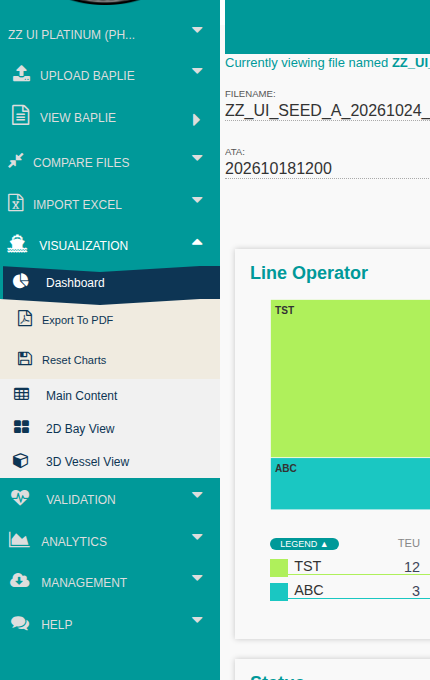
Your Facility
Section titled “Your Facility”The first tab shows the name of your facility. It has two options (orange frames in the picture).
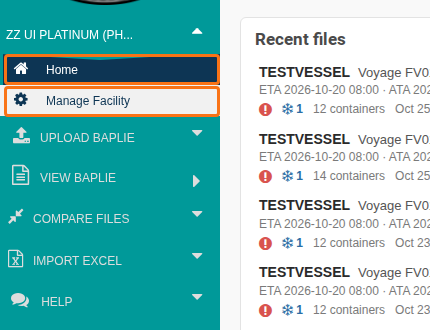
Home
This page opens when you first log in to BAPLIE Viewer Online. It shows your Recent files.
The main user or administrator of the facility account uses this section to change settings, buy a membership and invite team members.
Click the Upload BAPLIE tab. The upload page opens.
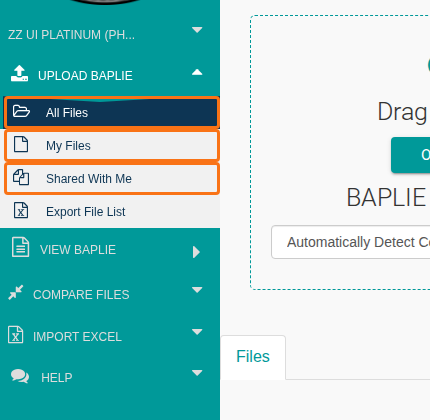
All Files
This is the default. It shows the files you uploaded in the last 7 days. It also shows files that other users in your facility shared with you.
My Files
This shows only the files you marked as private.
Shared With Me
This shows only the files that other users at your facility shared with you.
Export File List
This option exports the list of files.
Note: BAPLIE Viewer Online keeps files for 7 days by default. You can change the number of days before files are deleted automatically (1 to 90 days). Open Manage Facility under your facility tab. Then click Facility Settings.
View BAPLIE
Section titled “View BAPLIE”Click the View BAPLIE tab to see a list of files you uploaded before. Choose the file you want to open for viewing and editing.
Facility Files
This is a full list of the files that were uploaded or shared in the last 7 days. The time can be longer if you changed the settings.
Use this tab to compare two BAPLIE files you uploaded before. Choose the files in the drop-down lists. A list shows all additions, deletions and different container positions in the two files. You can download this list as an Excel (.xls) file.
Use this tab to create a new BAPLIE file from the data in an Excel (.xls) file. You need only the Excel file.
Visualization
Section titled “Visualization”Click the Visualization tab to see your BAPLIE data in different ways. When you click View BAPLIE and choose an uploaded file, the Dashboard opens in the Visualization tab.
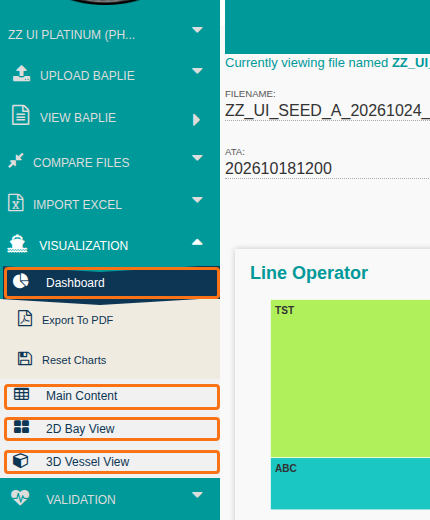
Dashboard
This is the default screen for your BAPLIE data. It shows important information, such as the total container count, charts of data points that are often used, and a message if the data has anomalies. When the Dashboard is open, Export To PDF and Reset Charts also appear under it.
This screen shows the BAPLIE data as a table. In the table you can view, edit, add and delete records. You can also change the order of the columns, which columns are visible, and the filters of the columns.
This view shows a drawing of the bays. It reads the BAPLIE file to find the maximum number of bays and the widest column. It uses this to draw the vessel. So the view scales for the smallest ship and for the largest ship.
This option shows a realistic 3D model of the vessel. You can zoom in to any container, look at the vessel bay by bay, or filter the results to see specific bays.
Validation
Section titled “Validation”Click the Validation tab to see and fix errors where the data does not meet the SMDG specification.
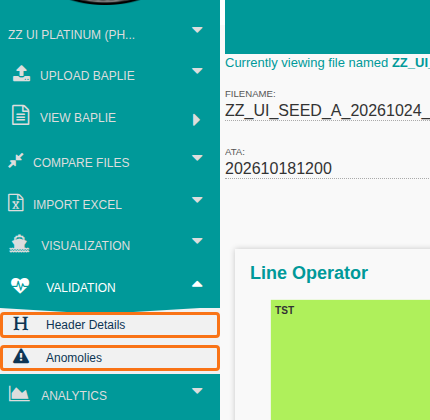
This option shows the BAPLIE header information and lets you edit it. The system checks the header when the page opens. Errors in the header are highlighted for you.
This option checks if data in your file does not follow the SMDG specification for BAPLIE. The tables are made automatically. They also show if more than one unit is in the same position and if a container may be floating.
Analytics
Section titled “Analytics”Click the Analytics tab to see and download summary reports.
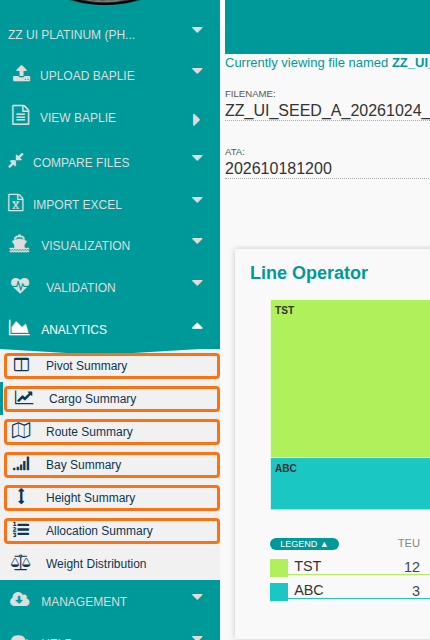
This option shows a pivot table of your BAPLIE data. You can change the pivot table to fit your business and save reports for later.
This option shows a summary page for the whole vessel, by carrier, by port of discharge and by port of load.
This option shows a summary page with the cargo counts by route. It includes the total counts for units, weight, special handling and size.
This option shows a summary page with the cargo counts by bay. It includes all carriers for the bay and the total counts for units, weight, special handling and size.
This option shows a summary page with the height of the cargo above deck for all bays.
This option shows a summary page with the cargo counts by carrier. It includes the use of VGM (verified gross mass) or non-VGM weights, TEU (twenty-foot equivalent unit) counts and the number of reefers. You can add your own allocations and see the percentage of use.
Weight Distribution
This option shows the weight on the port side and on the starboard side of each bay, and the difference between them.
Management
Section titled “Management”Click the Management tab for the final actions on your file, after you finish viewing and editing.
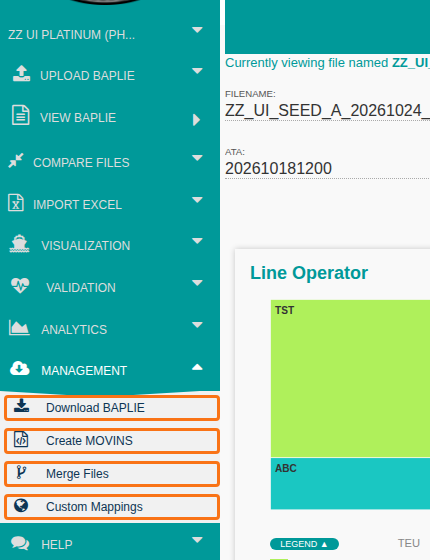
This option downloads the changed BAPLIE file to your computer. Use it when you have finished your changes.
This option changes a BAPLIE file into a MOVINS file.
This option merges the data of one BAPLIE file into another BAPLIE file.
This option lets you replace UN/LOC codes (United Nations location codes) and ISO codes with your own values.
Click the Help tab to read the how-to guides, to change your account settings or to contact support.
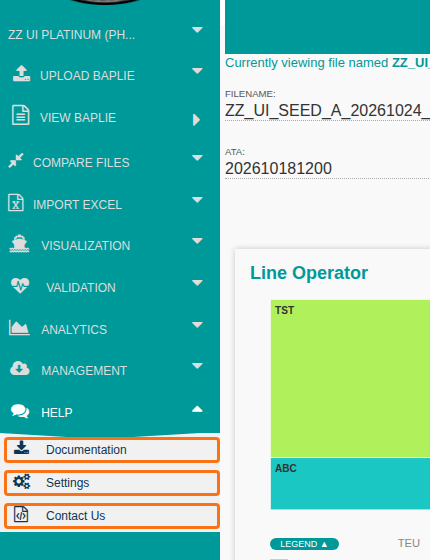
Documentation
This option opens the Knowledge Base section of the website. There you can read how-to guides for each feature. You are reading one now.
Settings
This option lets you change your account settings. A menu opens on the left. In it you can upload a profile picture, change system settings, change your password or delete your account.
Contact Us
This option shows a text box with your account details already filled in. Use it to write to our support team. After you send the form, you can expect an answer within 24 hours. The time depends on the day of the week and the time of day.
Guide Me
Section titled “Guide Me”On any page of baplieviewer.com, this option shows a window that explains how to use the page and its features. It helps when you are new to the website.
Your Profile
Section titled “Your Profile”Your name appears in the bottom left corner of the screen. Click it to open your settings. These are the same settings as in the Settings option under Help. You can also log out of your account there.