

How to navigate the Allocation Summary
Esta página aún no está disponible en tu idioma.
The Allocation Summary shows how much of the vessel each carrier uses. It shows utilization by weight (VGM or non-VGM), by TEU (twenty-foot equivalent unit), by reefers (refrigerated containers) and by hazardous cargo. You can enter the space allocated to each carrier, and the report shows the percentage used. You can also export the tables to Excel.
Use the Allocation Summary to see how much of the vessel each carrier uses. The report is for liner shipping users. When carriers share a vessel (alliances and riding lines), it is hard to calculate how much space each carrier uses. Slot allocation helps you use the vessel space well.
Open the report
Section titled “Open the report”- In the Function Menu on the left, click Analytics.
- Click Allocation Summary. The Carrier Allocation Tables page opens. It has two tables:
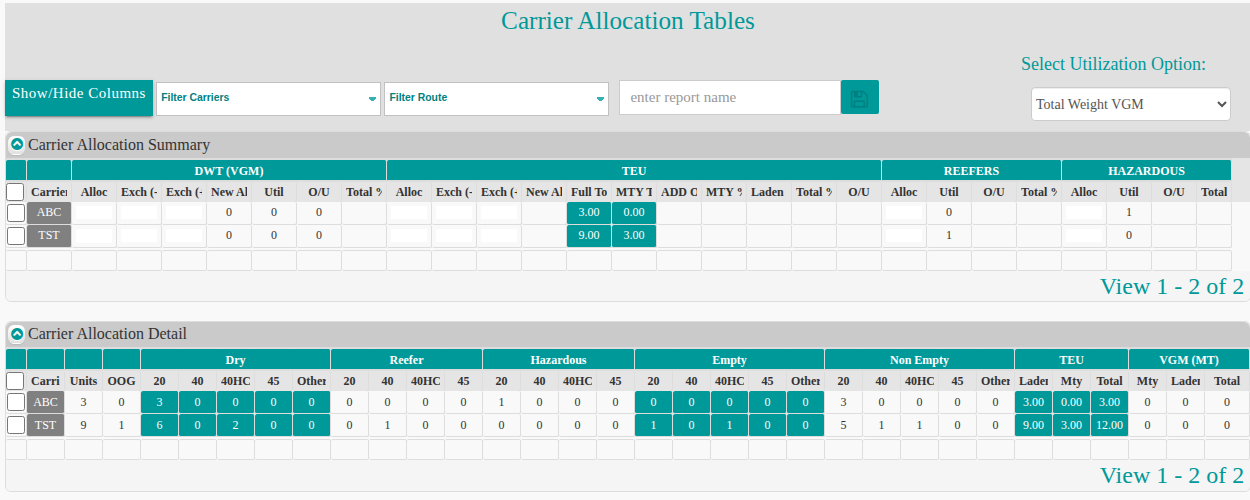
- Carrier Allocation Summary – one row for each carrier. The column groups are DWT (VGM), TEU, REEFERS and HAZARDOUS.
- Carrier Allocation Detail – the units of each carrier by size (20, 40, 40HC, 45 and Other), split into Dry, Reefer, Hazardous, Empty and Non Empty. It also has TEU and VGM (MT) totals. OOG (out of gauge) units are counted too.
Use the buttons and filters
Section titled “Use the buttons and filters”In the picture below:
- Export options – in the Function Menu, under Allocation Summary: Export Summary and Export Details. Click one to download the table as an .xls file.
- Select Utilization Option – at the top right. Use this dropdown to change whether non-VGM or VGM weights show in the summary table. The picture shows Total Weight VGM.
- Show/Hide Columns – at the top left. Tick or clear the columns that you want to show or hide. Then close the window to see the updated table.
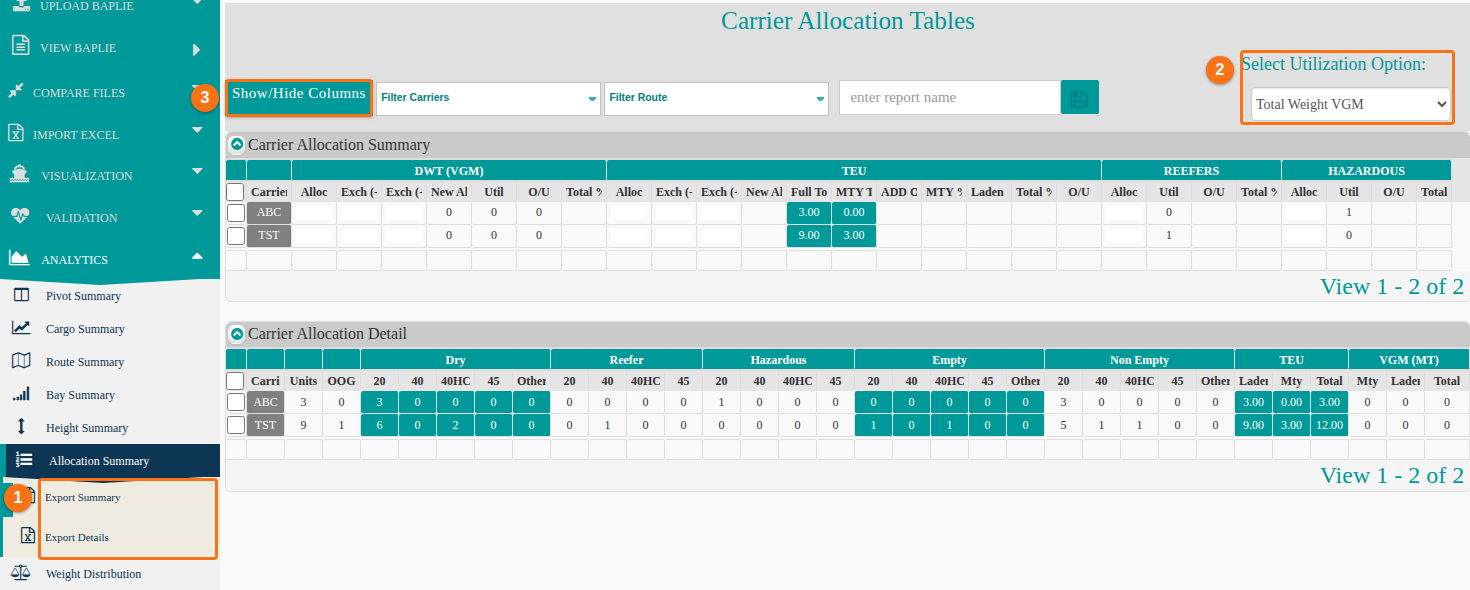
The page also has Filter Carriers and Filter Route dropdowns, and a field named enter report name with a save button.
Enter the allocations
Section titled “Enter the allocations”Before you start: open the Carrier Allocation Tables page (see Open the report above).
- Look at the weight section (DWT (VGM)). Choose Total Weight or VGM Weight in Select Utilization Option (2 in the second picture).
- In the Alloc column, enter the weight that was allocated to the first carrier. Enter any exchanges that apply. The report calculates the Over/Under (O/U) and the total percentage (Total %).
- Do the same for each other carrier.
- Look at the TEU section (TEU). For each carrier, enter the allocated TEU and any exchanges. The report calculates the empty percentage, the laden percentage, the total percentage and the Over/Under.
- Look at the reefer section (REEFERS). For each carrier, enter the allocated number of reefers. The report calculates the Over/Under and the total percentage.
- Read the Carrier Allocation Detail table. It shows all units by size for Dry, Reefer, Empty and Non Empty. It also shows OOG, TEU and weight.