

How to navigate the Bay Summary
Esta página aún no está disponible en tu idioma.
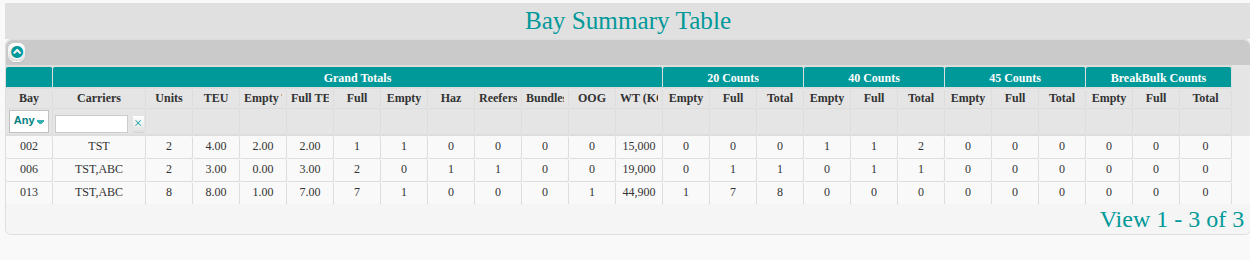
The Bay Summary shows cargo counts for each bay. Use it to see the carriers in a bay and the totals for units, weight, special handling and size. You can export the table to Excel.
Open the report
Section titled “Open the report”- Upload a file, or open an earlier file.
- In the Function Menu on the left, click Analytics.
- Click Bay Summary. The Bay Summary Table opens. It has one row for each bay.
What the table shows
Section titled “What the table shows”The columns are in groups:
| Group | What it shows |
|---|---|
| Bay and Carriers | The bay number and the carriers in that bay. |
| Grand Totals | Units, TEU (twenty-foot equivalent unit), empty and full counts, special handling (Haz, Reefers, Bundles, OOG) and weight (WT). |
| 20 Counts, 40 Counts, 45 Counts | Empty, Full and Total for each container length. |
| BreakBulk Counts | Empty, Full and Total for breakbulk (cargo that is not in containers). |
Filter and export
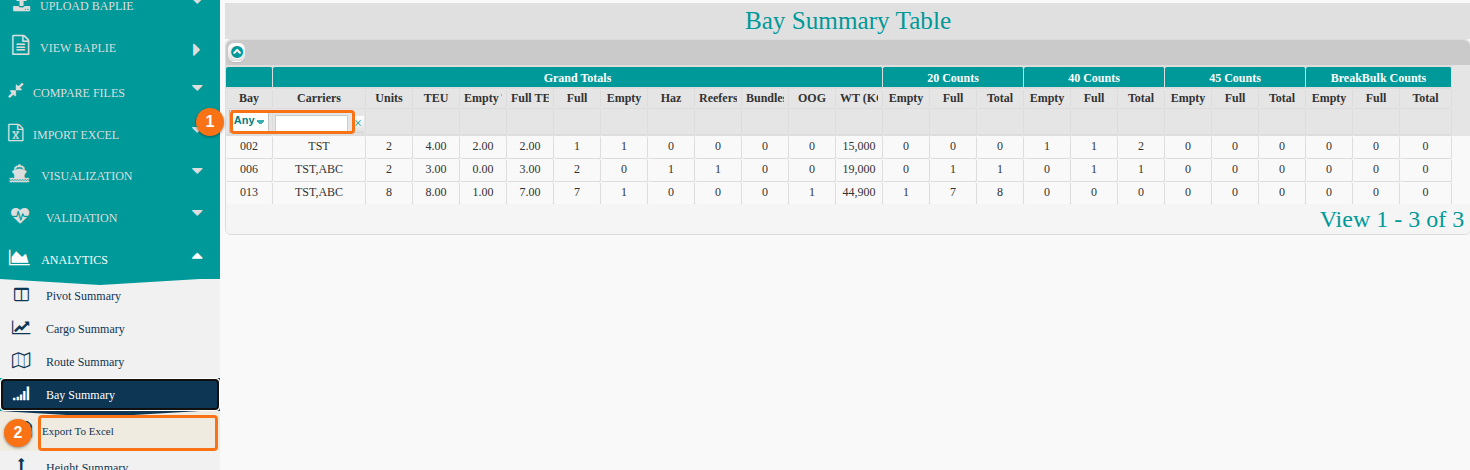
Section titled “Filter and export”- To filter by bay, use the dropdown in the Bay column (1 in the picture below). It shows Any at the start. Choose a bay. To remove the filter, choose Clear in this dropdown.
- To filter by carrier, type a value in the box in the Carriers column (1). Click the x next to the box to remove the filter.
- To export, click Export To Excel in the Function Menu, under Bay Summary (2). An .xls file downloads.
Good to know
Section titled “Good to know”- Click any row to highlight it.
- Below the table, the text View 1 - 3 of 3 shows how many rows the table has.