

How to upload a BAPLIE file
Use this guide to upload a BAPLIE file so that you can view it.
Before you start: have the file on your computer or in a network location. The file must be a .BAP, .EDI or .TXT file.
- Log in to baplieviewer.com. The home page opens. The Function Menu is on the left side of the screen.
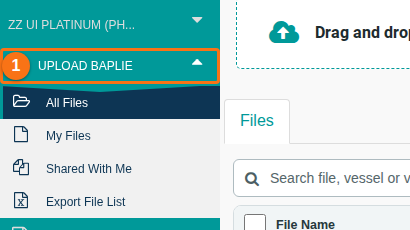
- In the Function Menu, click Upload BAPLIE under the name of your facility (1 in the picture). The menu shows All Files, My Files, Shared With Me and Export File List.
-
Look at the Upload BAPLIE page. The table below explains each part. The numbers are the numbers in the picture. The Files tab lists your files with the columns File Name, Vessel, Prep, Cargo, Tags, Access, Lifecycle and Actions.
Picture Part What it shows 1 Upload area The upload area: Drag and drop, the Or Select button and the drop-down list BAPLIE files to view 2 Vessel details The Vessel column: vessel name, voyage and direction 3 Access The Access column. Its toggle shares the file with your facility. 4 Lifecycle The Lifecycle column: when the file was last edited and the days left, for example 30 days left 5 Actions The Actions column: the icons for each file (open, tags, share and a menu with three dots). The three-dot menu has Edit File Name and Delete File. Not in the picture Guests badge A badge, for example 1 guest. It shows that the file is shared with guests.
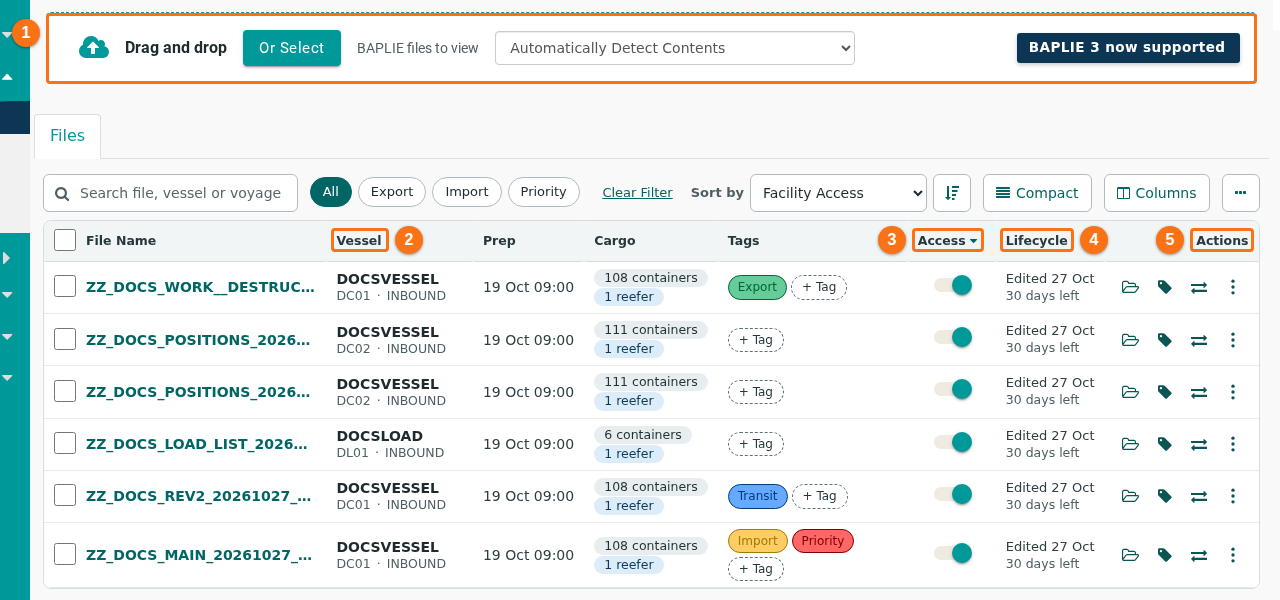
- Choose how BAPLIE Viewer Online reads the file. Usually, keep the default option Automatically Detect Contents. The system then finds the type of EDI file by itself. Change this only if needed. For example, the header of the EDI file may have a problem. Then the website cannot see that the file is a BAPLIE or which BAPLIE version it is. In this case, choose Force to read as BAPLIE 2.0 in the same drop-down list (highlighted in the picture).

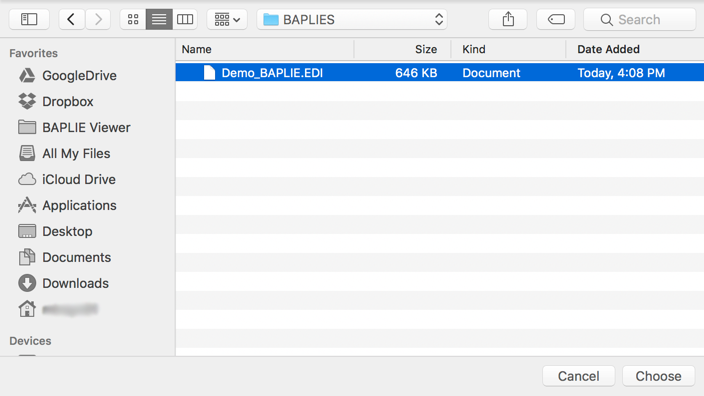
- Choose the file. Drag the file into the upload area, or click Or Select (highlighted in the picture). Then choose the BAPLIE file on your computer or in a network location.

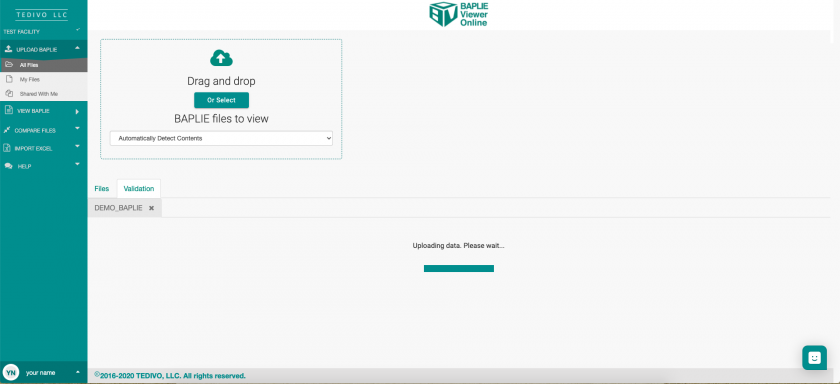
- Wait while BAPLIE Viewer Online reads the file. It uploads the file to our servers and checks that the file is a .BAP, .EDI or .TXT file. Then it reads the contents and finds out which EDIFACT EDI file you uploaded.
- Read the Validation Results.
If validation fails
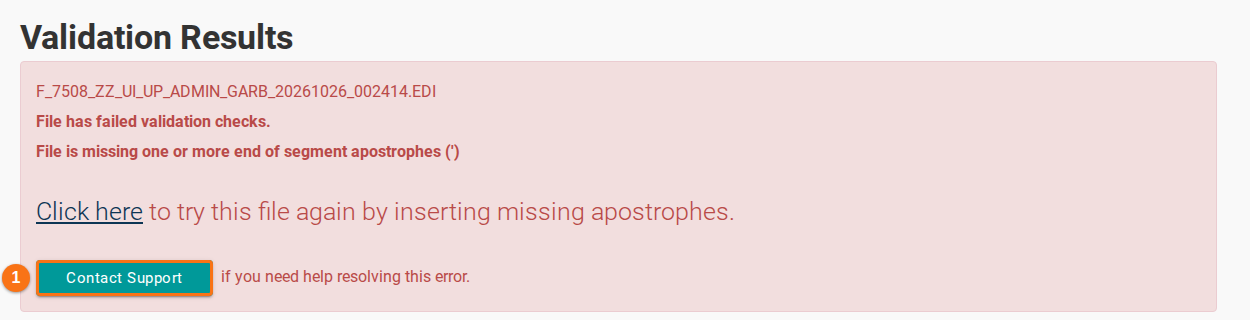
Section titled “If validation fails”BAPLIE Viewer Online tells you that the file failed and tries to explain why. The content of the file must follow the BAPLIE EDIFACT specification of SMDG.org.
If the reason is a missing segment, you can use the Click here link on the page. See How to fix missing segments.
If you cannot find the reason, click Contact Support (1 in the picture). Create a ticket. A member of our team checks the file and explains the reason.
If validation passes
Section titled “If validation passes”The file is a BAPLIE file and its content follows the SMDG specification for that BAPLIE version. Click Click Here To View File (1 in the picture) to open the file. The page also has the buttons Edit File Name and Add File Tags.
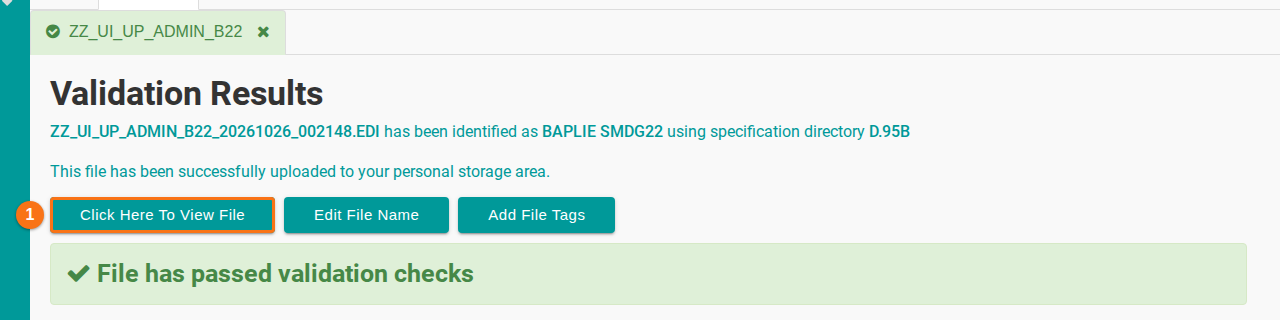
After validation passes, the file is stored on the Files tab of the Upload page.
Your uploaded files
Section titled “Your uploaded files”On the Files tab you can select an uploaded file to view it. You can also share, delete or download files from this tab.