

How to use the Find Multiple button
Esta página aún no está disponible en tu idioma.
Use this guide to find several containers at the same time. You paste or type a list of container IDs, and the table shows only the matching containers.
Before you start: upload a file and open it.
- In the Function Menu, open Visualization and click Main Content. The table with the file content opens.
- In the Function Menu, click Find Multiple (1 in the picture). A search box opens above the table.
- Type or paste the container IDs in the search box (2 in the picture). Put a comma or a semicolon between the IDs.
- You can enter full container IDs.
- You can also enter the first letters of an ID (a prefix, for example
BVO) or a part of an ID. The table then shows all containers that match these characters.
- Leave the drop-down at the left of the search box on Include.
- Click Search. The table shows only the containers that match.
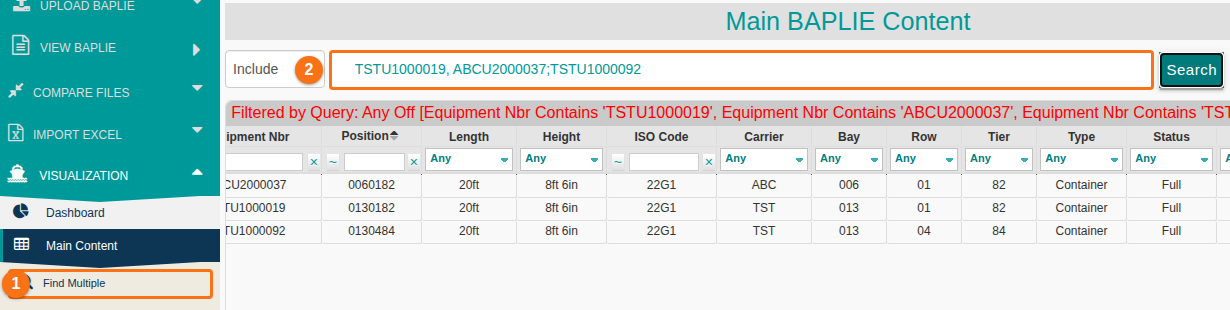
Note: the drop-down at the left of the search box has an Include choice and an Exclude choice.