

How to show or hide the filter bar from the Main Content screen
Esta página aún no está disponible en tu idioma.
Use this guide to show or hide the filter bar on the Main Content screen. The filter bar is the row of filter boxes above the table. It helps you find data in a column quickly.
Before you start: upload a file and open it.
- In the Function Menu, open Visualization and click Main Content. The table with the file content opens.
- Look at the bottom of the Function Menu. When the filter bar is shown (2 in the picture), the option is Hide Filter Bar (1 in the picture).
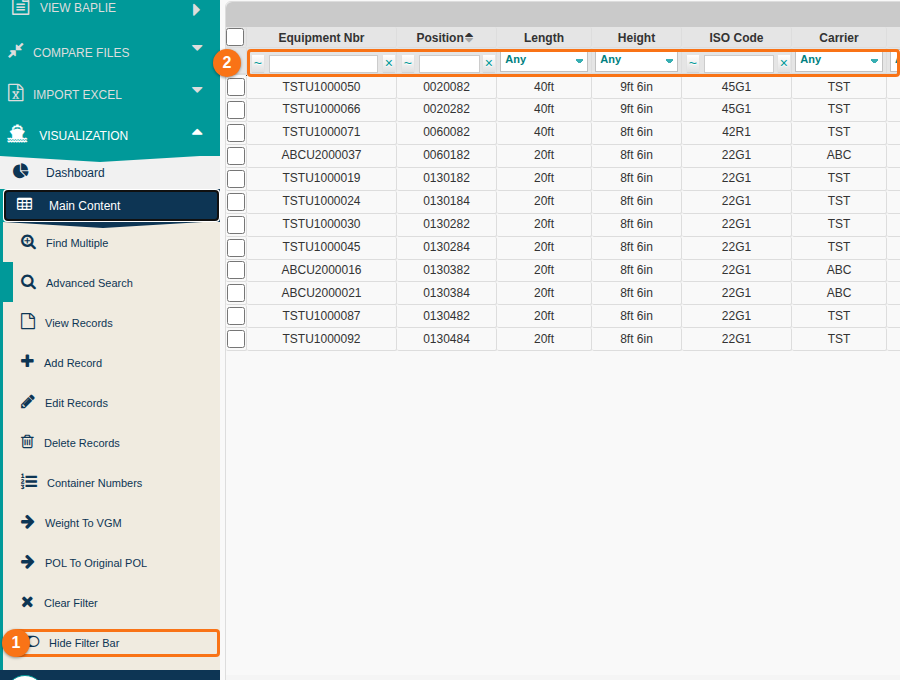
- Click Hide Filter Bar. The filter bar disappears. The option changes to Show Filter Bar (1 in the picture).
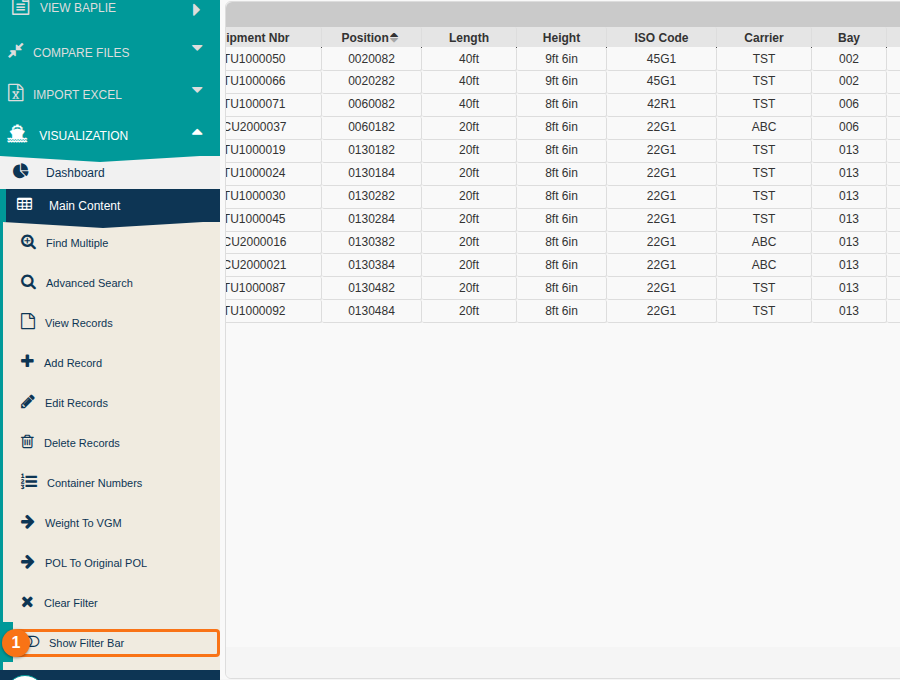
- Click Show Filter Bar to show the filter bar again.
To learn more about the column filters, see How to apply a column filter.