

How to edit one or more records
Esta página aún no está disponible en tu idioma.
Use this guide to change the details of one or more container records (rows) in a BAPLIE file that you have uploaded. You can change one record, or change the same fields in many records at once.
Before you start: open your file. You need the Edit permission for the file.
Prefer to watch a video? See our YouTube channel: https://youtu.be/twQAZthLotY
Edit one record
Section titled “Edit one record”- In the Function Menu on the left, open Visualization and click Main Content (1 in the picture). The table of containers opens.
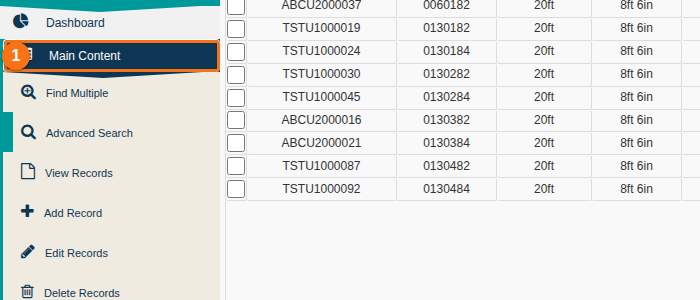
- Find the record. Use a query or a filter above the table if you need to. Tick the checkbox at the left of the record.
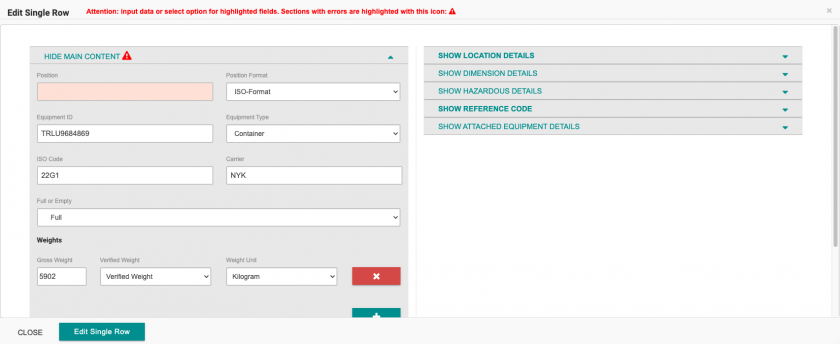
- In the Function Menu, click Edit Records (1 in the picture). The Edit Single Row window opens with the details of the record.
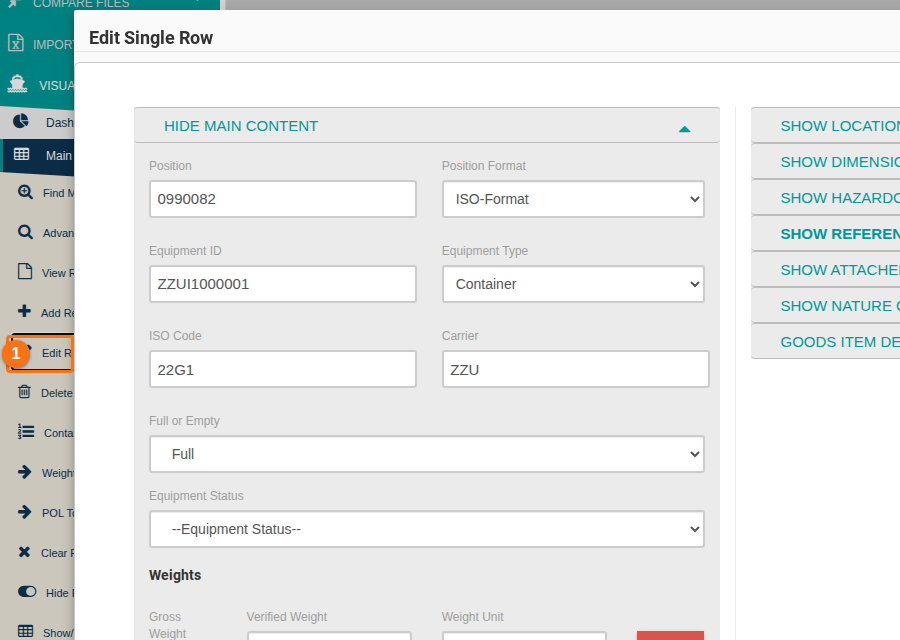
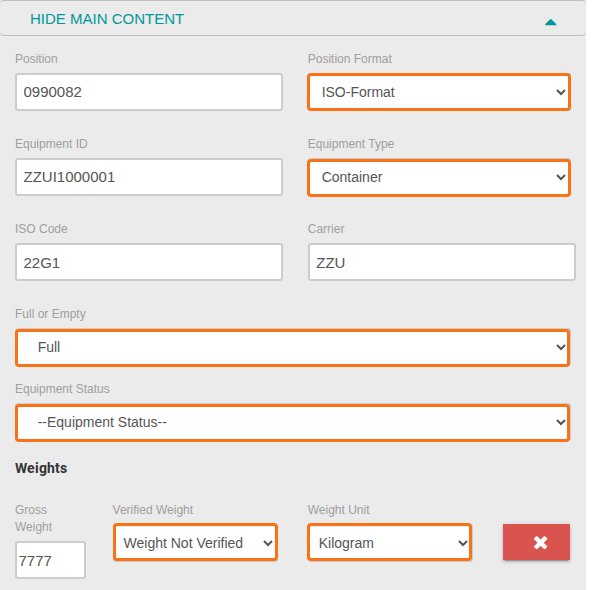
- Change the fields you need. A field that has only fixed values is a list (drop-down). In the picture, the orange boxes show these lists: Position Format, Equipment Type, Full or Empty, Equipment Status, Verified Weight and Weight Unit.
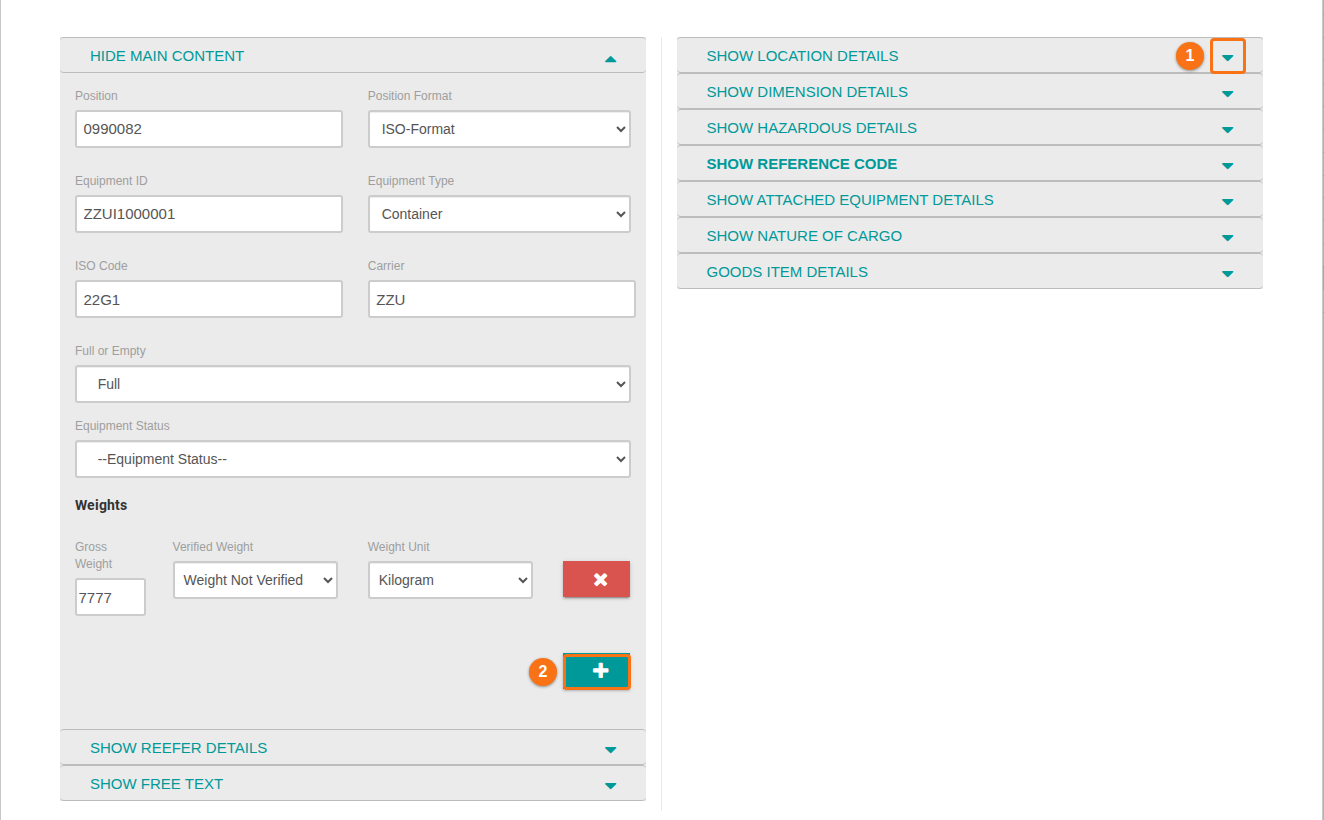
- To change a field in another section, click the header of the section or the arrow on its right (1 in the picture). The section opens. Click the header again to close it.
- If a section has no data, click the + button in that section to add details. In the picture, 2 is the + button that adds a weight.
- Click Edit Single Row at the bottom of the window (1 in the picture) to save the changes.
To cancel: click Close (2 in the picture). Your changes are not saved.

If a required field is empty or wrong, an error message shows. The changes are not saved until you correct the error.
Edit many records at the same time
Section titled “Edit many records at the same time”You can change a group of records at once. The changes are saved for all of them together.
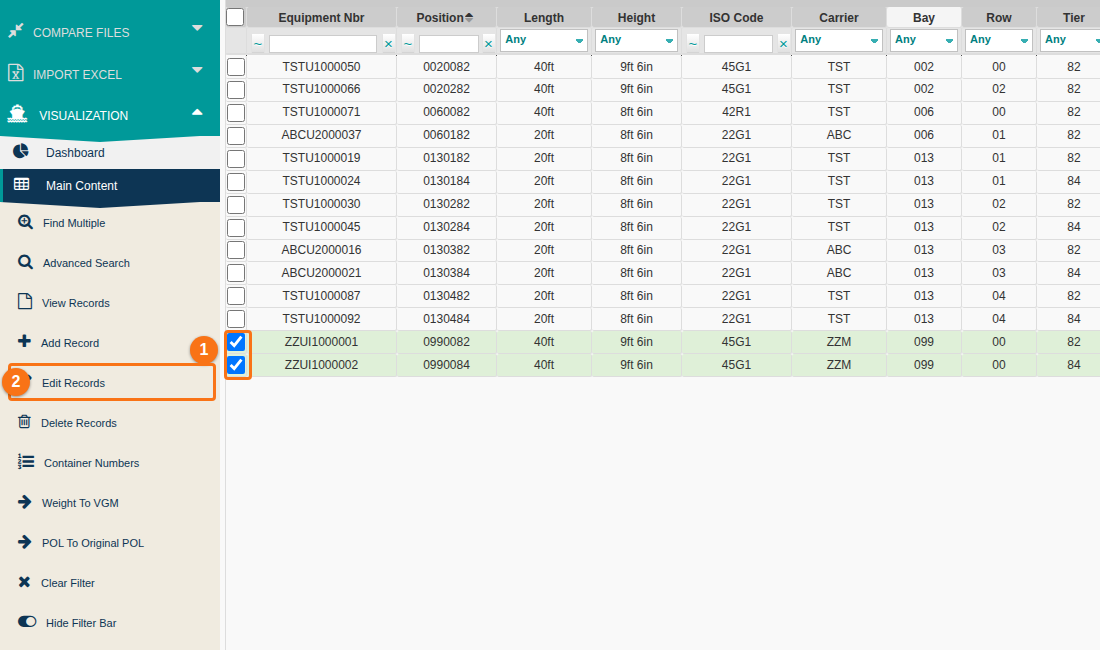
- On the Main Content screen, tick the checkbox at the left of each record you want to change (1 in the picture).
- In the Function Menu, click Edit Records (2 in the picture).
- Tick the checkbox at the left of each field you want to change. The field becomes editable.
- Change the values you need.
- Click Edit Multiple Rows at the bottom of the window.
Note: only the fields with a ticked checkbox change, and they change for all selected records. All other fields keep their values.