

How to manage your facility
Esta página aún no está disponible en tu idioma.
Use this guide to see what each tab in Manage Facility does. The main user or an administrator of the facility account can use these tabs. Changes apply to all user accounts of the facility.
Before you start: log in to baplieviewer.com as the main user or as an administrator of the facility.
Open Manage Facility
Section titled “Open Manage Facility”- Log in to baplieviewer.com.
- In the Function Menu on the left, click Manage Facility under the facility name. A list of tabs opens.
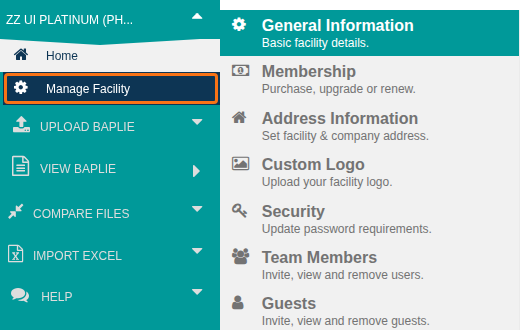
The list has these tabs. Click a tab to open it.
| Tab | What the screen says it is for |
|---|---|
| General Information | Basic facility details. |
| Membership | Purchase, upgrade or renew. |
| Address Information | Set facility and company address. |
| Custom Logo | Upload your facility logo. |
| Security | Update password requirements. |
| Team Members | Invite, view and remove users. |
| Guests | Invite, view and remove guests. |
| Temporary Logins | Create and enable temporary accounts. |
| Facility Settings | Update facility settings. |
| File Tags | Facility level file tags. |
| TEU Settings | Define TEU settings. |
| Custom Weight Groups | Specify custom weight groups. |
| Allowed Domains | Update allowed domains. |
| Vessel Designer | Link your facility account with a TEDIVO Vessel Designer Organization. |
| Developers | API documentation, keys and end points. |
The sections below explain the tabs that this guide covers. Temporary Logins has its own guide. Custom Weight Groups and Vessel Designer are not explained here. For Developers, see How to use the Developers tab.
General Information
Section titled “General Information”Click General Information to see basic facts about the facility. You cannot change them on this tab.
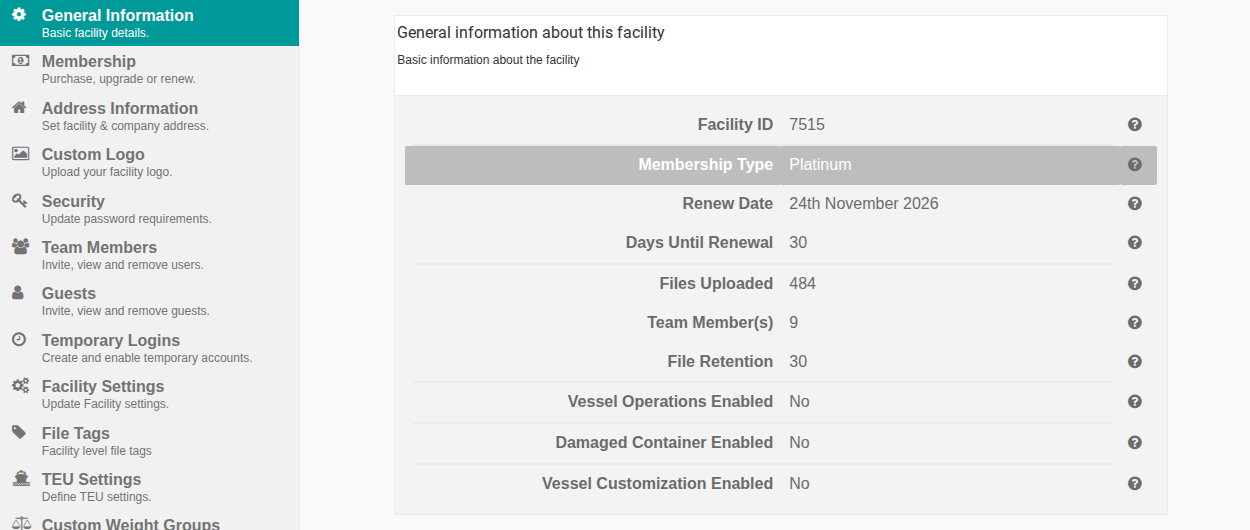
| Field | What it shows |
|---|---|
| Facility ID | A unique number given to the facility when the account was created. You cannot edit it. It is used only for internal purposes. |
| Membership Type | The current membership type of the facility. All user accounts can see it. |
| Renew Date | The date your current membership ends. After you renew, the date changes by the duration you chose at checkout. |
| Days Until Renewal | The days left until the renew date. |
| Files Uploaded | The total number of files the whole facility has uploaded since your membership began. |
| Team Member(s) | The number of users in the facility, including you. |
| File Retention | The number of days before a file is deleted. The default for new accounts is 7 days without activity. If someone edits a file, the count starts again. You can change this number in Facility Settings. |
| Vessel Operations Enabled | Shows Yes if your membership includes Vessel Operations. |
| Damaged Container Enabled | Enabled for certain enterprise customers. |
| Vessel Customization Enabled | Enabled for certain enterprise customers. |
Membership
Section titled “Membership”Use the Membership tab to buy, upgrade, downgrade or renew the membership of your facility. For plans and prices, see the membership tiers.
Address Information
Section titled “Address Information”Click Address Information to set the addresses that apply to all user accounts. The page has two sections.
- Fill in the fields in Update facility name and address and click Update.
- Fill in the fields in Update company details and click the second Update button.
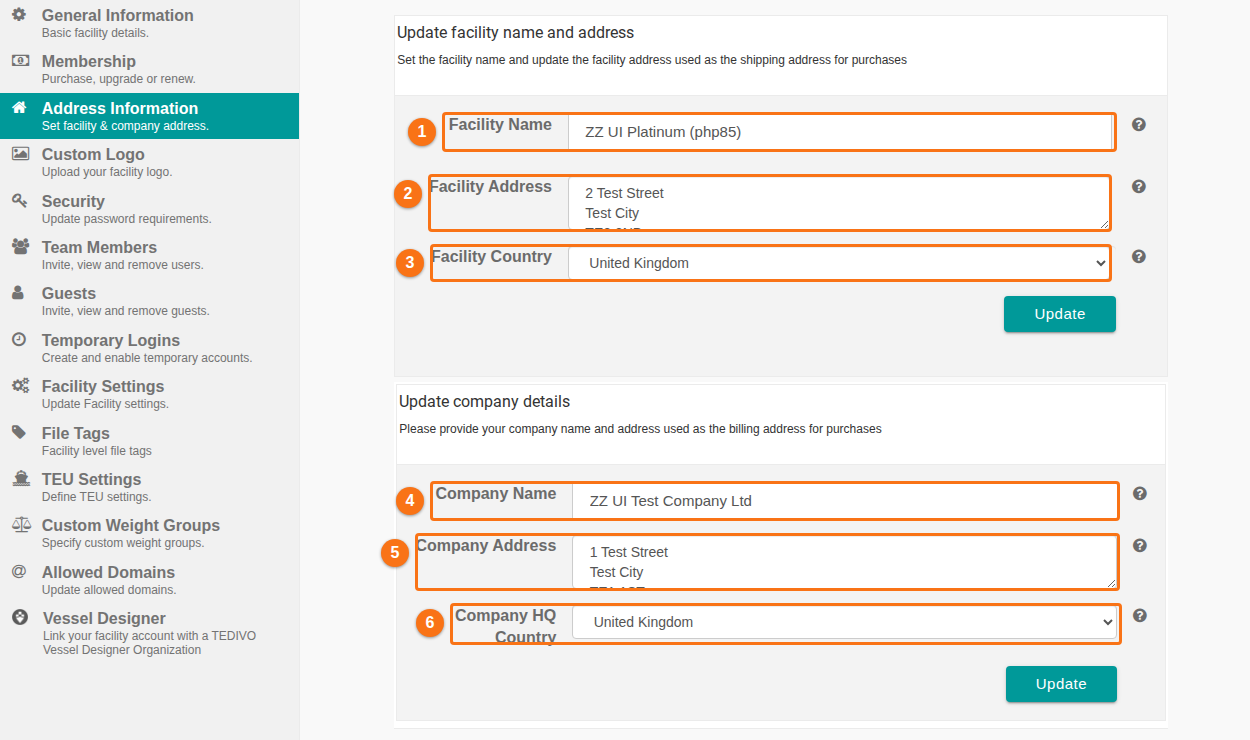
| Picture | Field | What to enter |
|---|---|---|
| 1 | Facility Name | The name of your facility. It shows at the top left of the Function Menu for all user accounts. |
| 2 | Facility Address | The address of your facility. The screen says it is used as the shipping address for purchases. |
| 3 | Facility Country | The country where your facility is. Choose it from the list. |
| 4 | Company Name | The name of your company. |
| 5 | Company Address | The address of your company. The screen says it is used as the billing address for purchases. |
| 6 | Company HQ Country | The country where your company headquarters is. Choose it from the list. |
Note: the facility address can be different from your company address. Use Company Address for the company-wide address. For more about this, see General Facility Information.
Note: only users with Administrator access can change the address information.
Facility Settings
Section titled “Facility Settings”Click Facility Settings to set the defaults for all user accounts. After you change a setting, you must click Update Settings to save it.
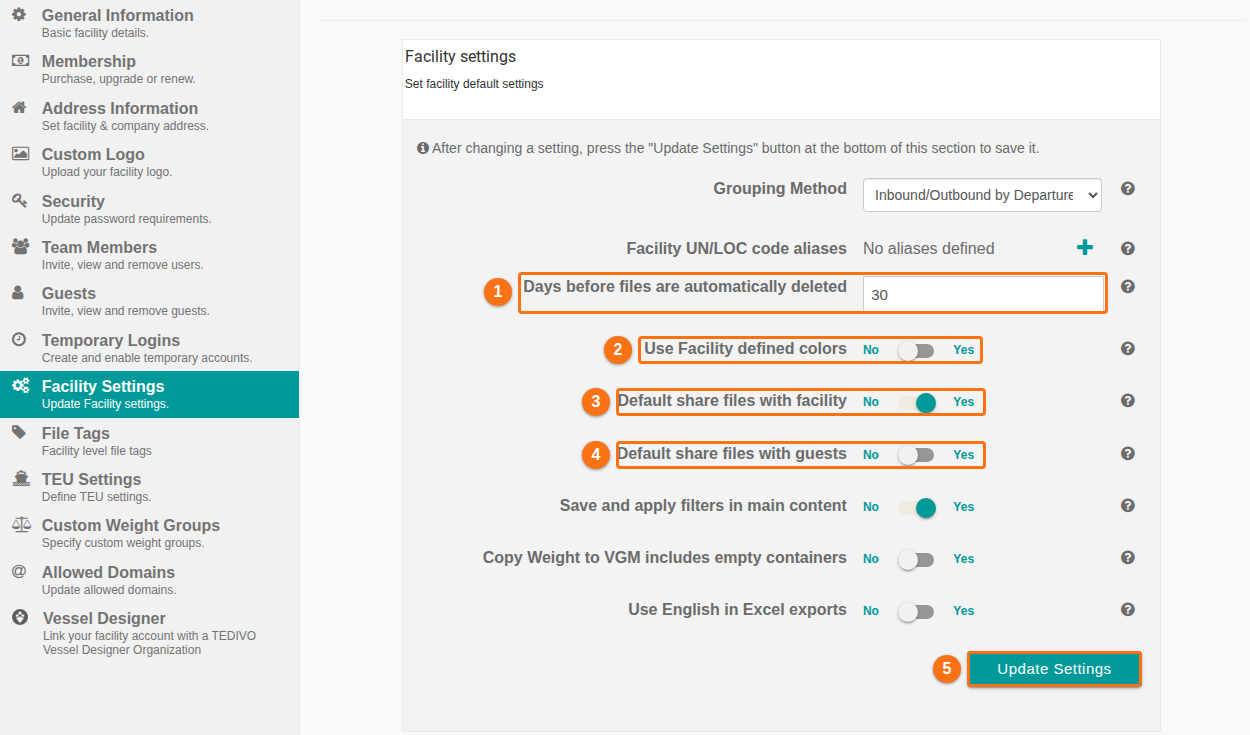
| Picture | Setting | What it does |
|---|---|---|
| 1 | Days before files are automatically deleted | Enter a number from 1 to 90. A file is deleted after this many days without activity. If someone edits a file, the count starts again. The default for new accounts is 7 days. This applies to all user accounts, for shared and personal files. |
| 2 | Use Facility defined colors | Choose Yes or No. This applies to all custom color settings in 2D Bay View and 3D Vessel View. If you choose No, only the facility administrator can change custom colors for all user accounts. |
| 3 | Default share files with facility | Choose Yes to share every uploaded file with the team members of your facility. They find these files in the Shared With Me tab under Upload BAPLIE. Choose No to keep your files private. Then share them one by one in the My Files tab under Upload BAPLIE. |
| 4 | Default share files with guests | Choose Yes to share every uploaded file with your guests. Guests get an email each time a file is uploaded and shared with them. Choose No to share files with guests one by one in the My Files tab under Upload BAPLIE. |
| 5 | Update Settings | Saves the settings. |
The tab also has these settings. They are not explained in this guide: Grouping Method, Facility UN/LOC code aliases, Save and apply filters in main content, Copy Weight to VGM includes empty containers and Use English in Excel exports.
- Click here for more information about sharing individual files with your facility.
- Click here for more information about sharing individual files with guests.
- TEU settings are on the TEU Settings tab. Click here for more information about adding, editing or deleting your facility’s default TEU settings.
Note: only users with Administrator access can change the facility settings.
Custom Logo
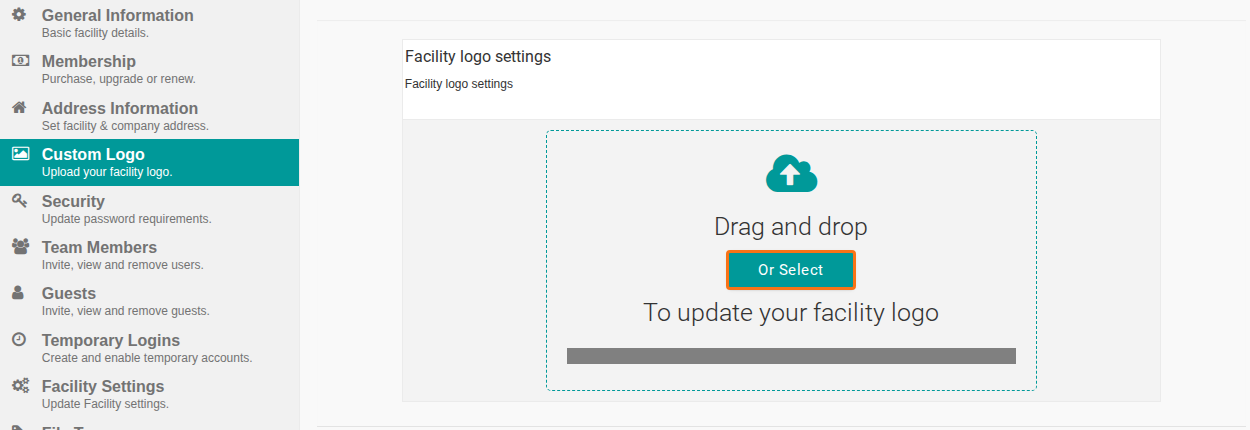
Section titled “Custom Logo”Click Custom Logo to change the logo at the top left of the page. The new logo shows for all user accounts of your facility.
- Drag an image into the dashed area, or click Or Select and choose a file on your computer.
- The file must be a .png image smaller than 1200px by 1200px.
- Wait for the logo to show at the top left of the screen.
To remove or change the logo later, use the same uploader.
Security
Section titled “Security”Click Security to set the password rules for your facility. Use the switch next to each rule: No or Yes.
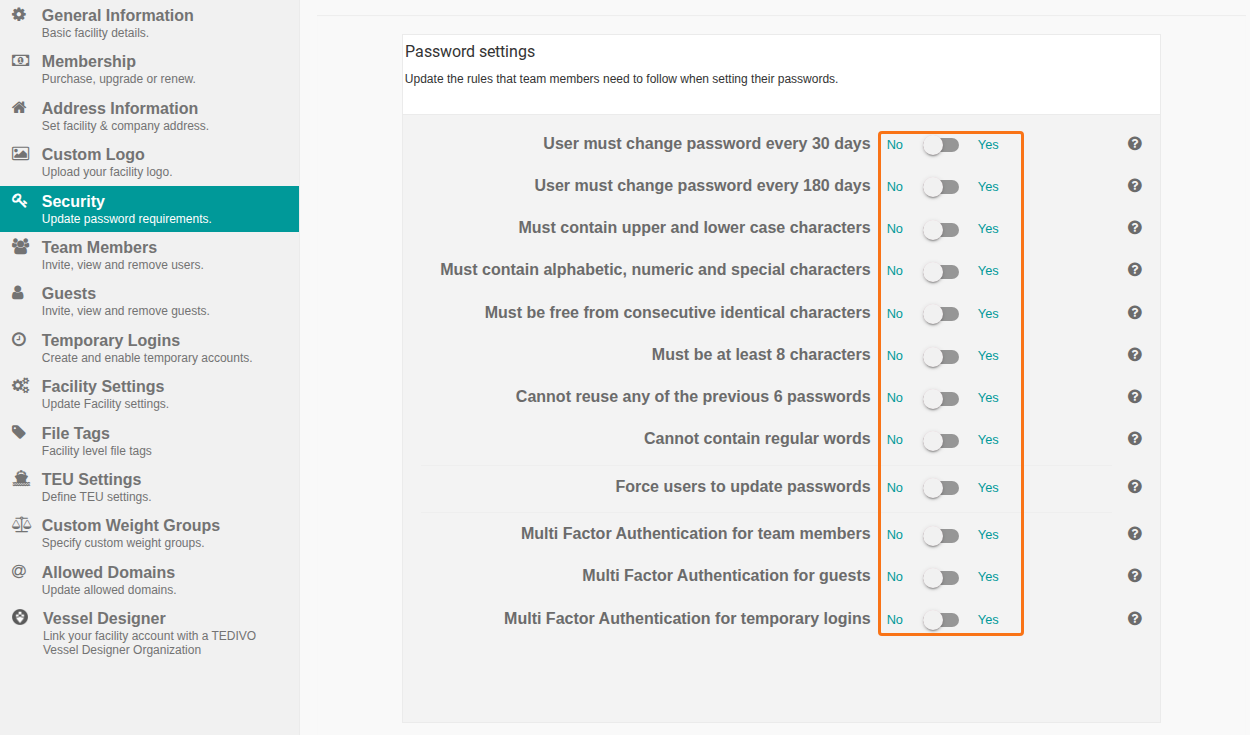
- The settings save automatically. They apply to all new user accounts of your facility.
- If you change the rules after an account exists, the user must change the password only if User must change password every 30 days is on. The user sees the request when the current password expires.
For the list of all switches, see the guide How to manage security settings for your facility.
Allowed Domains
Section titled “Allowed Domains”Click Allowed Domains to set the email domains (the part of an email address after the @ sign) that people can use to join your facility. A new user joins by creating an account with an allowed email domain.
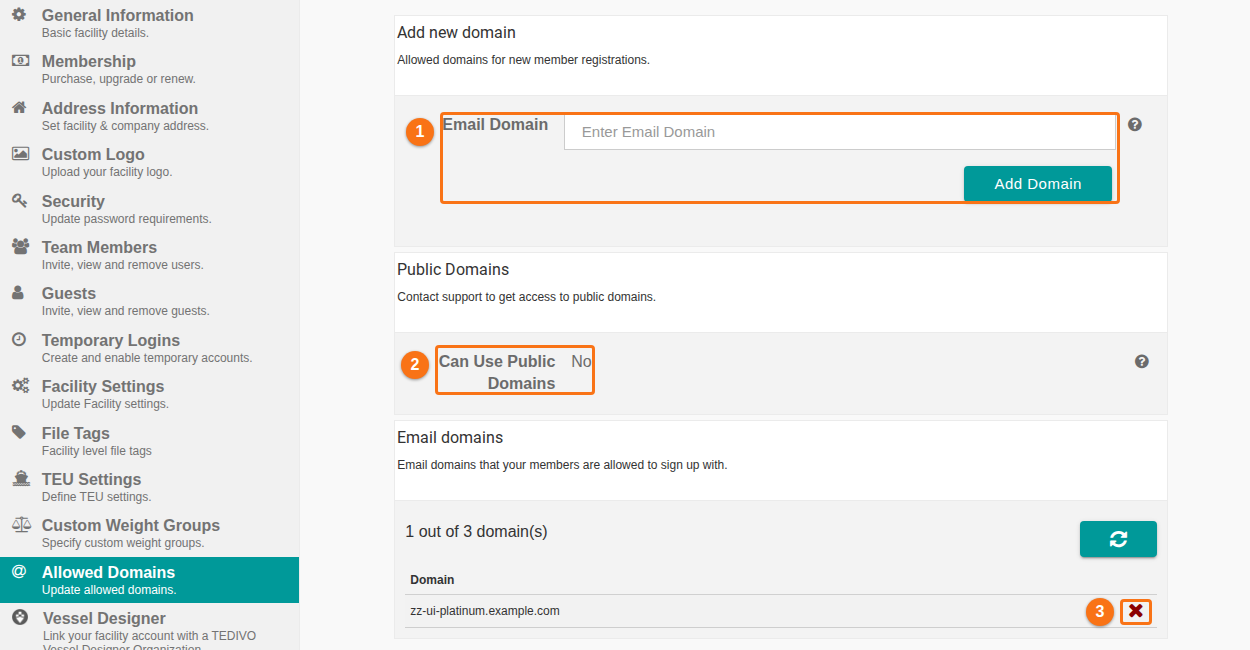
| Picture | Part of the page | What to do |
|---|---|---|
| 1 | Add new domain | Enter an email domain in the Email Domain box and click Add Domain. |
| 2 | Can Use Public Domains | Shows No. Users cannot join your facility with a public domain, for example a gmail.com address. To allow public domains, contact Support. |
| 3 | Email domains | Shows the list of allowed domains. To remove a domain, click the red X next to it. After you remove a domain, new users cannot join with it. |
You can still use public domains for guest accounts. Guests have View Only access. For more information, see the Guests guide.
Team Members
Section titled “Team Members”Click Team Members to invite, view and remove the colleagues in your team. The page has two sections: Invite new users at the top and Managing your team below it.
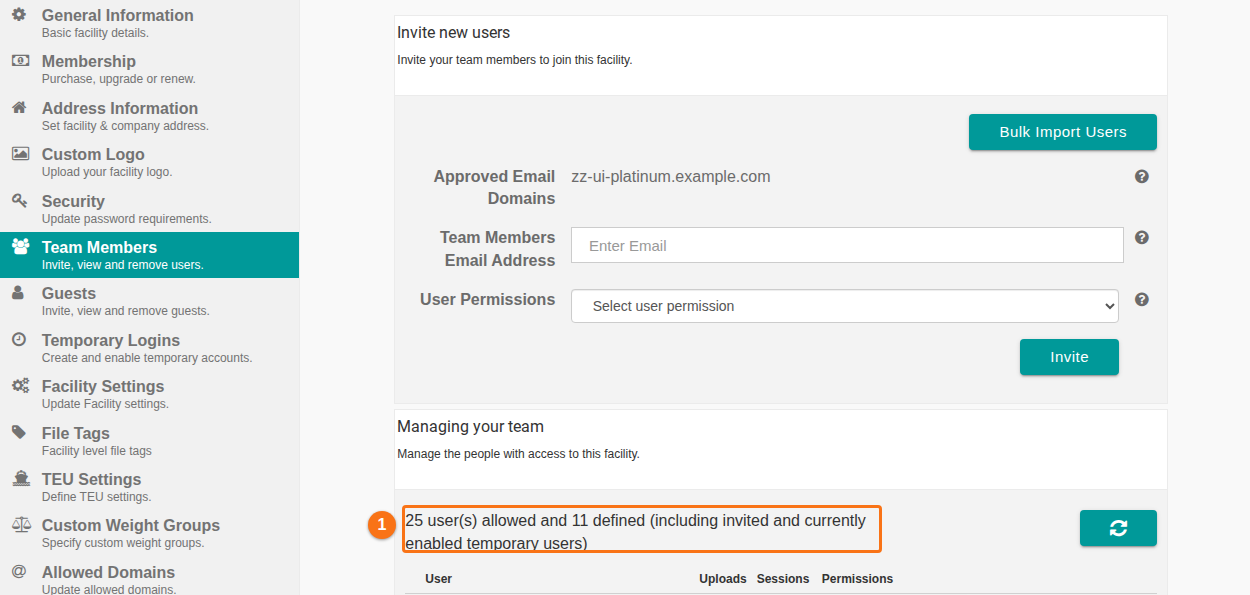
The line under Managing your team (1 in the picture) shows how many users your membership allows and how many are defined. Your membership type sets the limit. Click here for more information about membership tiers.
In the list, you can do this for each user:
- Change the permission level in the drop-down list.
- Administrator gives full access to the platform.
- View & Edit lets the user view and edit the BAPLIE files that are shared with them.
- View Only lets the user only view the BAPLIE files that your facility shared with them.
- Remove the user from your facility with the red X, or delete the account with the red trash icon. These icons show after the user was added.
To invite a new user:
- Enter the person’s email address in Team Members Email Address (1 in the picture). The domain must be one of your allowed domains.
- Choose a permission in User Permissions (2 in the picture).
- Click Invite (3 in the picture).
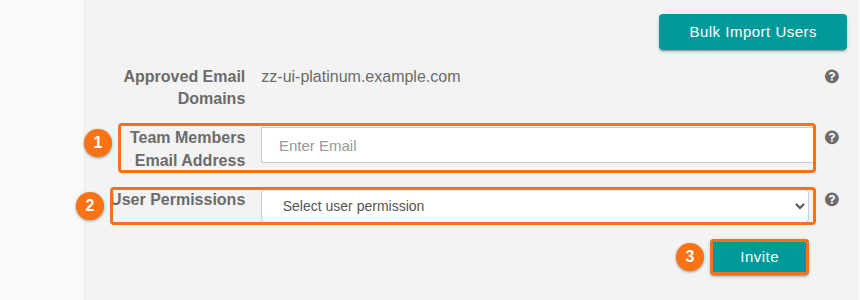
The email address is added to the list. The list shows who is invited and who accepted the invite and is now a team member.
For more detail, see How to add users to a facility account.
Guests
Section titled “Guests”Click Guests to invite, view and remove guests. The page has an invite form at the top and Managing facility guests below it.
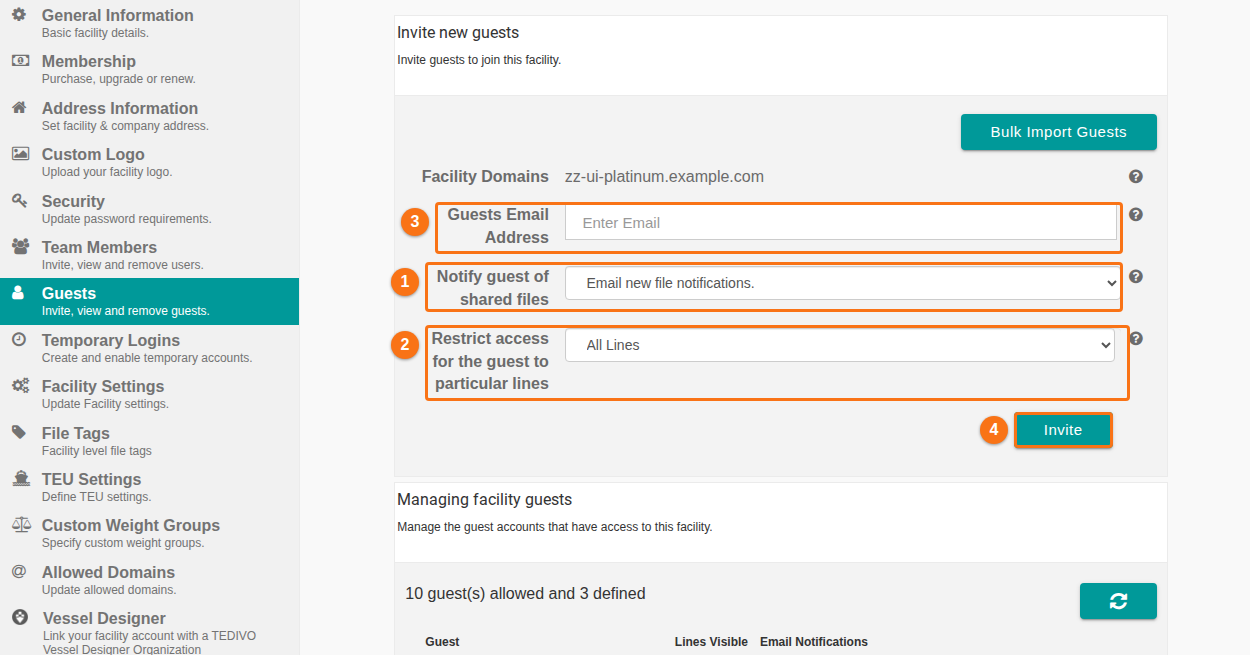
- The line under Managing facility guests shows how many guests your membership allows and how many are defined. Your membership type sets the limit. Click here for more information about membership tiers.
- All guests have View Only permission. They see only the BAPLIE files that your facility shared with them. They cannot upload their own files, edit shared files or import files from Excel. They can view the BAPLIE data and download it.
- Click the red X in a guest row to remove the guest from your facility.
To invite a guest:
- Enter the guest’s email address in Guests Email Address (3 in the picture). It cannot be one of your allowed domains.
- Choose how to notify the guest in Notify guest of shared files (1 in the picture).
- Choose a line setting in Restrict access for the guest to particular lines (2 in the picture).
- Click Invite (4 in the picture).
The email address is added to the list of guests. The list shows who is invited and who accepted.
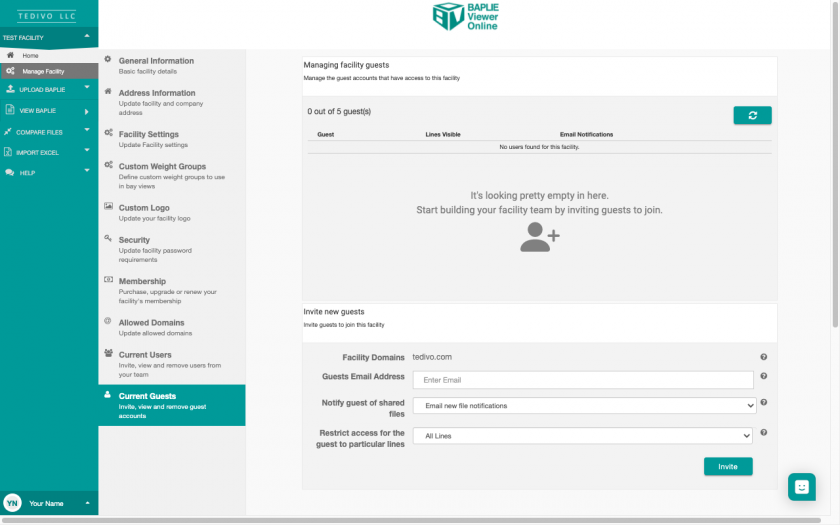
For more detail, see How to add guests to a facility account.
File Tags
Section titled “File Tags”Click File Tags to create and delete the tags of your facility. All users of the facility can use these tags on their files. Only facility administrators can create them.
- Click a color under Select a color for this tag (1 in the picture).
- Type a name in the Create a new tag box (2 in the picture).
- Click the + button (3 in the picture).
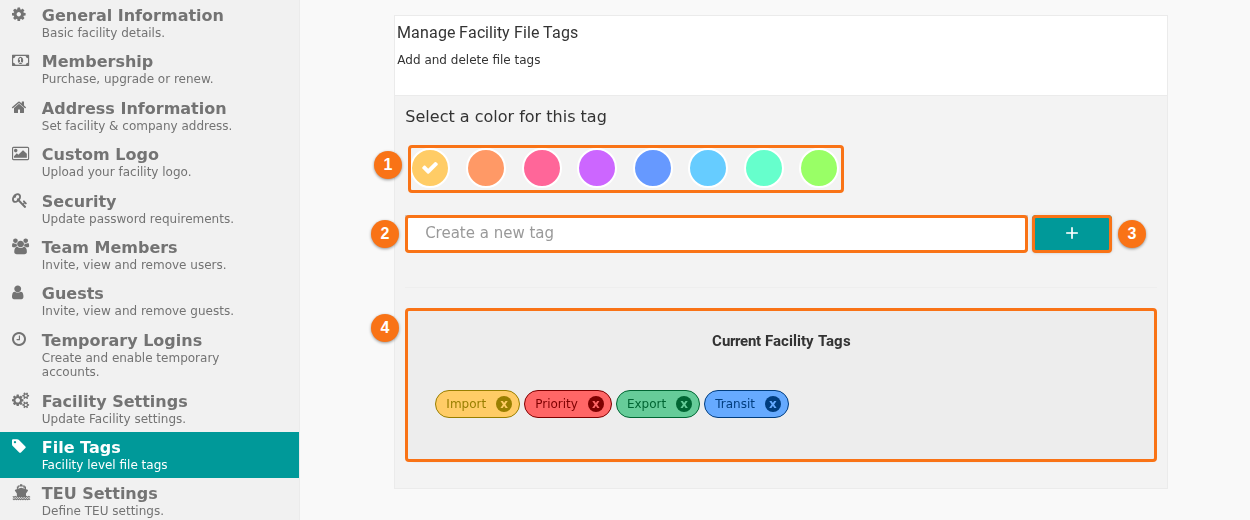
The new tag shows in Current Facility Tags (4 in the picture). To delete a tag, click the x on it. For more, see How to use File Tags.