

How to: Use the Multi Lift Opportunities Report
Esta página aún no está disponible en tu idioma.
Crane productivity is a key measure for a busy terminal. The Multi Lift Opportunities Report calculates how many twin, tandem, triplet and quad moves could have taken place when the vessel discharged and loaded. Use it to measure your current productivity and to make better operational decisions.
This feature is available for all membership types.
Before you start: upload two files. Upload the Inbound BAPLIE file (used for discharge moves) and the Outbound BAPLIE file (used for load moves). Then open the Inbound file for viewing.
Open Multi-Lift mode
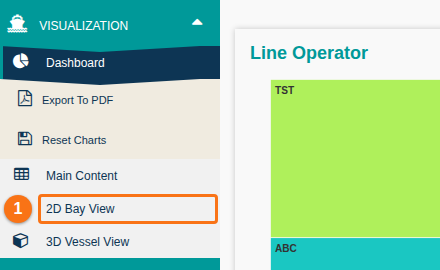
Section titled “Open Multi-Lift mode”- In the Function Menu on the left, open Visualization and click 2D Bay View (1 in the picture).
- In the top bar, click the Mode dropdown (1 in the picture) and choose Multi-Lift. The toolbar shows Change Calculation Parameters and MultiLift Summary in PDF.

Set the calculation parameters
Section titled “Set the calculation parameters”The first time that you (or anyone in your facility) use this feature, you must set the parameters. The system saves them for your facility. Everyone in your facility then uses the same settings. If anyone changes the parameters, they change for the whole facility.
- To set or change the parameters, click Change Calculation Parameters. The Calculation Parameters window opens.
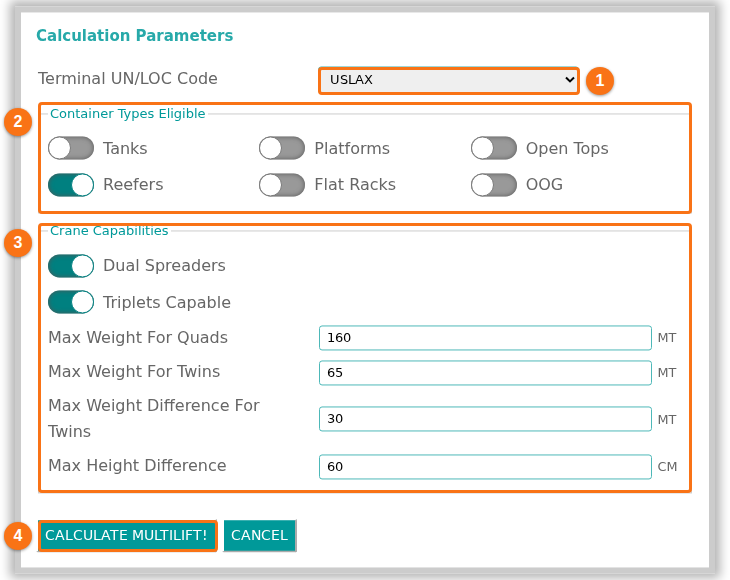
- Set these fields (the numbers are in the picture):
| Field | What to do |
|---|---|
| Terminal UN/LOC Code (1) | Choose your port. The list has the unique POD (port of discharge) and POL (port of load) values from the file. |
| Container Types Eligible (2) | Use the switches to choose which container types can be multi-lifted: Tanks, Platforms, Open Tops, Reefers, Flat Racks, OOG. |
| Dual Spreaders (3) | Switch on if your quay cranes have dual spreaders. |
| Triplets Capable (3) | If you have no dual spreaders, this switch is off and cannot be changed. If your equipment or TOS (terminal operating system) cannot handle triplets (two 20’ containers and one 40’ container), switch it off. |
| Max Weight For Quads (3) | The most weight for a quad, in metric tonnes (MT). |
| Max Weight For Twins (3) | The most weight for a twin, in metric tonnes (MT). |
| Max Weight Difference For Twins (3) | The most weight difference for twins, in metric tonnes (MT). |
| Max Height Difference (3) | The most height difference between containers on the same spreader, in centimetres (CM). |
- Click CALCULATE MULTILIFT! at the bottom of the window (4 in the picture). To close the window without calculating, click CANCEL.
Read the Multi-Lift report
Section titled “Read the Multi-Lift report”The report opens with a panel on the left. It has four parts. At the right edge of the panel are three tabs: Inbound, Outbound and Total Summary (1 in the picture). The table of moves by bay is next to the tabs (2 in the picture).
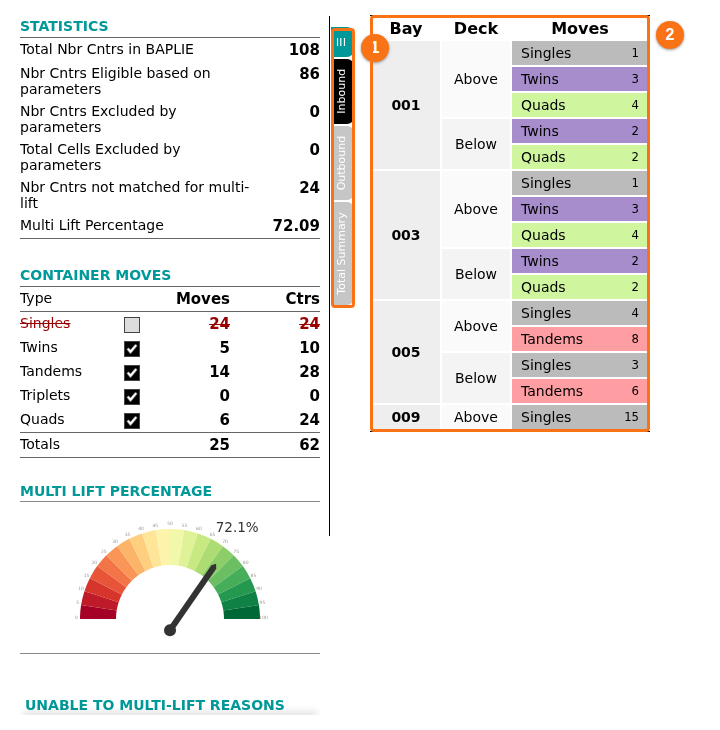
STATISTICS shows:
- Total Nbr Cntrs in BAPLIE: the total number of containers in the BAPLIE file.
- Nbr Cntrs Eligible based on parameters: the number of containers that can be multi-lifted with your parameters.
- Nbr Cntrs Excluded by parameters: the number of containers left out by your parameters.
- Total Cells Excluded by parameters: the number of twenty-foot slots left out by your parameters.
- Nbr Cntrs not matched for multi-lift: these containers can be multi-lifted, but cannot be paired with another container with your crane parameters.
- Multi Lift Percentage.
CONTAINER MOVES shows the number of moves (Moves) and containers (Ctrs) for each type: Singles, Twins, Tandems, Triplets and Quads. The last row, Totals, adds them. Each type has a check box. In the picture, Singles is not ticked and its numbers are crossed out. Single moves do not count in the total move count and the total container count. A type that the file does not have shows 0. In the picture, Triplets shows 0 moves and 0 containers.
MULTI LIFT PERCENTAGE shows a gauge with the percentage of containers that can be handled by multi lift.
UNABLE TO MULTI-LIFT REASONS shows the main reasons why containers were not considered with your parameters. The reason can be the container type or a limit of the crane or spreader.
Switch between Inbound and Outbound
Section titled “Switch between Inbound and Outbound”- In the top bar, click the Voyage dropdown (1 in the picture) and choose Outbound.

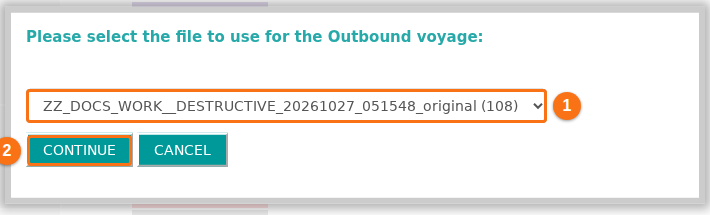
- A window asks: “Please select the file to use for the Outbound voyage”. Choose the Outbound file in the dropdown (1). Files that you uploaded before with the same vessel name show in the list. Click CONTINUE (2).
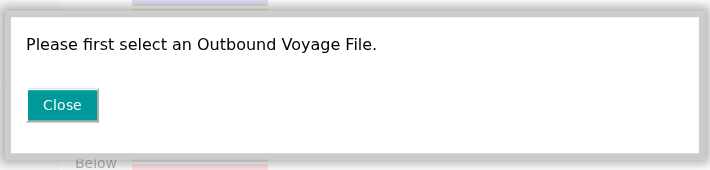
- Now you can switch between the two files without a page reload. Click the Inbound, Outbound or Total Summary tab. Total Summary shows the result for both voyages. If you click Total Summary before you choose an Outbound file, a window says Please first select an Outbound Voyage File. Click Close and do steps 6 and 7.
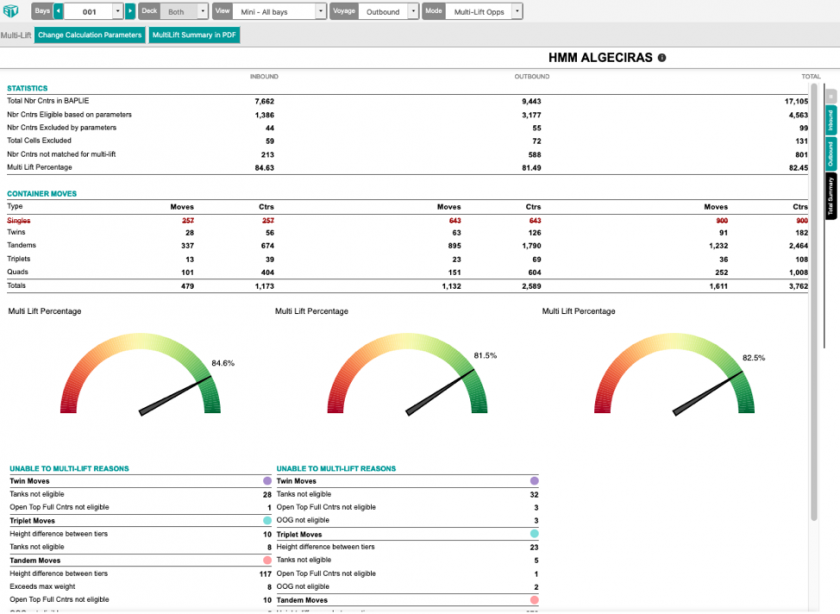
- To hide the left panel, click the menu button (1 in the picture) at the top of the side tabs.
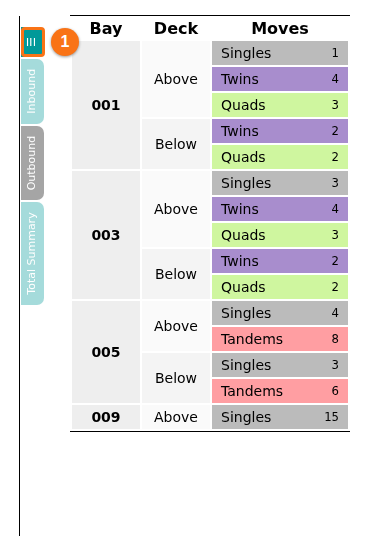
Look at the moves by bay
Section titled “Look at the moves by bay”Next to the panel, the report shows the eligible moves by Bay, Deck and Moves (move type). The colors are:
| Color | Move type |
|---|---|
| Grey | Singles (cannot be multi-lifted) |
| Purple | Twins |
| Pink | Tandems |
| Blue | Triplets |
| Green | Quads |
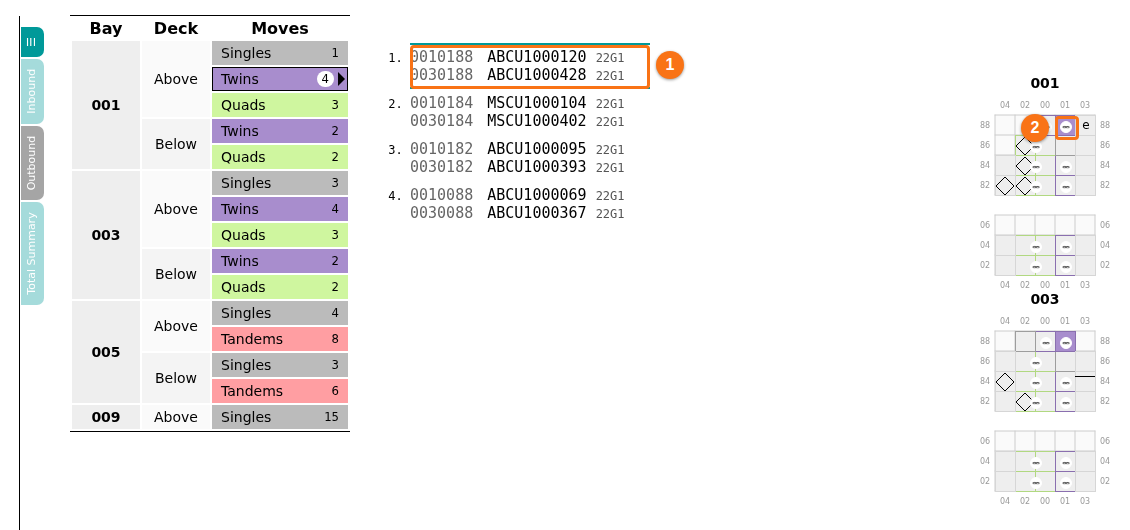
- Click a move type, for example Twins (1 in the picture). A list opens next to the table (2 in the picture), and a 2D mini view of the bays opens (3 in the picture). The containers have the color of their move type. The list has one entry for each move. An entry shows the containers of the move, with their position, container number and ISO code (the container size and type code). A twin move has two containers.
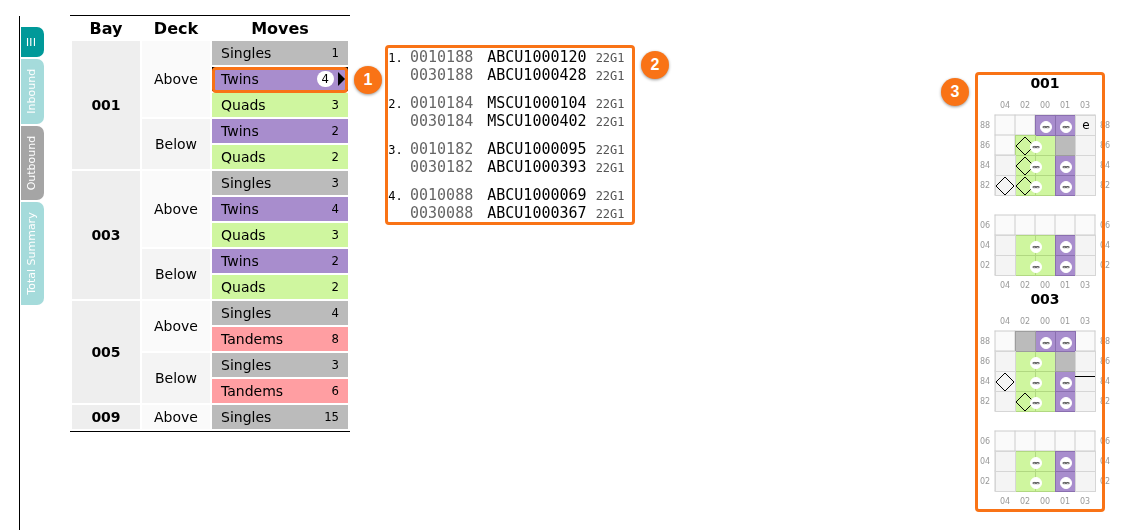
- Point to an entry in the list (1 in the picture). The container is highlighted in the 2D mini view (2 in the picture). The other containers turn grey.
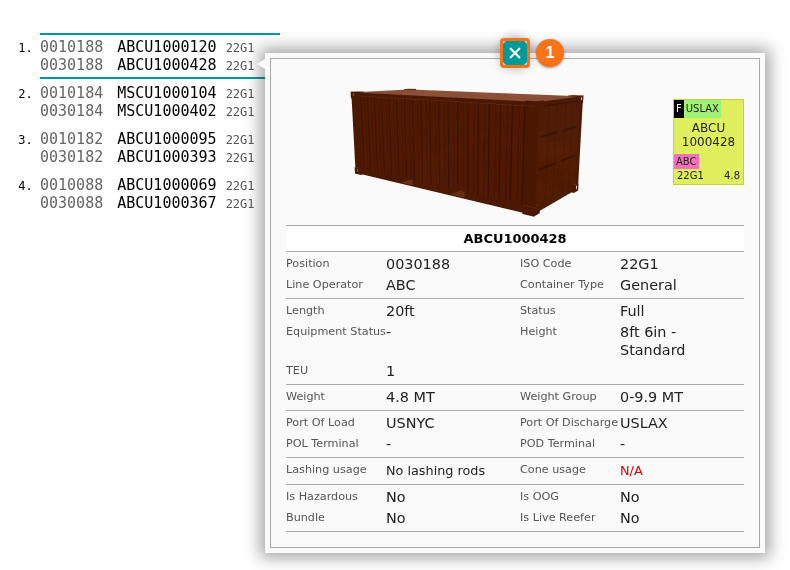
- Click a container number. The container information window opens with all details of the container. To close it, click the x button (1 in the picture).
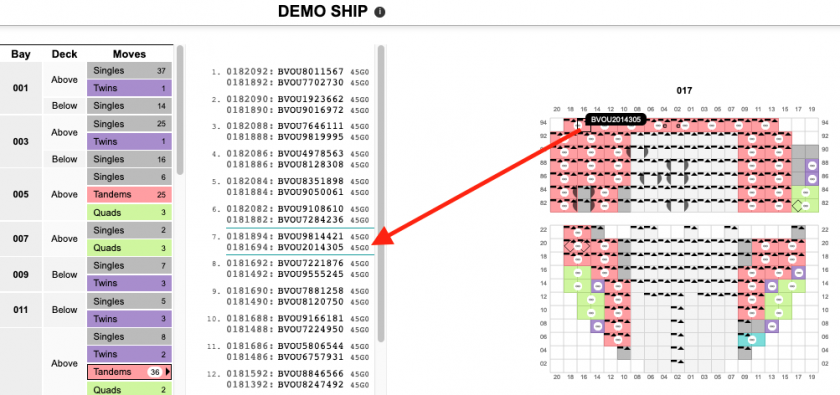
- You can also point to a container in the 2D view. The container is then highlighted in the container list.
See the whole vessel in 2D View
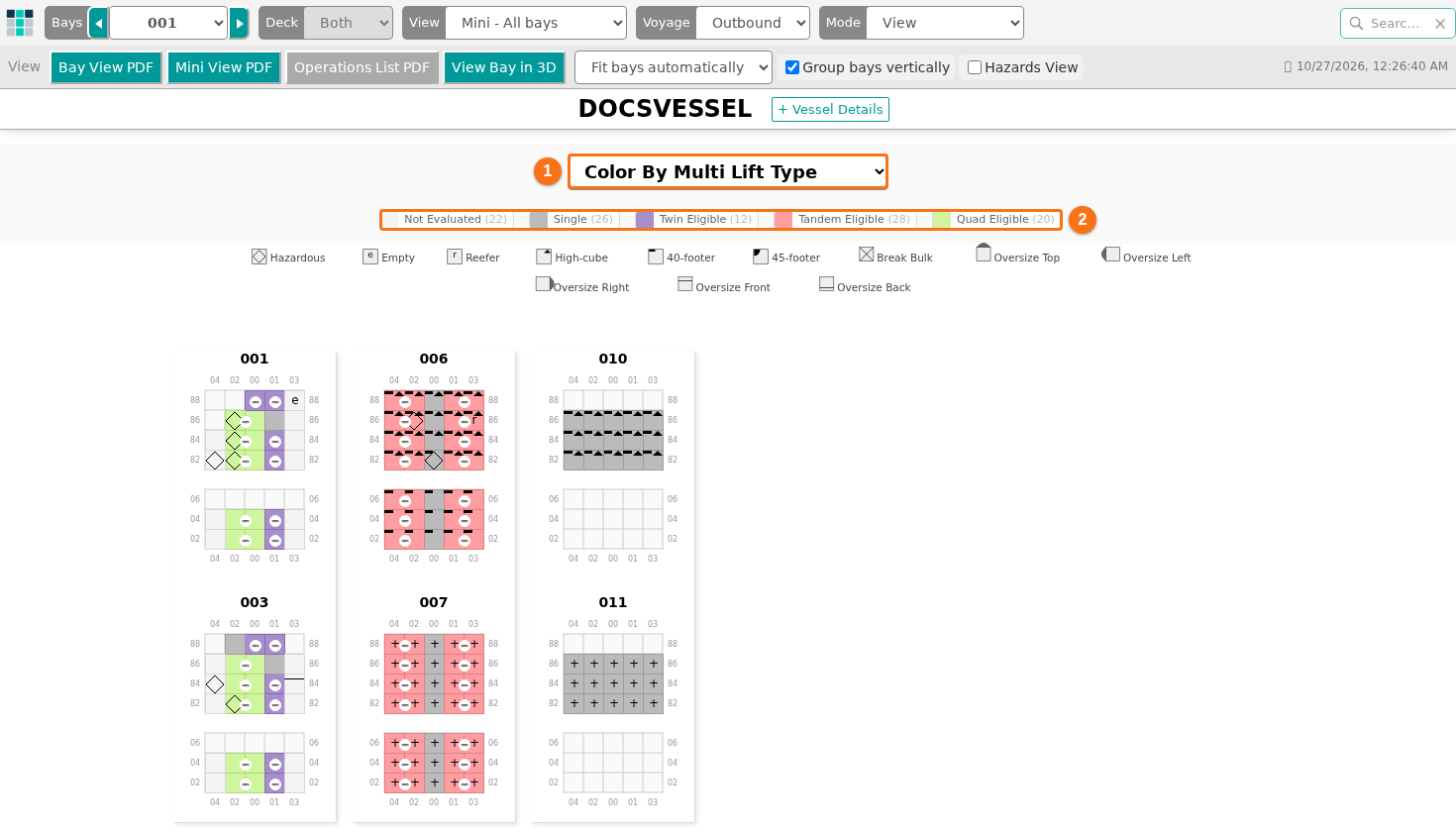
Section titled “See the whole vessel in 2D View”To see all multi-lift containers on the vessel, color the 2D view by multi-lift type. You can do this after you have calculated multi lift one time for the file.
- Change the Mode dropdown (1 in the picture) from Multi-Lift to View.

- Click the View dropdown (1 in the picture) and choose a view, for example Mini - All bays.

- In the Color By dropdown (1 in the picture), choose Multi Lift Type.
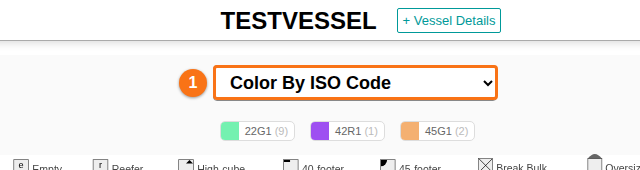
The legend (2 in the picture) lists Not Evaluated, Single, Twin Eligible, Tandem Eligible and Quad Eligible, with the number of containers for each. The mini view uses the same colors as the report: grey for singles, purple for twins, pink for tandems, blue for triplets and green for quads. Containers that are Not Evaluated are white. A container that is part of a multi-lift move shows a small round symbol with a dash.
Print or share the report
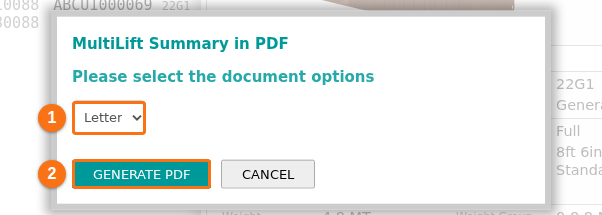
Section titled “Print or share the report”- In the top bar, in Multi-Lift mode, click MultiLift Summary in PDF (the orange box in the first picture). The MultiLift Summary in PDF window opens with a list for the paper size, for example Letter (1 in the second picture). Click GENERATE PDF (2 in the second picture). When the PDF is ready, click Download PDF. The Multi Lift Summary is a PDF that you can share and print.

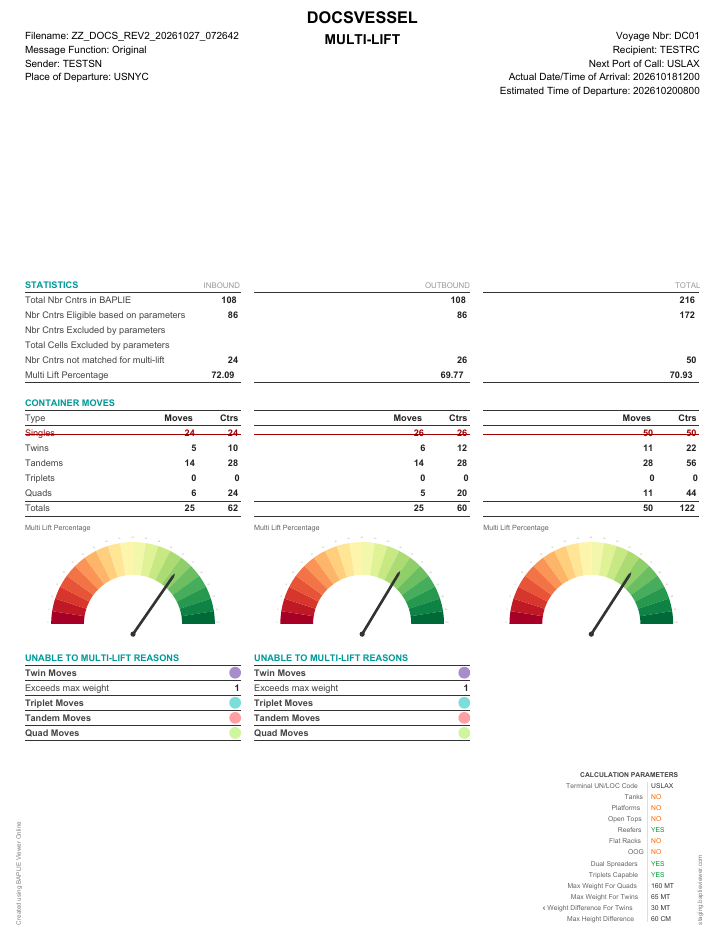
- The PDF shows the details of the ship and the voyage and the same reports as the screen. If you evaluated only the Inbound file, the PDF shows only that result. If you also evaluated the Outbound file, it shows both and the total. At the bottom, the PDF lists the calculation parameters that you used.
Good to know
Section titled “Good to know”- If the container list does not open when you click a move type, choose the Outbound file first (steps 6 and 7).
- The report has a row for Triplets. Triplets can be handled only when Triplets Capable is on. When the file has no triplet moves, the row shows 0.