

How to use the Vessel Customization add-on
Esta página aún no está disponible en tu idioma.
Use this guide to check if your facility has the Vessel Customization add-on and to learn what it adds to the 3D Vessel View. The add-on lets you create a digital twin (an exact copy in the computer) of your vessel. You can add deck cranes and smoke stacks, change colors, and add graphics and detailed notes to specific areas of the ship.
Before you start: the add-on is an extra for your facility. It is not part of every membership. Your facility must have it. Step 1 shows how to check.
- Check that your facility has the add-on.
- In the Function Menu on the left, click Manage Facility. Then click General Information.
- Find Vessel Customization Enabled (1 in the picture). Yes means that your facility has the add-on. No means that it does not.
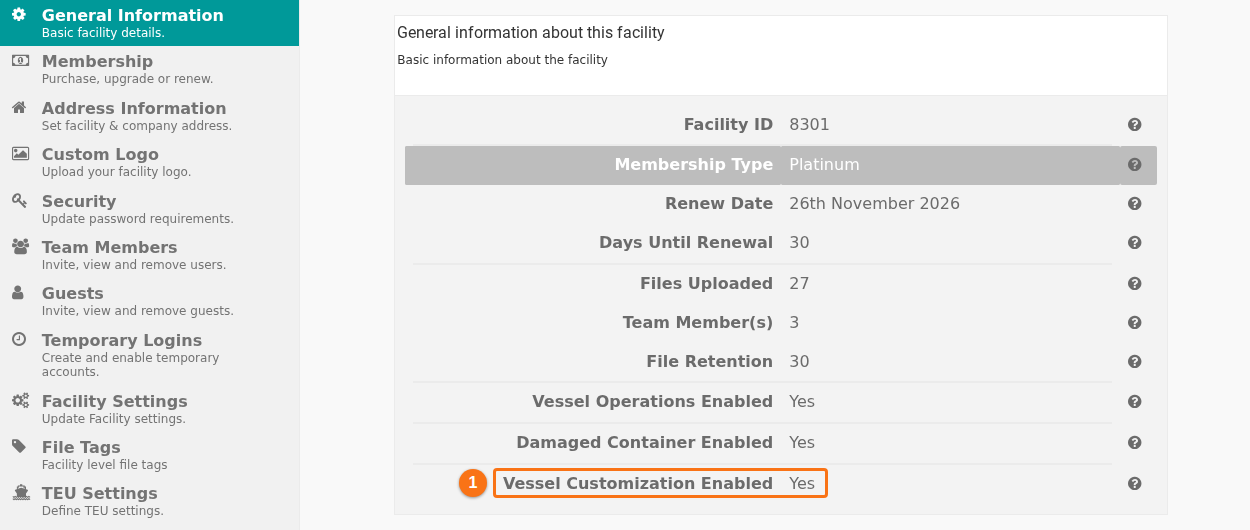
- If the line shows No and you want the add-on, contact Support. See How to contact Support and create a support ticket. In the Subject list, choose Membership Question.
- If the line shows Yes, open your file in the 3D Vessel View. In the Function Menu, open Visualization and click 3D Vessel View. The customizations of your vessel show in the 3D model.
What the add-on adds
Section titled “What the add-on adds”The add-on works with the Vessel Customizer application. In this application you add labels and damage notation to the 3D vessel. Custom shapes and decals (pictures on the surface of the vessel) that you create there show in the 3D Vessel View. See the software update of January 11, 2021.
Options that you have without the add-on
Section titled “Options that you have without the add-on”You do not need the add-on to change the standard options of the 3D Vessel View. In Settings mode you can change the colors, the bridge, the smoke stacks, the deck cranes and the deck lashes. See these guides:
Good to know
Section titled “Good to know”- The add-on is set for the whole facility, not for single users.
- For damage graphics on single containers, see How to use the Damaged Containers add-on.
- For the other fields of General Information, see How to manage general facility information.