

How to use File Tags
Esta página aún no está disponible en tu idioma.
Use file tags to sort your uploaded BAPLIE files with colored labels. You can create tags for the whole facility, so your team shares them. You can also add tags to single files.
Create facility tags
Section titled “Create facility tags”Facility tags are shared by all users of your facility. Only Facility Administrators can create them.
- Open Manage Facility and click File Tags. The page Manage Facility File Tags opens.
- Under Select a color for this tag, click a color (1 in the picture).
- Type a name for the tag in the Create a new tag box (2 in the picture), for example “Export”, “Urgent” or “Winter Route”.
- Click the + button (3 in the picture).
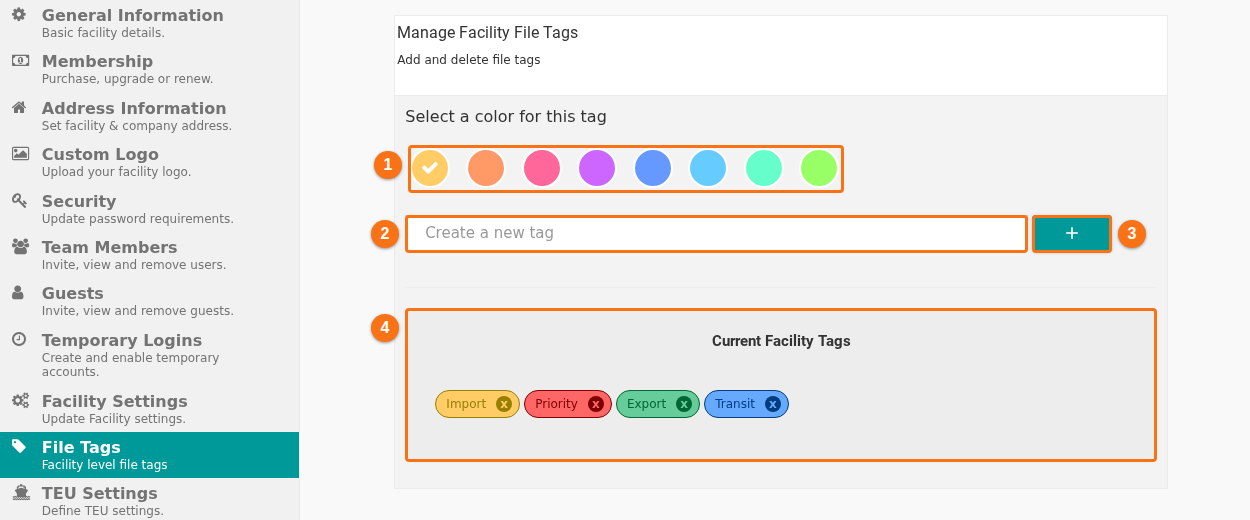
The tag shows in Current Facility Tags (4 in the picture). It is now available to all users of your facility.
Add tags to a file
Section titled “Add tags to a file”You can add tags to any file that you can open.
- Open the tag window in one of these ways:
- After you upload a file, click Add File Tags on the upload confirmation page.
- Or click the tag icon for the file in the file list.
- In the Manage Tags For This File window, add a tag in one of these ways:
- Use a facility tag: the Facility Tags section lists the shared tags. Click a tag to add it to the file.
- Create a new tag: in Add A New Tag, click a color. Type a tag name in the search field. Click the + button.
- When you type, matching facility tags appear in a list.
- Added tags show at the top of the window, under Current tags for this file. To remove a tag from the file, click the x on the tag.
Filter files by tag
Section titled “Filter files by tag”- Open the list of your files. Tag buttons are above the list, next to the search box.
- Click a tag name. The list shows only the files with that tag.
- Click Clear Filter to show all files again.
If your facility uses tag-based navigation, the vessel list shows one tab for each tag. Click a tab to see the files with that tag.
Manage facility tags
Section titled “Manage facility tags”Facility Administrators can see and delete facility tags.
- Open Manage Facility and click File Tags.
- The facility tags show as colored labels under Current Facility Tags (4 in the picture above).
- To delete a tag, click the x on the tag and confirm.
Note: when you delete a facility tag, it is removed from all files of the facility.
Tag colors
Section titled “Tag colors”You can choose from eight colors:
- Yellow/Gold
- Orange
- Pink
- Purple
- Blue
- Cyan
- Mint Green
- Lime
Each color has a text color that is easy to read.