

How to track cones and lashing in the 2D Bay View
Esta página aún no está disponible en tu idioma.
Use this guide to see which containers need lashing rods and which containers need cones (twistlocks) in the 2D Bay View. You set the rules, the application marks the containers, and you can print a report. The result is an estimate from your own parameters. The application does not calculate weights or stress. Use it as a manual tracking tool for reporting only.
Before you start: open your file in the 2D Bay View. See How to navigate the 2D Bay View. The modes Lashing Usage and Cones Usage are in the Mode list only for accounts that can use them. The membership page lists Lashing & cone analytics with the Platinum membership. If you do not see the modes, ask your Facility Administrator or contact Support.
Track lashing
Section titled “Track lashing”- In the Mode list at the top (1 in the first picture), choose Lashing Usage. The window with the lashing parameters opens by itself.
- Set the parameters (2 in the first picture). Use the Example Bay list on the right to see the effect in a small picture.
| Parameter | What to choose |
|---|---|
| Port of Load | - ALL - or one port. With one port, the calculation uses only the containers with this port of load. |
| Port of Discharge | - ALL - or one port. With one port, the calculation uses only the containers with this port of discharge. |
| Lashing starting base | The tier where lashing starts, for example Tier 1. |
| Total number of lashing tiers | How many tiers get lashing. |
| Number of rods per container | The number of rods for these containers. |
| End container additional tiers | How many more tiers get lashing for the containers at the ends of the row. |
| Number of rods per end container | The number of rods for the end containers. |
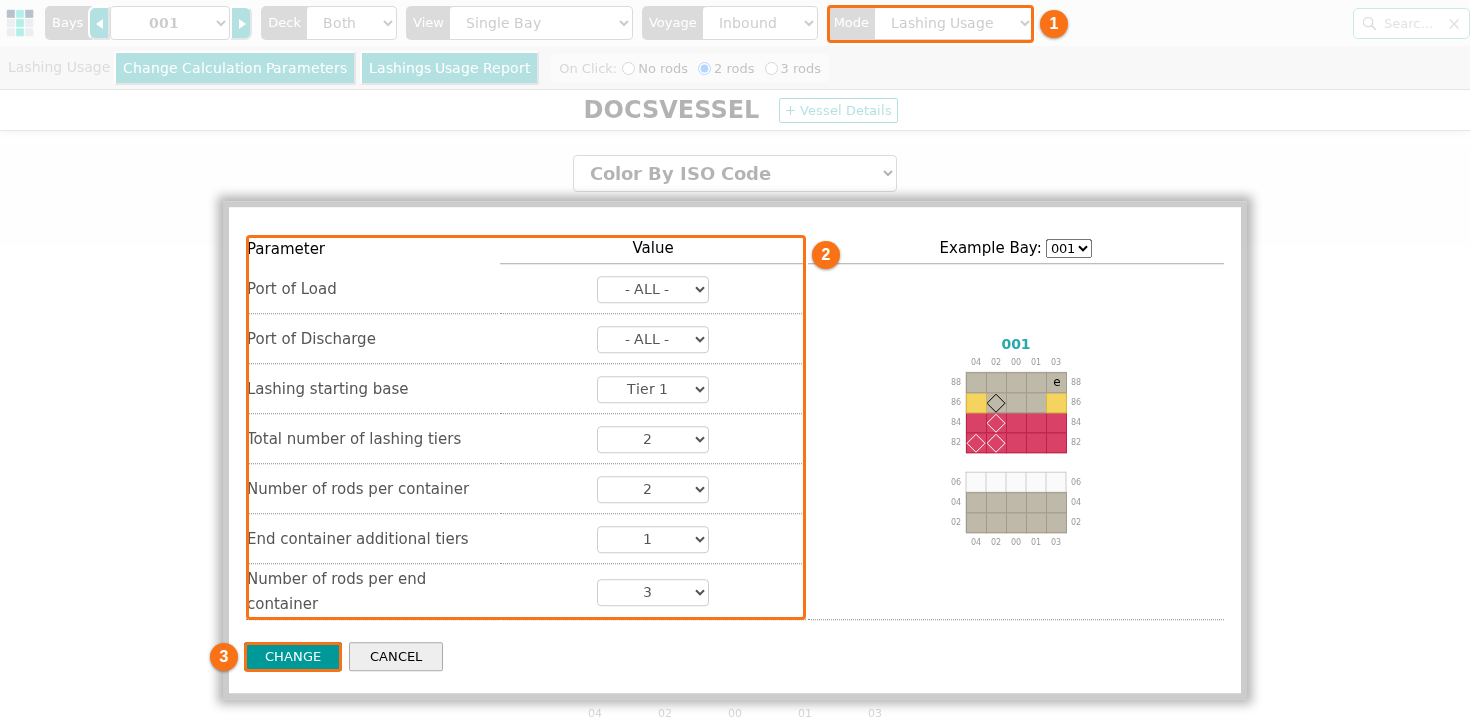
- Click CHANGE (3 in the first picture). To close the window without changes, click CANCEL. The Color By list shows Color By Lashing usage. The containers in the bay get a color for their number of rods. The legend (3 in the second picture) shows N/A, No lashing rods, 2 lashing rods and 3 lashing rods, with the number of containers for each.
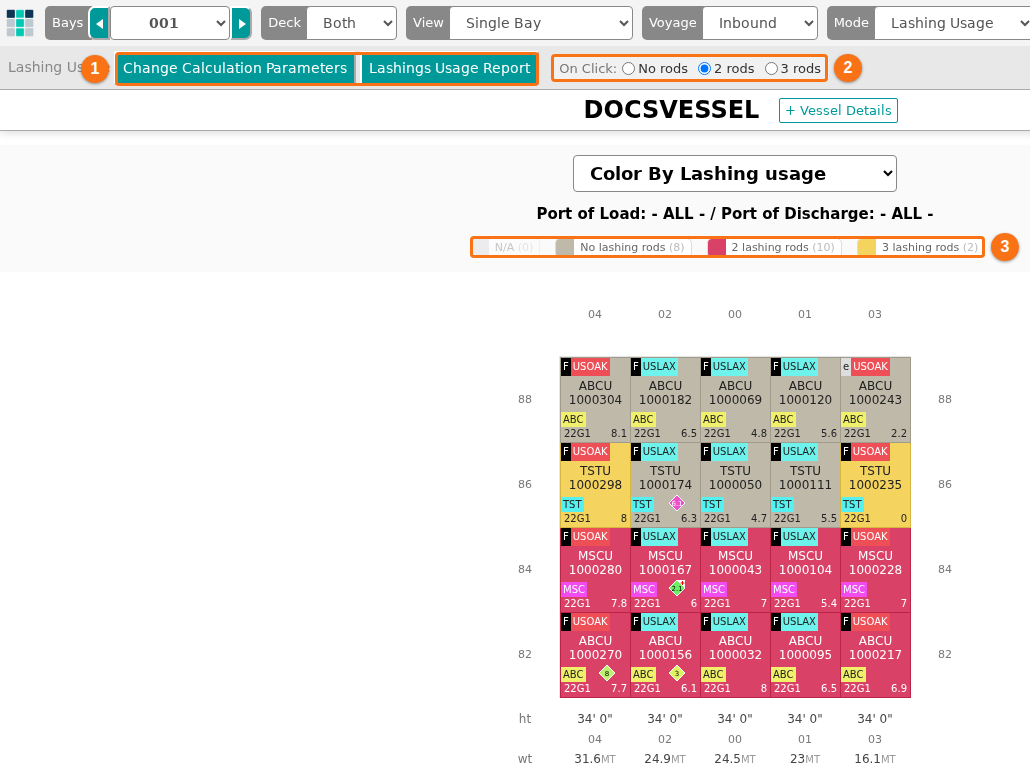
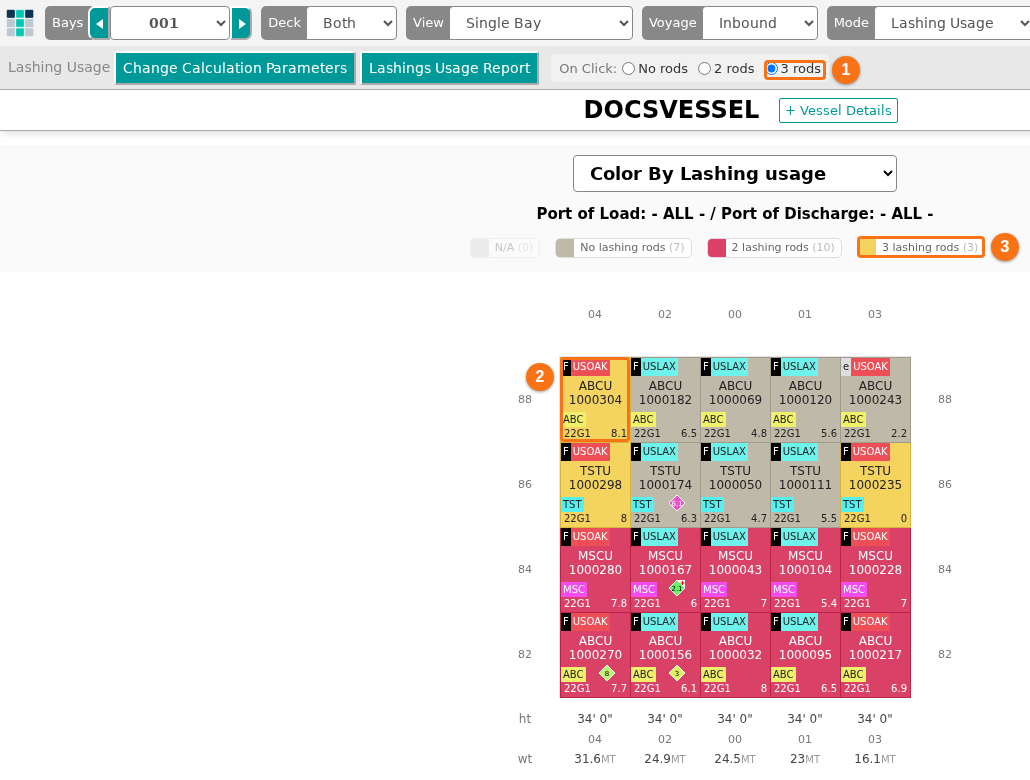
- To change one container by hand, choose a value in On Click (2 in the second picture): No rods, 2 rods or 3 rods. Then click the container in the bay. The container gets this value (2 in the third picture), and the numbers in the legend change (3 in the third picture). The status bar at the bottom says Please select containers to add or remove lashings.
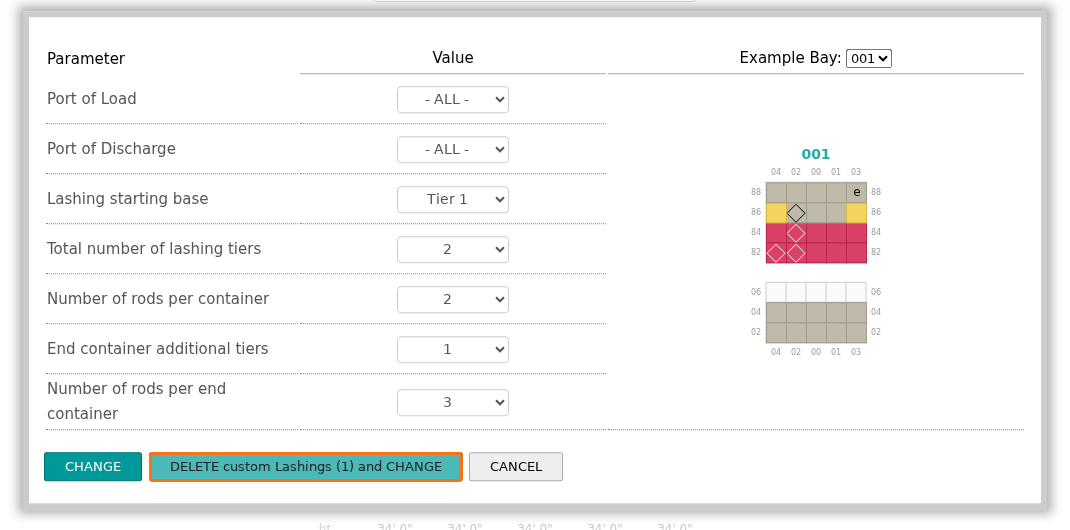
- To change the parameters later, click Change Calculation Parameters (the first button, 1 in the second picture). If you set containers by hand, the window also has the button DELETE custom Lashings with the number of these containers, for example DELETE custom Lashings (1) and CHANGE (the orange frame in the picture). Click it to delete your own values and use the new parameters for all containers.
- To print the result, click Lashings Usage Report (the second button, 1 in the second picture). The Lashings Usage Report window opens. Choose the options and click GENERATE PDF (1 in the picture). When the PDF is ready, click Download PDF.
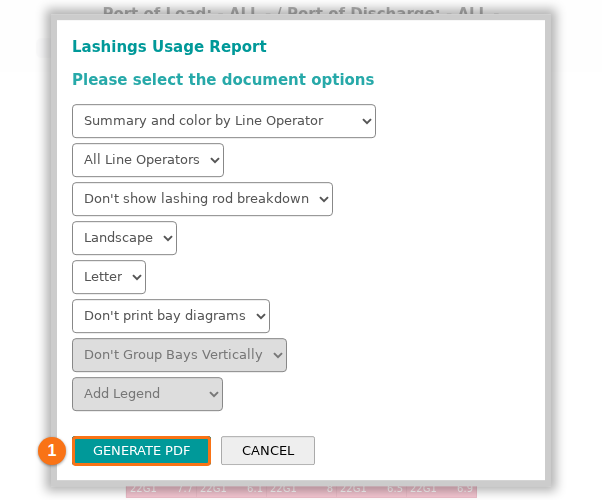
The options of the report include:
- Summary and color by a value of your choice, for example Summary and color by Line Operator,
- All Line Operators, or only one line operator,
- Show lashing rod breakdown or Don’t show lashing rod breakdown,
- Portrait or Landscape, and the paper size, for example Letter,
- Don’t print bay diagrams, or the number of bays in each row (Bays per row). In the picture, the lists Don’t Group Bays Vertically and Add Legend are grey.
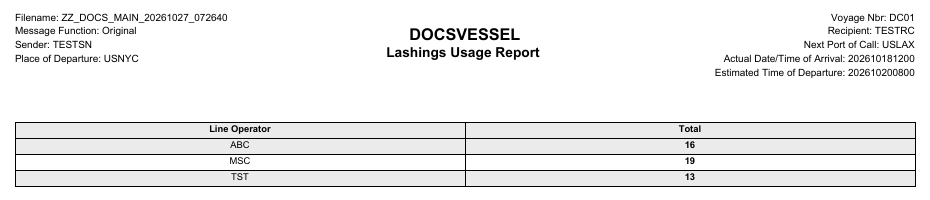
The first page of the PDF has the vessel name, Lashings Usage Report and a table. With the options in the picture, the table shows the total for each line operator.
Track cones
Section titled “Track cones”- In the Mode list (1 in the first picture), choose Cones Usage. The window with the cone parameters opens by itself.
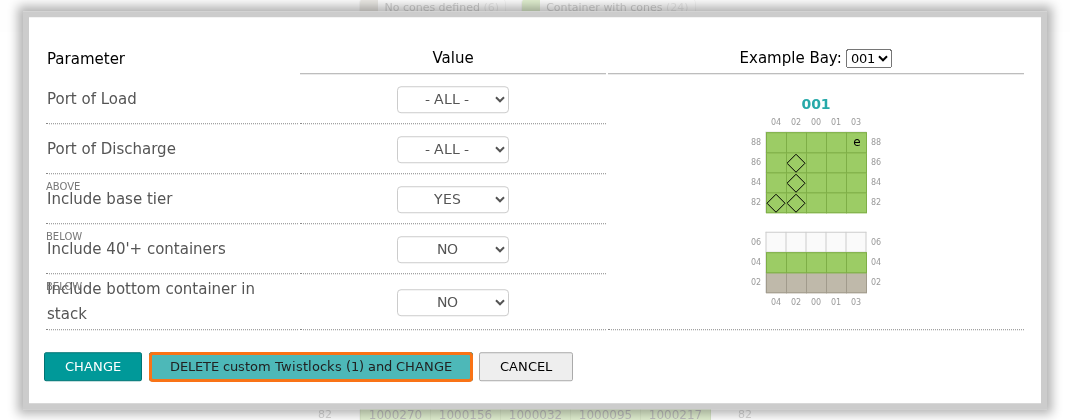
- Set the parameters (2 in the first picture):
| Parameter | What to choose |
|---|---|
| Port of Load and Port of Discharge | - ALL - or one port. |
| Include base tier (ABOVE) | YES or NO. For containers above deck. |
| Include 40’+ containers (BELOW) | YES or NO. For containers below deck. |
| Include bottom container in stack (BELOW) | YES or NO. For containers below deck. |
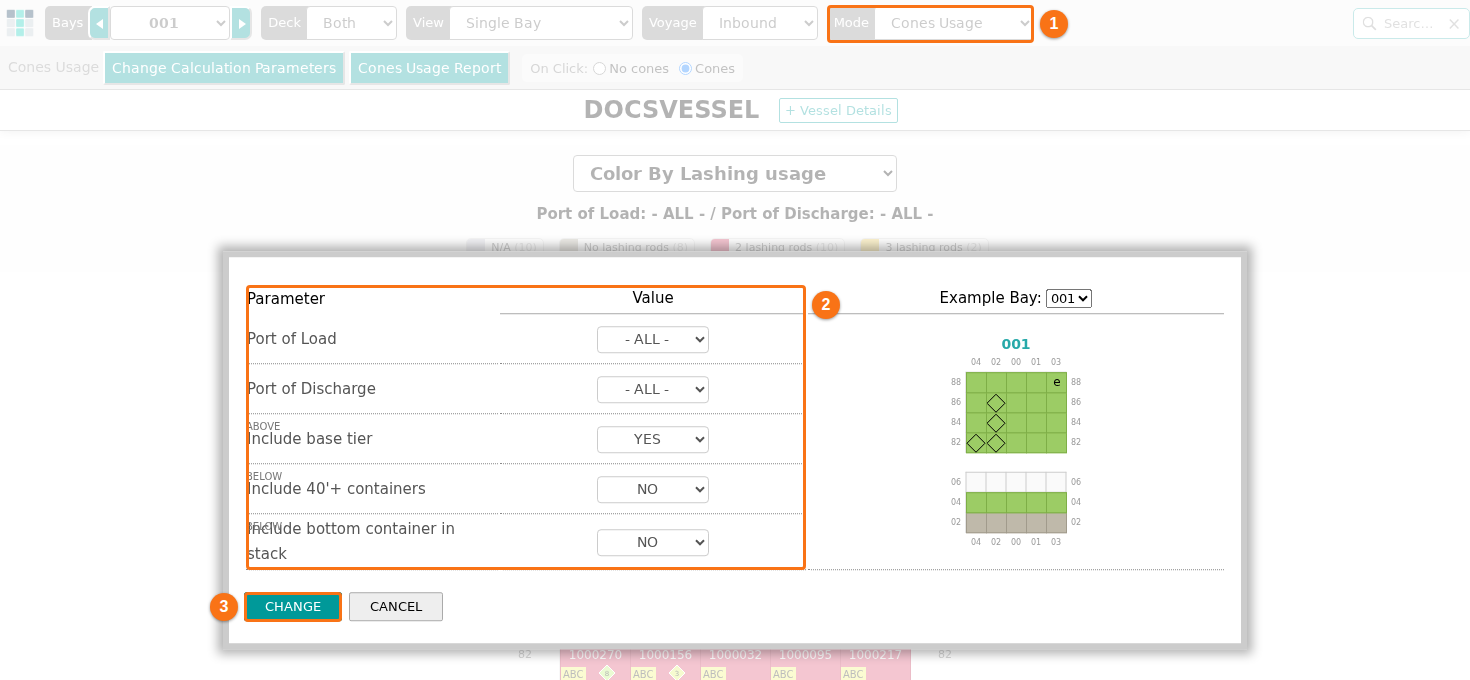
- Click CHANGE (3 in the first picture). The Color By list shows Color By Cone usage. The containers that need cones are green. The legend (3 in the second picture) shows No cones defined and Container with cones, with the number of containers for each.
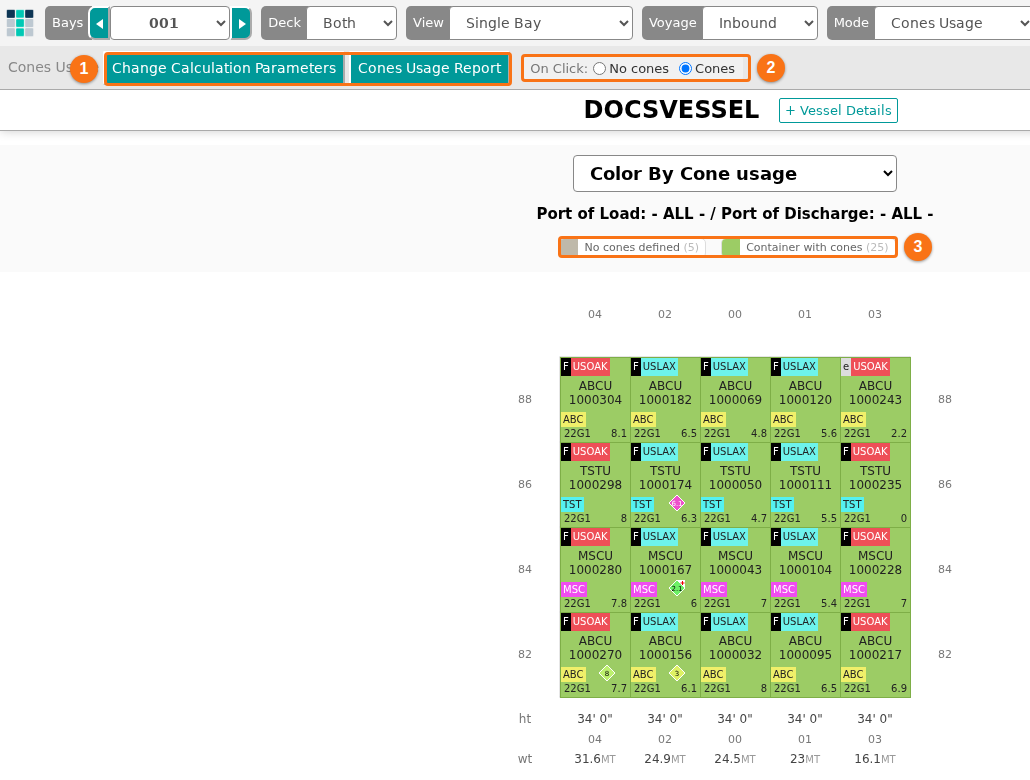
- To change one container by hand, choose No cones or Cones in On Click (2 in the second picture). Then click the container in the bay. The status bar at the bottom says Please select containers to add or remove twistlocks/cones.
- To change the parameters again, click Change Calculation Parameters (the first button, 1 in the second picture). If you set containers by hand, the window has the button DELETE custom Twistlocks with the number of these containers, for example DELETE custom Twistlocks (1) and CHANGE (the orange frame in the picture). It deletes your own values.
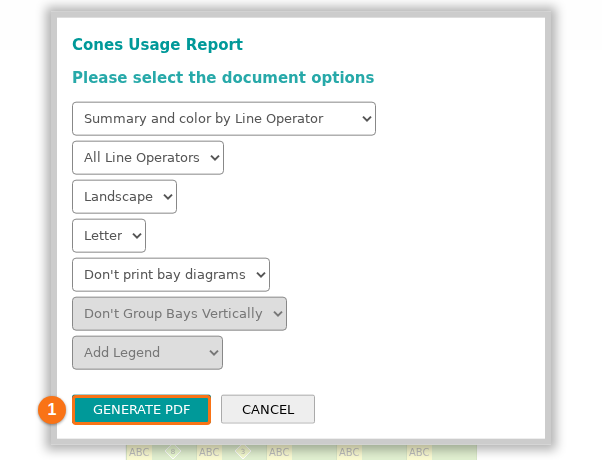
- To print the result, click Cones Usage Report (the second button, 1 in the second picture). The Cones Usage Report window opens. Choose the options and click GENERATE PDF (1 in the picture). Then click Download PDF. The report has the same options as the lashing report, but no list for the lashing rod breakdown.
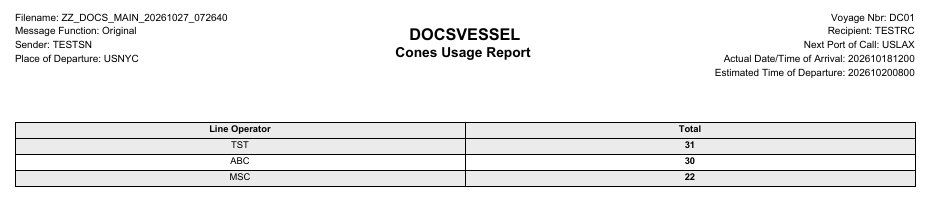
The first page of the PDF has the vessel name, Cones Usage Report and a table. With the options in the picture, the table shows the total for each line operator.
Good to know
Section titled “Good to know”- The numbers come from the parameters you set. They are not a stress calculation and they do not replace the lashing plan of the ship.
- You can also choose the lashing or the cone view in the Color By list. If you did not set the parameters yet, the application asks if you want to do it now.
- The application saves your parameters, so they are there when you open the same file again. They are not written into the BAPLIE file.