

How to add and remove columns from the table view
Esta página aún no está disponible en tu idioma.
Use this guide to choose which columns the table on the Main Content screen shows. Your choice is saved to your user profile. It also applies to BAPLIE files you upload later.
Before you start: upload a file to baplieviewer.com. After the upload, the Dashboard opens.
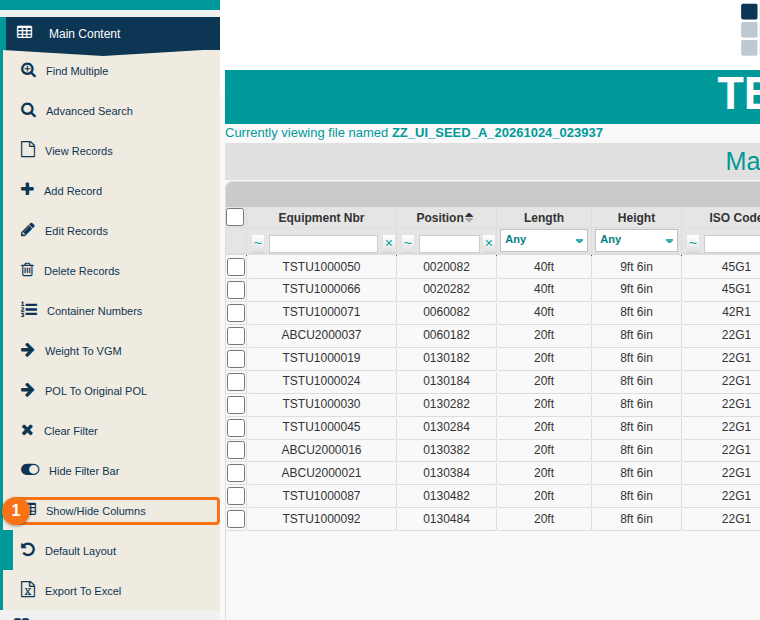
- In the Function Menu on the left, open Visualization and click Main Content. The BAPLIE file opens as a table.
- In the Function Menu, click Show/Hide Columns (1 in the picture).
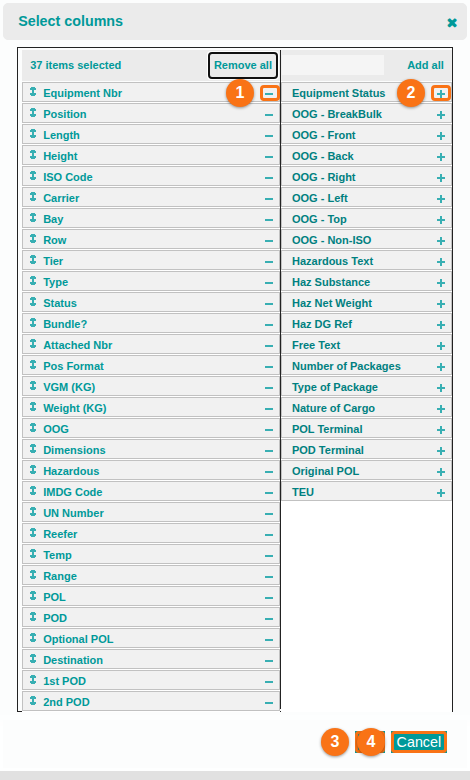
- The Select columns window opens. The left list shows the visible columns. The right list shows the hidden columns.
- To hide a column, click the - icon next to its name (1 in the picture). The column moves to the hidden list.
- To show a column, click the + icon next to its name (2 in the picture). The column moves to the visible list.
- Click Ok (3 in the picture) to apply your changes. Click Cancel (4 in the picture) to close the window and keep the old columns.
Good to know
Section titled “Good to know”- The Select columns window also has a search box, Remove all and Add all.
- Your column choice is saved to your user profile and stays for future BAPLIE files.