

How to save camera views in the 3D Vessel View
Esta página aún no está disponible en tu idioma.
Use this guide to save the camera angle (the direction and distance from which you look at the vessel) in the 3D Vessel View. You can open the saved view again when you open the same vessel later. You can also take a picture of the view.
Before you start: upload a file and open it. See How to navigate the 3D Vessel View.
- In the Function Menu on the left, open Visualization and click 3D Vessel View. The 3D data opens in a new window.
- Move the camera to the view that you want to save. Use the mouse to rotate and zoom the vessel. Use the arrow keys to move the view sideways.
- Find the top right of the 3D area. It has a list with the text - Select a 3D Wide View - (1 in the picture) and the button Save 3D View (2 in the picture). Click Save 3D View.

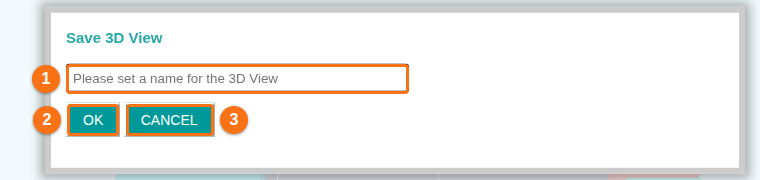
- The window Save 3D View opens. Type a name for the view in the box Please set a name for the 3D View (1 in the picture). Use a name that tells you what the view shows.
- Click OK (2 in the picture) to save the view. Click CANCEL (3 in the picture) to close the window without saving.
Use a saved view
Section titled “Use a saved view”- Open the vessel in the 3D Vessel View.
- Open the list - Select a 3D Wide View - (1 in the first picture).
- Choose the name of your view. The camera moves to the saved angle.
To go back to the default view, press Esc.
Take a picture of the view
Section titled “Take a picture of the view”- Move the camera to the view that you want.
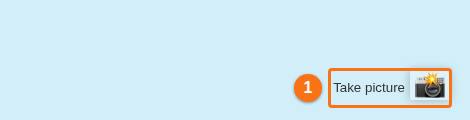
- Click Take picture at the bottom right of the 3D area (1 in the picture).
Good to know
Section titled “Good to know”- The saved views belong to your user account and to the vessel. Other users do not see your views. A saved view for one vessel is not in the list of another vessel.
- The software update of March 29, 2022 says that you can also save views of single bays. Choose a bay in the Bays list, move the camera and save the view in the same way.
- To print or download a bay plan, see How to print or download the full bay plan in 3D Vessel View.
- If a saved view does not show in the list, see How to contact Support and create a support ticket.