

How to use the Damaged Containers add-on
Esta página aún no está disponible en tu idioma.
Use this guide to check if your facility has the Damaged Containers add-on and to find it in the 2D Bay View and the 3D Vessel View. The add-on lets you add damage graphics and detailed notes to specific areas of a realistic picture of a container. You can then share the 3D picture with team members and other people.
Before you start: the add-on is an extra for your facility. It is not part of every membership. Your facility must have it. Step 1 shows how to check.
- Check that your facility has the add-on.
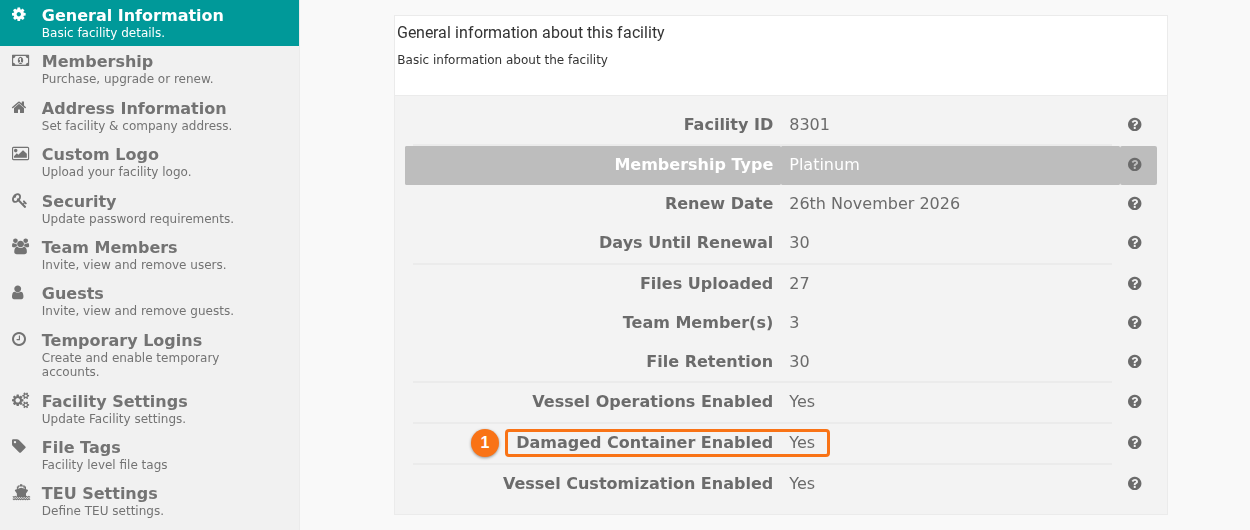
- In the Function Menu on the left, click Manage Facility. Then click General Information.
- Find Damaged Container Enabled (1 in the picture). Yes means that your facility has the add-on. No means that it does not.
- Open your file in the 2D Bay View or in the 3D Vessel View. In the Function Menu, open Visualization and click 2D Bay View or 3D Vessel View.
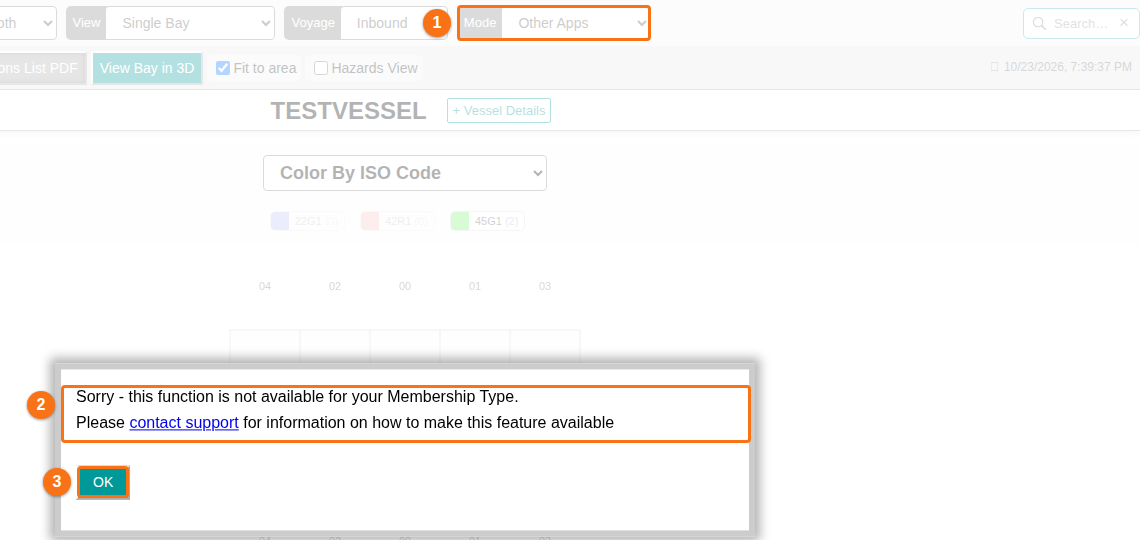
- Open the Mode list in the menu bar at the top (1 in the next picture). Choose Other Apps.
- If your facility has the add-on, use the tools that the row under the menu bar shows.
- If your facility does not have the add-on, a window opens (2 in the picture). It says: “Sorry - this function is not available for your Membership Type.” Click OK (3 in the picture) to close it.
How to get the add-on
Section titled “How to get the add-on”The window has a link, contact support. Click it, or write to Support, to ask how to make the feature available for your facility. See How to contact Support and create a support ticket. In the Subject list, choose Membership Question.
Good to know
Section titled “Good to know”- The add-on is set for the whole facility, not for single users.
- Other Apps is one entry of the Mode list. For the list of modes, see How to navigate the 2D Bay View and How to navigate the 3D Vessel View.
- For the other fields of General Information, see How to manage general facility information.