

How to use the Developers tab
Esta página aún no está disponible en tu idioma.
Use the Developers tab to get what a program needs to use the BAPLIE Viewer Online API (application programming interface). The tab shows the API address, the links to the API documentation, and the keys of your facility. A program can use the API to work with your BAPLIE files without the web pages, for example to upload a file.
Before you start:
- You must be the main user or an administrator of the facility.
- API access must be switched on for your facility. If the Manage Facility page has no Developers tab, API access is off. Contact Support to ask for it.
- This guide is for the person who sets up the connection. A developer needs the API documentation to write the program.
Open the Developers tab
Section titled “Open the Developers tab”- In the Function Menu on the left, click Manage Facility under the name of your facility.
- Click Developers. Its text is API documentation, keys and end points.
The tab has these rows:
| Picture | Row | What it shows |
|---|---|---|
| 1 | End Point | The address that the program sends its requests to. |
| 2 | Documentation | A link to the detailed API documentation. |
| 3 | API guide | A link to the guide that explains how to sign requests (the hash), and how replies and errors work. |
| 4 | OpenAPI spec | A link to a file that describes every API call in a form that programs can read. |
| 5 | Private Key | The secret key of your facility. It shows as stars. |
| 6 | API Key | The public key of your facility. It shows as stars. |
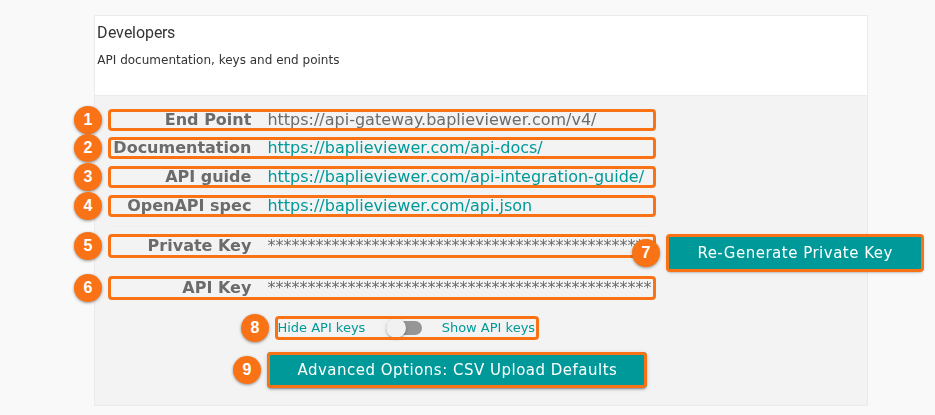
Click a link to open or download it.
Show the keys
Section titled “Show the keys”- Find the switch under API Key (8 in the picture). Its two sides say Hide API keys and Show API keys.
- Click the switch so that it shows Show API keys. The Private Key and the API Key show as text.
- Copy the keys that your developer needs. Click the switch again to hide them.
Note: the Private Key is secret. Treat it like a password. Do not send it by email or put it in a web page. Do not send it in a support message.
Re-generate the private key
Section titled “Re-generate the private key”Do this if you think that someone else knows the private key.
- On the Developers tab, click Re-Generate Private Key (7 in the picture), next to Private Key.
- A window Re-generating Your Private Key asks: Are you sure you wish to re-generate your private key?
- Click YES - Re-generate Key to continue. Click NO - Cancel to stop.
- The page says Key re-generated. Use the switch Show API keys to see the new private key.
- Give the new private key to your developer. A program that still uses the old private key must be changed.
If the page says Failed to re-generate key, try again.
Set the defaults for the CSV upload (advanced)
Section titled “Set the defaults for the CSV upload (advanced)”The API has a call that turns a CSV file into a BAPLIE file (the call upload/csvFile). The CSV file has the containers. The BAPLIE file also needs header details, such as the sender, the recipient, the vessel and the voyage. If the program does not send one of these details, or sends it empty, the application uses the default that you saved here. Other API calls do not use these defaults.
-
On the Developers tab, click Advanced Options: CSV Upload Defaults (9 in the picture). The fields open. If you saved a value before, they are already open.
-
Fill in the fields that you need. Leave a field empty if the program always sends it. A field that stays empty stays empty in the BAPLIE file. Ports and dates are then left out.
Field What to enter Sender ID Who sent the BAPLIE. Recipient ID Who the BAPLIE is for. Voyage Number The voyage number of the vessel call. Vessel carrier The carrier (shipping line) code of the vessel. Vessel Reference The vessel reference, for example the Lloyd’s or IMO number. Vessel Name The name of the vessel. Place of Departure The UN/LOCODE of the port that the vessel left, for example USLAX. NPOC The UN/LOCODE of the next port of call, for example USNYC. POL Override The port of load to use for every container. The value saved here is not applied yet. The program must send it with each call as port_load_override_h.ATA Actual time of arrival as YYMMDDHHMM, for example 2610211530. ETA Estimated time of arrival as YYMMDD, for example 261021. ATD Actual time of departure as YYMMDDHHMM, for example 2610220800. ETD Estimated time of departure as YYMMDD, for example 261022. -
Click Update. The page says API defaults successfully updated. If the save fails, the page says Failed to update API defaults.
-
To close the fields, click Hide advanced options.
Good to know
Section titled “Good to know”- The documentation, the API guide and the OpenAPI spec are on our website and can change when we add API calls. Always use the current documentation.
- For help with a problem in a program, contact Support. Write the name of the API call and the exact text of the error.
- The Vessel Designer tab has its own key. See How to link your facility to TEDIVO Vessel Designer.
- For the other tabs of Manage Facility, see How to manage your facility.