

How to update address information
Esta página aún no está disponible en tu idioma.
Use this guide to update the facility and company addresses that are used when you buy a membership. The main user or an administrator can do this.
Before you start: you must have Administrator access. Only administrators can change the address information.
- Log in to baplieviewer.com. The home page opens with the Function Menu on the left.
- Click Manage Facility under your facility’s name.
- Click Address Information. The page has two sections.
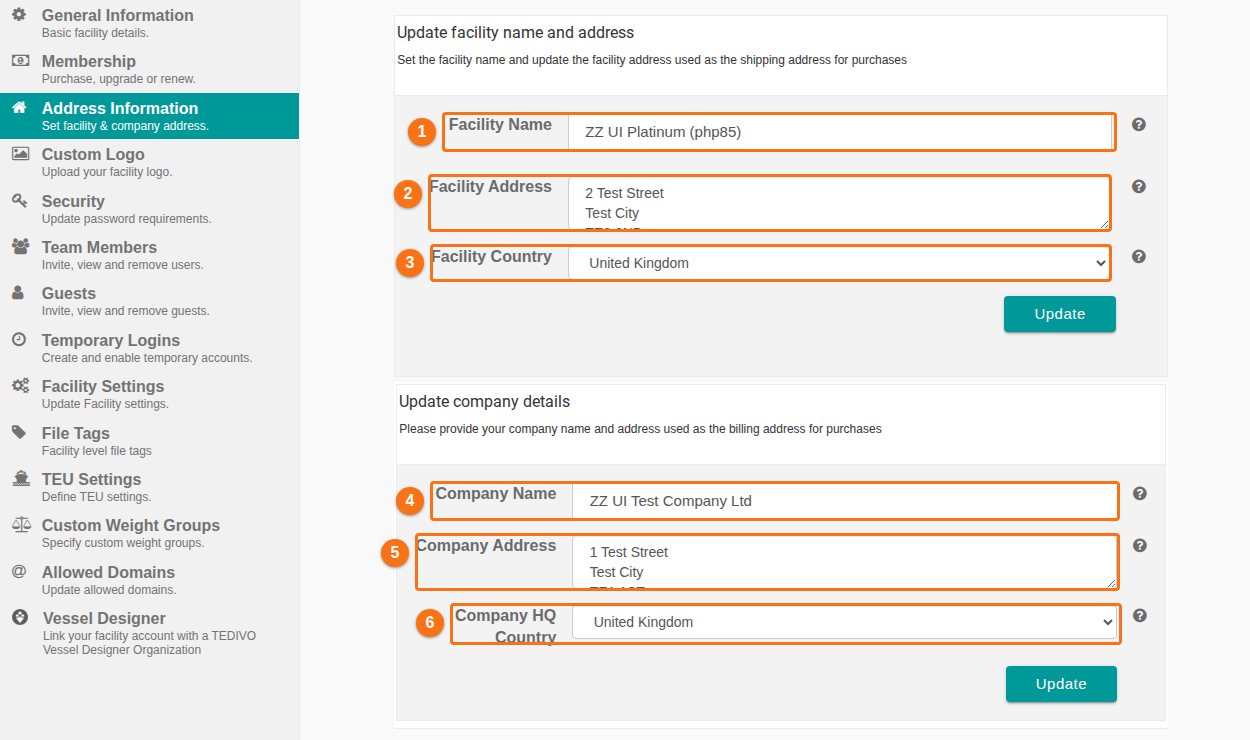
- In Update facility name and address, fill in these fields:
- Facility Name (1 in the picture): the name of your facility. It shows at the top left of the Function Menu for all user accounts.
- Facility Address (2 in the picture): the address of your facility. The screen says it is used as the shipping address for purchases.
- Facility Country (3 in the picture): choose the country where your facility is.
- Click Update under these three fields.
- In Update company details, fill in these fields:
- Company Name (4 in the picture): the name of your company.
- Company Address (5 in the picture): the address of your company. The screen says it is used as the billing address for purchases.
- Company HQ Country (6 in the picture): choose the country where your company headquarters is.
- Click the second Update button, under the company fields.
The addresses are updated for all user accounts of your facility.
Good to know
Section titled “Good to know”- The facility address can be different from your company headquarters address. To change the company-wide address, use Company Address. For other details, see General Facility Information.
- The company address can be different from the address of one facility. To change a facility setting, see Facility Settings.