

How to navigate the Bay Summary
The Bay Summary shows cargo counts for each bay. Use it to see the carriers in a bay and the totals for units, weight, special handling and size. You can export the table to Excel.
Open the report
Section titled “Open the report”- Upload a file, or open an earlier file.
- In the Function Menu on the left, click Analytics.
- Click Bay Summary. The Bay Summary Table opens. It has one row for each bay.
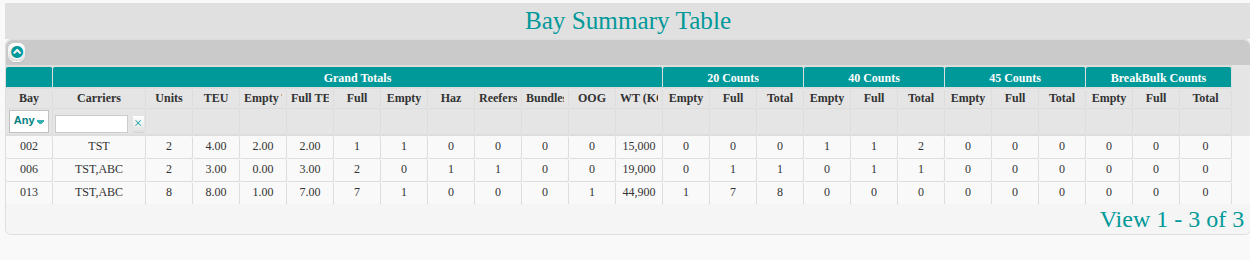
What the table shows
Section titled “What the table shows”The columns are in groups:
| Group | What it shows |
|---|---|
| Bay and Carriers | The bay number and the carriers in that bay. |
| Grand Totals | Units, TEU (twenty-foot equivalent unit), empty and full counts, special handling (Haz, Reefers, Bundles, OOG) and weight (WT). |
| 20 Counts, 40 Counts, 45 Counts | Empty, Full and Total for each container length. |
| BreakBulk Counts | Empty, Full and Total for breakbulk (cargo that is not in containers). |
Filter and export
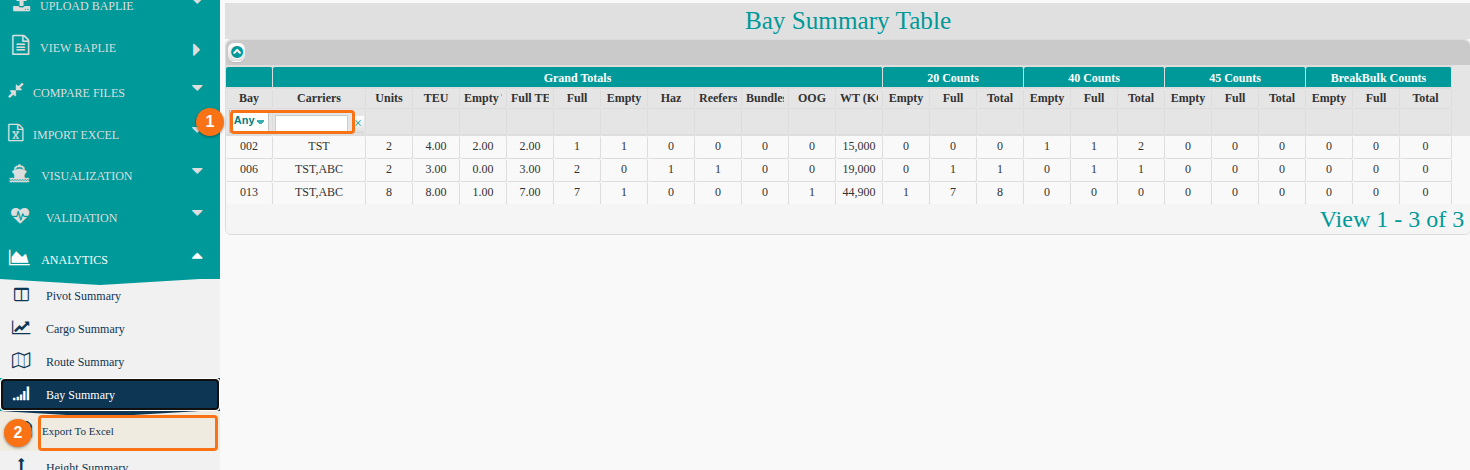
Section titled “Filter and export”- To filter by bay, use the dropdown in the Bay column (1 in the picture below). It shows Any at the start. Choose a bay. To remove the filter, choose Clear in this dropdown.
- To filter by carrier, type a value in the box in the Carriers column (1). Click the x next to the box to remove the filter.
- To export, click Export To Excel in the Function Menu, under Bay Summary (2). An .xls file downloads.
Good to know
Section titled “Good to know”- Click any row to highlight it.
- Below the table, the text View 1 - 3 of 3 shows how many rows the table has.