How to use Temporary Users functionality
Esta página aún no está disponible en tu idioma.
Use this guide to create temporary users in your facility. You can create them one by one or import them from a .csv file. A temporary user has a username and a password. It has no email address, so the person does not need to register first.
Before you start: log in with an administrator account for the facility.
About temporary users
Section titled “About temporary users”- You can enable a temporary user for a time that you choose: 1 Day, 7 Days, 30 Days, 90 Days or Indefinite.
- Only enabled accounts count toward the facility user limit.
- You can make an account view only. Then the person cannot change data or upload BAPLIE files. You can also let the person upload and view files but not change data.
- This feature is made for facilities that use unionized labor. For example, a facility imports a list of union IDs with names and the passwords to use.
- Log in with your administrator account.
- In the Function Menu, click Manage Facility.
- Click Temporary Logins. The page opens.
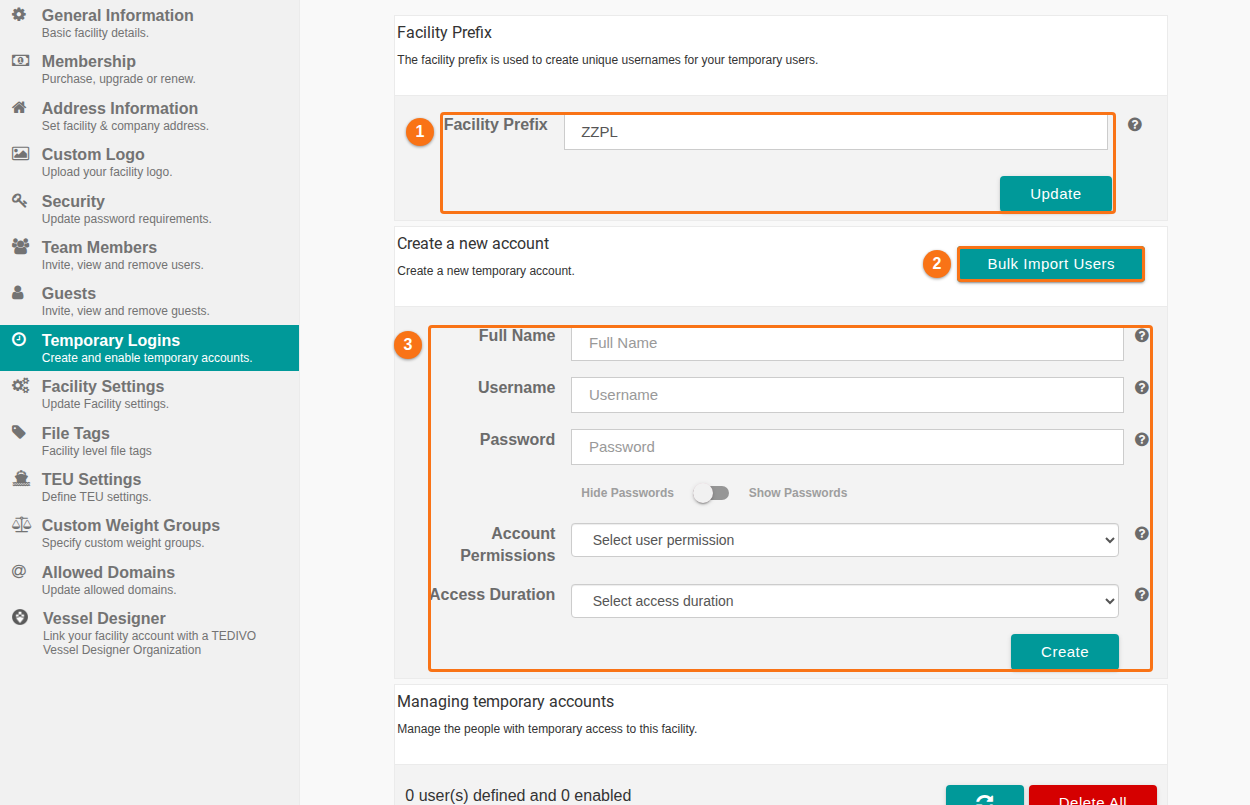
- Set the facility prefix (1 in the picture). The prefix is used to create unique usernames for your temporary users.
- Type your prefix in Facility Prefix. Use letters only.
- Click Update to save it.
- Add the users in one of two ways.
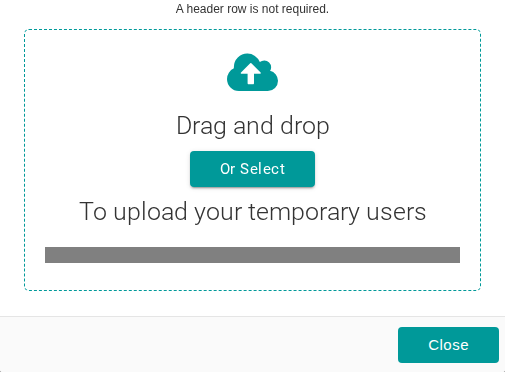
- Import from a file: click Bulk Import Users (2 in the picture). A window opens. Drag a .csv file into the dashed area, or click Or Select and choose the file. The values in each line are username, password and full name, separated by commas. A header row is not required. Click Close when you are done.
- Add one user by hand: fill in the form Create a new account (3 in the picture): Full Name, Username, Password, Account Permissions and Access Duration. To see the password you type, use the Hide Passwords / Show Passwords switch. Then click Create.
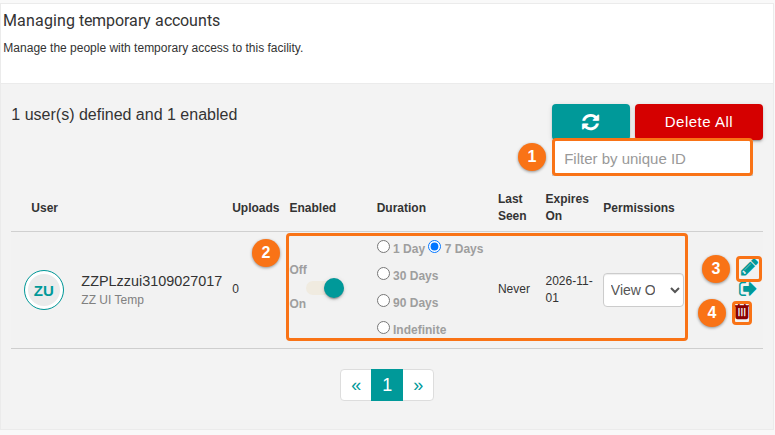
- Look in Managing temporary accounts. Each user you added is listed there. If you have many users, enter a unique ID in Filter by unique ID (1 in the picture) to find one.
- To change a user, use the controls in the row:
- Use the switch and the options in the Enabled and Duration columns (2 in the picture) to enable or disable the user or to change the duration.
- Use the Permissions drop-down list to change the permission.
- Click the pencil icon (3 in the picture) to change the username or the password.
- Click the trash icon (4 in the picture) to delete this user.
- To delete all temporary logins that you created, click Delete All.