

How to see the containers behind a Dashboard chart and select table fields
Esta página aún no está disponible en tu idioma.
Use this guide to see the list of containers behind a number on the Dashboard. For example, you can see which containers make up the 9 containers of one line operator. You can also choose which columns the list shows and in which order.
Before you start: open your file in the Dashboard. See How to use the Dashboard feature.
Open the list of containers
Section titled “Open the list of containers”- In the Function Menu on the left, open Visualization and click Dashboard.
- Find the chart you want, for example Line Operator. Use one of these ways:
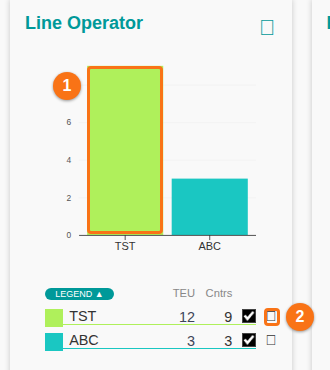
- Click a bar, a pie slice or a treemap box in the chart (1 in the picture). A small button shows the number of containers. Click this button.
- Click the small i icon at the right of a legend line (2 in the picture). In some browsers the icon shows as an empty square.
- The list of containers opens in a window. The title shows the chart name, the value and the number of containers, for example Line Operator: TST (9).
Work with the list
Section titled “Work with the list”The window has these parts:
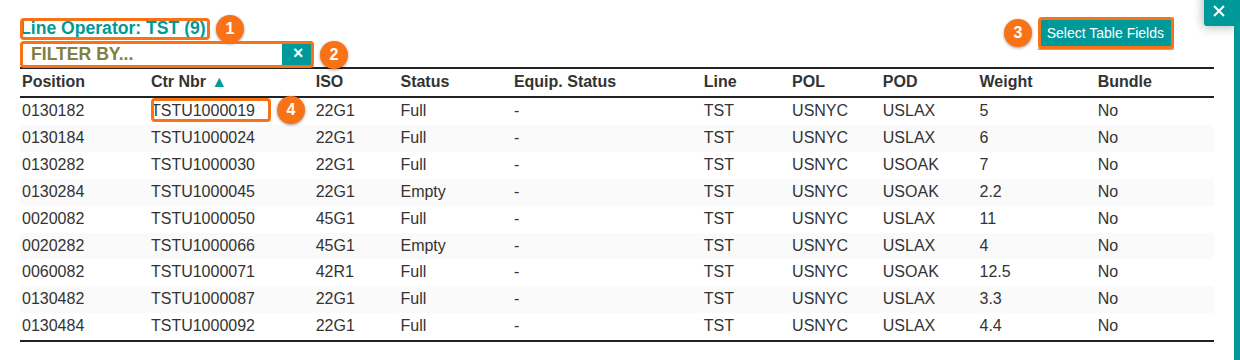
- The title (1 in the picture) shows which chart value the list belongs to.
- The FILTER BY… box (2 in the picture) is for searching. Type some text. The list shows only the rows with this text. A counter shows how many rows match, for example 1 / 9. Click the x button to clear the filter.
- Click a column name to sort the list by this column. The arrow next to the name shows the sort.
- Click a row (4 in the picture) to open the window with the details of this container.
- Click the x button at the top right of the window to close the list and go back to the Dashboard.
The list shows only the containers that are still in the Dashboard. If you removed an item from a chart legend, those containers are not in the list.
Select table fields
Section titled “Select table fields”- In the list window, click Select Table Fields (3 in the picture above). A window with the same name opens.
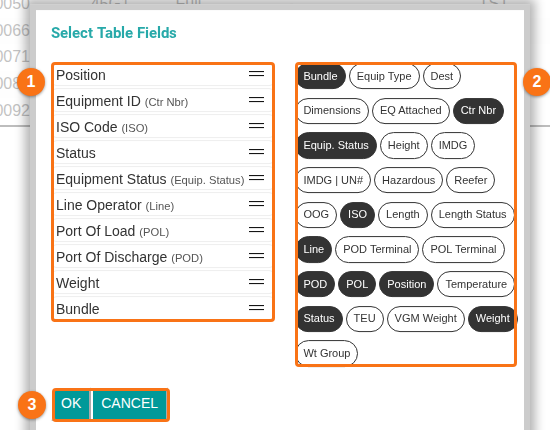
- The left side (1 in the picture below) shows the fields that the list uses now, in the order of the columns. To change the order, drag a field up or down with the handle (the two lines) at its right.
- The right side (2 in the picture below) shows all fields. The fields that are in use are dark. Click a dark field to remove it. Click a light field to add it.
- Click OK (3 in the picture below). The list shows your fields at once. Click CANCEL to close the window without changes.
Good to know
Section titled “Good to know”- You can choose up to 10 fields. When 10 fields are chosen, remove one before you add another.
- The fields you choose are saved to your user profile. They are used for all your files.
- If you use a field list that you saved before, a new field does not appear in the list by itself. Add it with Select Table Fields. This is the case for Equipment Status.