How to navigate the Anomalies option
BAPLIE Viewer Online checks the uploaded BAPLIE file against the SMDG specification for BAPLIE. The report on the Anomalies page shows data that does not follow the specification. It also shows positions with more than one unit, and containers that may be floating. This guide explains how to open the page, how to use the tables and which rules create an anomaly.
Open the Anomalies page
Section titled “Open the Anomalies page”You can open it from the Dashboard or from the Function Menu.
From the Dashboard
Section titled “From the Dashboard”- Upload a file with Upload BAPLIE, or open an earlier file with View BAPLIE. The Dashboard opens.
- Look at the top of the page. If anomalies were found, a red Anomalies detected! button shows next to the container counts (1 in the picture).
- Click Anomalies detected!. The Anomalies page opens.

From the Function Menu
Section titled “From the Function Menu”- Open your file.
- In the Function Menu on the left, click Validation, then click Anomalies.
The tables load and show data that does not follow the SMDG specification.
Use the Anomalies tables
Section titled “Use the Anomalies tables”The page has three tables: Cargo with Anomalies in Data, Positions with Multiple Equipment and Possible Floating Containers. In the picture:
- The green arrow shows or hides a table. Click it next to the table name.
- View Details opens a window with the container details.
- Edit Details opens a window where you can change the container details.
- The page number and the dropdown list at the bottom set how many records show on each page. The picture shows this control for Positions with Multiple Equipment.
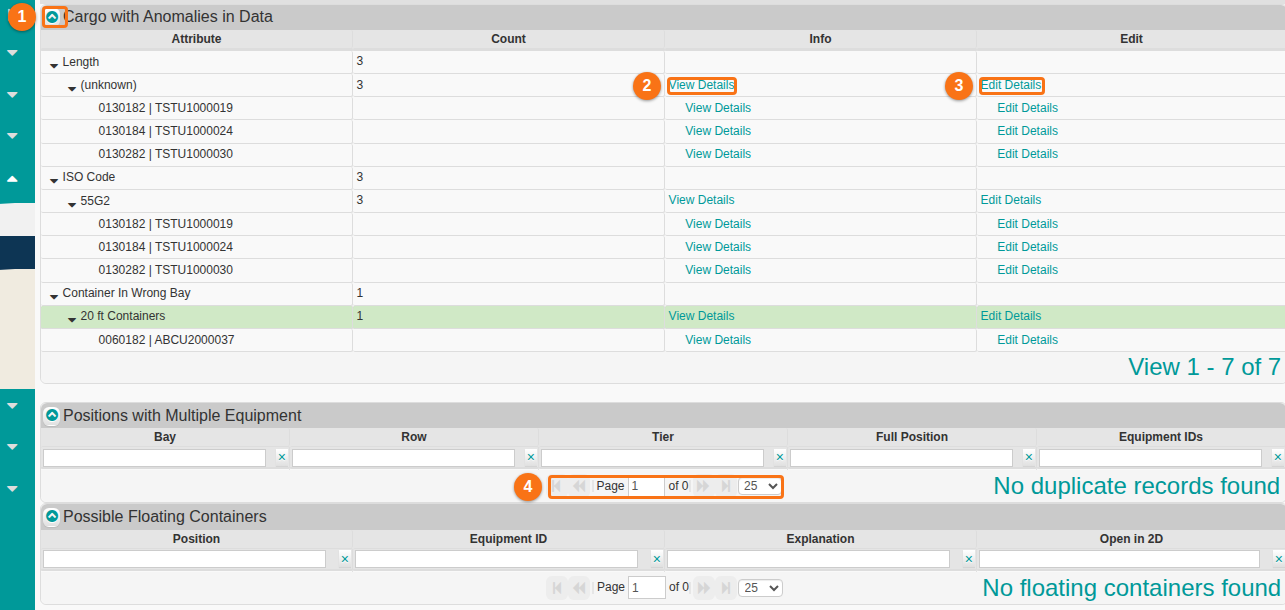
Note: View Details and Edit Details are in the Cargo with Anomalies in Data table. Click any row to highlight it.
Rules for Cargo with Anomalies in Data
Section titled “Rules for Cargo with Anomalies in Data”Each row of the table shows a category and its count. The rules below say when a record shows as an anomaly.
Length
Section titled “Length”| Anomaly | Shows when |
|---|---|
| Unknown Length | The ISO code is not in the list of master codes, and its 1st character is not 1, 2, 3, L or 9. |
| Missing Length | No ISO code is given. |
Equipment ID
Section titled “Equipment ID”The screen names this category Container ID.
| Anomaly | Shows when |
|---|---|
| Invalid ID | The ID is not exactly 11 characters long. Or the prefix has characters that are not letters. Or the number part has letters or special characters. |
| Missing ID | No equipment number is given. |
Position
Section titled “Position”| Anomaly | Shows when |
|---|---|
| Bad Position | The vessel position is not exactly 7 characters long. |
| Unknown Bay | The vessel position is 0999999. |
| Missing Position | The vessel position is blank. |
ISO code
Section titled “ISO code”| Anomaly | Shows when |
|---|---|
| Invalid Code | The ISO code is not exactly 4 characters long, or it ends in 99, or its last character is not a number. And the 2nd character is not 0, 2, 3, 4, 5, E, C or D. |
| Missing Code | No ISO code is given. |
Weight
Section titled “Weight”| Anomaly | Shows when |
|---|---|
| Too Heavy | For a 20’ container: more than 23,995 kg or more than 52,900 lbs. For a container longer than 20’: more than 30,480 kg or more than 67,200 lbs. |
| Zero Weight | The weight is 0. |
| Missing Weight | The weight field is empty. |
| Too Light | The weight is less than 1000 kg (less than 4 digits). |
You can change the limits for Too Heavy and Too Light. See How to customize weight settings for Anomalies data.
Carrier
Section titled “Carrier”| Anomaly | Shows when |
|---|---|
| Invalid Carrier | The carrier has fewer than 3 or more than 4 characters. |
| Missing Carrier | No carrier is given. |
Status
Section titled “Status”| Anomaly | Shows when |
|---|---|
| Invalid Status | The full or empty status is not 4, 5 or a space. |
| Missing Status | The full or empty status is blank. |
POD and POL
Section titled “POD and POL”POD is the port of discharge. POL is the port of load.
| Anomaly | Shows when |
|---|---|
| Invalid POD | The POD is not exactly 3 or 5 characters long, or it has numbers. |
| Missing POD | The POD is blank. |
| Invalid POL | The POL is not exactly 3 or 5 characters long, or it has numbers. |
| Missing POL | The POL is blank. |
If a POD or POL shows as numbers, it may be a schedule K code. To find its UN/LOC code (the standard port code):
- Look up the number in this list. Write down the country and the port name: https://www.cbp.gov/sites/default/files/assets/documents/2017-Feb/appendix_f_0.pdf
- Find the same country in this master list. Then find the port name to see its UN/LOC code: https://unece.org/trade/cefact/unlocode-code-list-country-and-territory
Container In Wrong Bay
Section titled “Container In Wrong Bay”It shows when:
- A 20 foot container is not in an odd-numbered bay.
- A container of 40 feet or more is not in an even-numbered bay.
Duplicate Container ID
Section titled “Duplicate Container ID”It shows when the same container ID is found somewhere else in the data.
Correct an anomaly
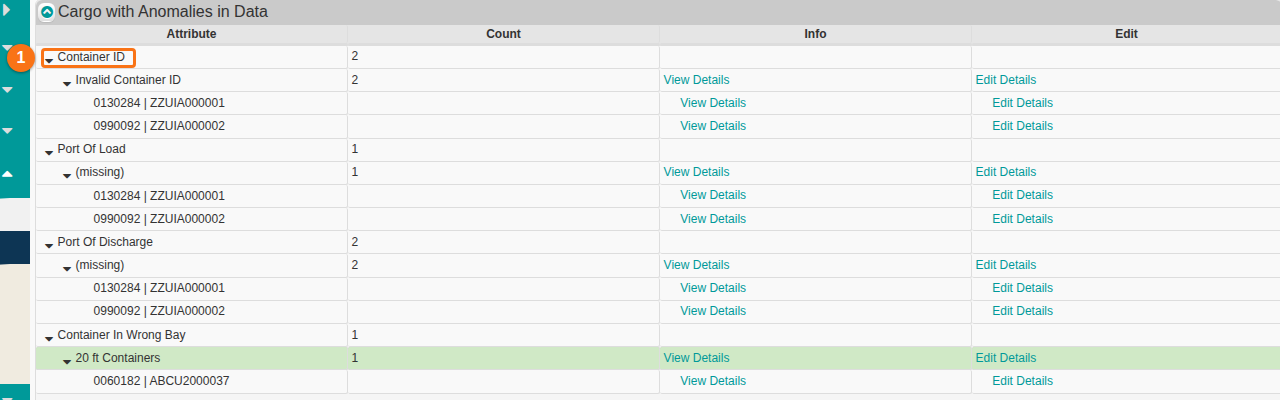
Section titled “Correct an anomaly”- In Cargo with Anomalies in Data, click the small black triangle next to a category, for example Container ID (1 in the picture). The reason for the possible error and the affected containers show.
- Click Edit Details on the right. A window opens where you can change the container data.
- Change the data and click the save button in the window. The window for one record has Edit Single Row. The window for many records has Edit Multiple Rows.
For example, if the length is missing for some containers, use Edit Details to add the length for one or more containers. Saving corrects the anomaly. It also updates the BAPLIE file for future viewing and downloading.
For all steps, see How to correct anomalies in data.
Positions with Multiple Equipment
Section titled “Positions with Multiple Equipment”This table shows containers that are in the same full position, with their container numbers. You can filter the results by bay, row or tier.
Possible Floating Containers
Section titled “Possible Floating Containers”This table shows containers that may be floating. Its columns are Position, Equipment ID, Explanation and Open in 2D. You can open a container in the 2D Bay View. Click View Bay to open a new tab with a picture of the data.
Export the tables to Excel
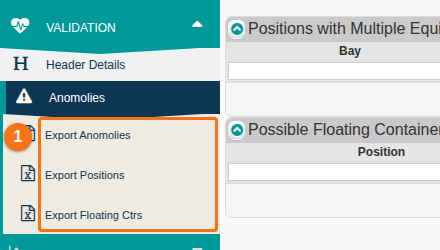
Section titled “Export the tables to Excel”- In the Function Menu, find the export options under Anomalies (1 in the picture): Export Anomalies, Export Positions and Export Floating Ctrs.
- Click an option. An .xls file downloads. It has one worksheet for each type of error (for example Equipment ID, ISO Code, Weight).