

How to use the Main Content screen
Esta página aún no está disponible en tu idioma.
The Main Content screen shows the content of your BAPLIE file as a table. This guide explains the parts of the screen and the options in the Function Menu.
To open it, click Visualization in the Function Menu, then click Main Content.
Parts of the screen
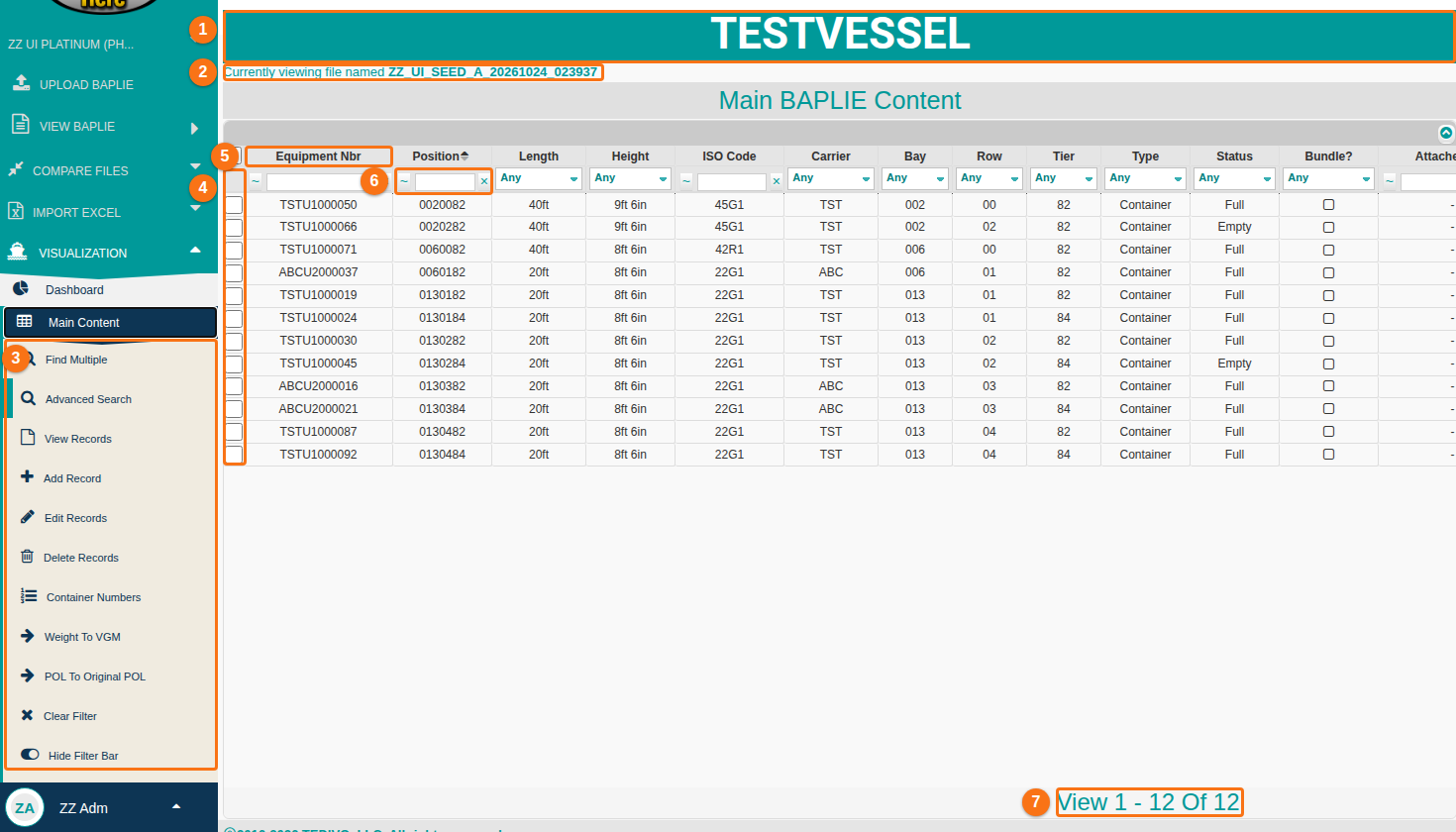
Section titled “Parts of the screen”The numbers below match the numbers in the picture.
- The vessel name.
- The file name, after Currently viewing file named.
- The Function Menu. It has the options for filtering and editing the BAPLIE content.
- The check boxes at the start of each row. Use them to select records.
- The column headers. You can drag a header to change the order of the columns.
- The filter row. Use it to filter the data in a column.
- The record count, for example View 1 - 12 Of 12.
For more help with all the features, click here.
Function Menu options
Section titled “Function Menu options”The options below are in the Function Menu on the left side of the screen. Click a title to open a guide with more information.
Find several containers at the same time. Paste a list of container IDs. The delimiter (the character between the IDs) can be any character.
Build advanced queries to filter the BAPLIE data. You can save queries to your profile and load them again when you view BAPLIE files later.
Show the details of the selected records. Select at least one record before you click this option. The View Records form shows only the attributes that are visible in the table.
Add a new record to the BAPLIE file.
Edit one or more records in the BAPLIE file.
Delete one or more records from the BAPLIE file.
Container Numbers
Section titled “Container Numbers”Open a window with a list of container IDs. The list is based on the current filters or on the selected containers. You can highlight the IDs and copy them.
Weight To VGM
Section titled “Weight To VGM”Copy the non-verified weight of each container into the Verified Gross Mass (VGM) column. By default, this is done only for container records where Status is Full.
A facility setting changes this. If Copy Weight to VGM includes empty containers is set to Yes, empty containers are copied too. A facility administrator changes the setting in Manage Facility, on the Facility Settings tab.
POL To Original POL
Section titled “POL To Original POL”Copy the Port of Load value into the Original Port of Load field.
Click POL To Original POL in the Function Menu. For every container in the file, the Port of Load value is copied into the Original Port of Load field. The Port of Load value stays as it is. If a container already has an Original Port of Load, the new value replaces it. If your user setting for file backups is on, the system also saves a copy of the file that ends with _original. A message tells you when the copy is complete.
Remove all filters that are applied to the data.
Hide the filter bar at the top of the table, or show it again.
Choose which columns are visible in the BAPLIE data table.
Go back to the default layout. This removes all filters and your column changes.
Export the data to Excel. If a filter is applied, only the filtered data is exported. If you changed the visible columns, only the visible columns are exported.
Note: Gold members can use the editing options on this page (Add Record, Edit Records, Delete Records and Weight To VGM).