

How to navigate the Cargo Summary
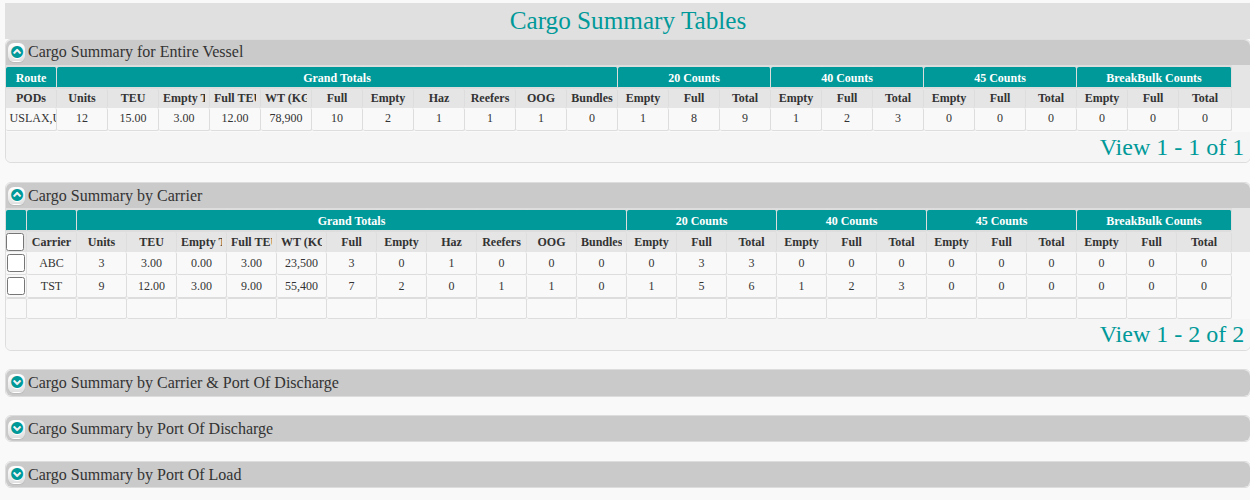
The Cargo Summary shows cargo counts for the whole vessel, for each carrier, for each port of discharge and for each port of load. You can export each table to Excel.
Open the report
Section titled “Open the report”- In the Function Menu on the left, click Analytics.
- Click Cargo Summary. The Cargo Summary Tables page opens.
The page has five tables. The first two are open. The others are closed.
- Cargo Summary for Entire Vessel
- Cargo Summary by Carrier
- Cargo Summary by Carrier & Port Of Discharge
- Cargo Summary by Port Of Discharge
- Cargo Summary by Port Of Load
Use the tables
Section titled “Use the tables”- Click the green arrow next to a table name to show or hide the table.
- To see more columns (for example the BreakBulk Counts), scroll the table from left to right. The scroll bar shows when the screen is too narrow.
- To change the width of a column, drag the edge of the column with your mouse.
- Click a row to highlight it.
- To total values, click the box at the top left of the table to total all columns. Or click single columns to total only those columns.
Export a table
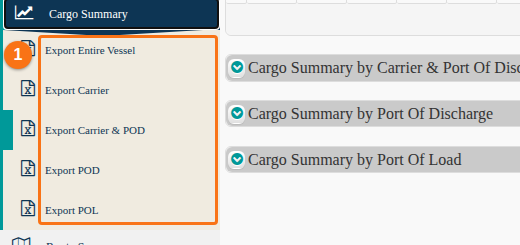
Section titled “Export a table”- In the Function Menu, under Cargo Summary, find the export options (1 in the picture): Export Entire Vessel, Export Carrier, Export Carrier & POD, Export POD and Export POL. POD is port of discharge. POL is port of load.
- Click the name of a table. An .xls file downloads.
Note: below each table, the text View 1 - 2 of 2 shows how many rows the table has.