

How to view, filter and edit Equipment Status
Esta página aún no está disponible en tu idioma.
Use this guide to see the equipment status of the containers in your BAPLIE file, to filter the table by it, and to change it. Equipment status tells what happens to a container, for example Export, Import or Transshipment. The file stores it in the EQD segment, element 8249 (“Equipment status, coded”).
Before you start: open your file. To change a status, you need permission to edit the file. Gold members can edit.
Show the Equipment Status column
Section titled “Show the Equipment Status column”The Equipment Status column is hidden at first. Show it like this:
- In the Function Menu on the left, open Visualization and click Main Content. The table of containers opens.
- In the Function Menu, click Show/Hide Columns. The Select columns window opens.
- In the list on the right (the hidden columns), click the + icon next to Equipment Status (1 in the picture).
- Click Ok (2 in the picture). The Equipment Status column shows in the table.
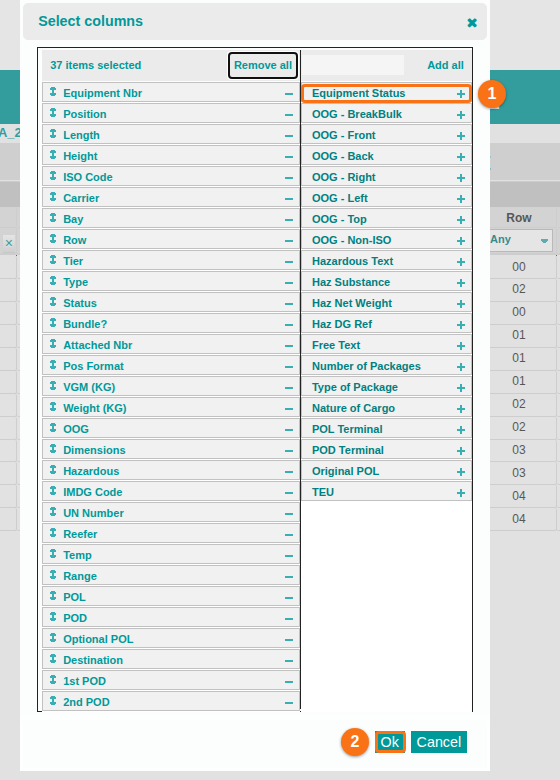
A container that has no status shows - in this column.
For more about columns, see How to add and remove columns from the table view.
Filter the table by Equipment Status
Section titled “Filter the table by Equipment Status”- On the Main Content screen, find the filter box under the Equipment Status column name. It is a list with the word Any.
- Open the list. It shows only the statuses that are in your file. If some containers have no status, the list also has -.
- Choose one or more values. The table shows only the containers with these statuses.
To remove the filter, see How to remove column filters. For more about filters, see How to apply a column filter.
Change the status of one container
Section titled “Change the status of one container”- On the Main Content screen, tick the checkbox at the left of the container.
- In the Function Menu, click Edit Records. The Edit Single Row window opens.
- Find the Equipment Status list (1 in the picture). It is under Full or Empty.
- Choose the new status. To clear the status, choose –Equipment Status–.
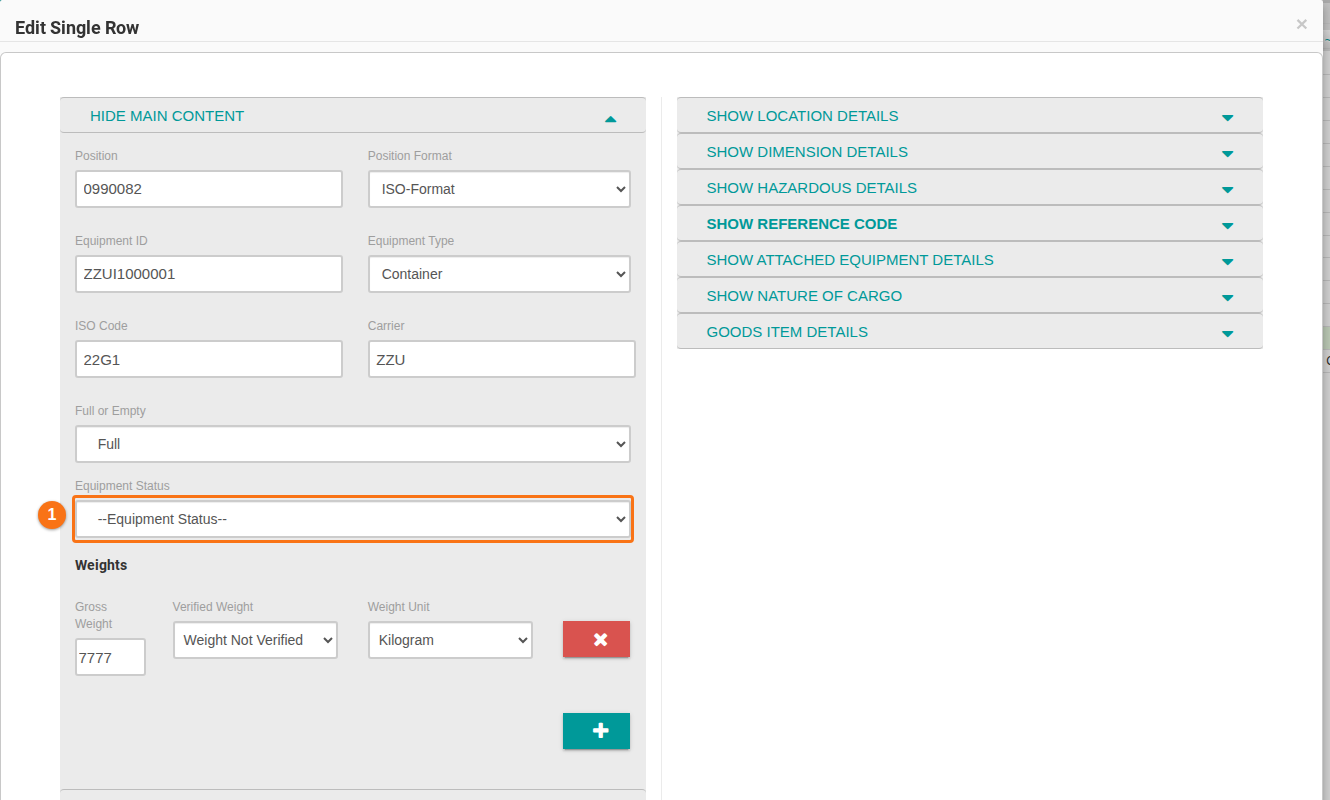
- Click Edit Single Row at the bottom of the window. The window closes and the table shows the new status.
To cancel: click Close. Nothing is saved.
Change the status of many containers
Section titled “Change the status of many containers”- On the Main Content screen, tick the checkbox at the left of each container.
- In the Function Menu, click Edit Records. The Editing Multiple Rows window opens.
- Tick the checkbox next to Equipment Status (1 in the picture). The list becomes active.
- Choose the status in the list (2 in the picture).
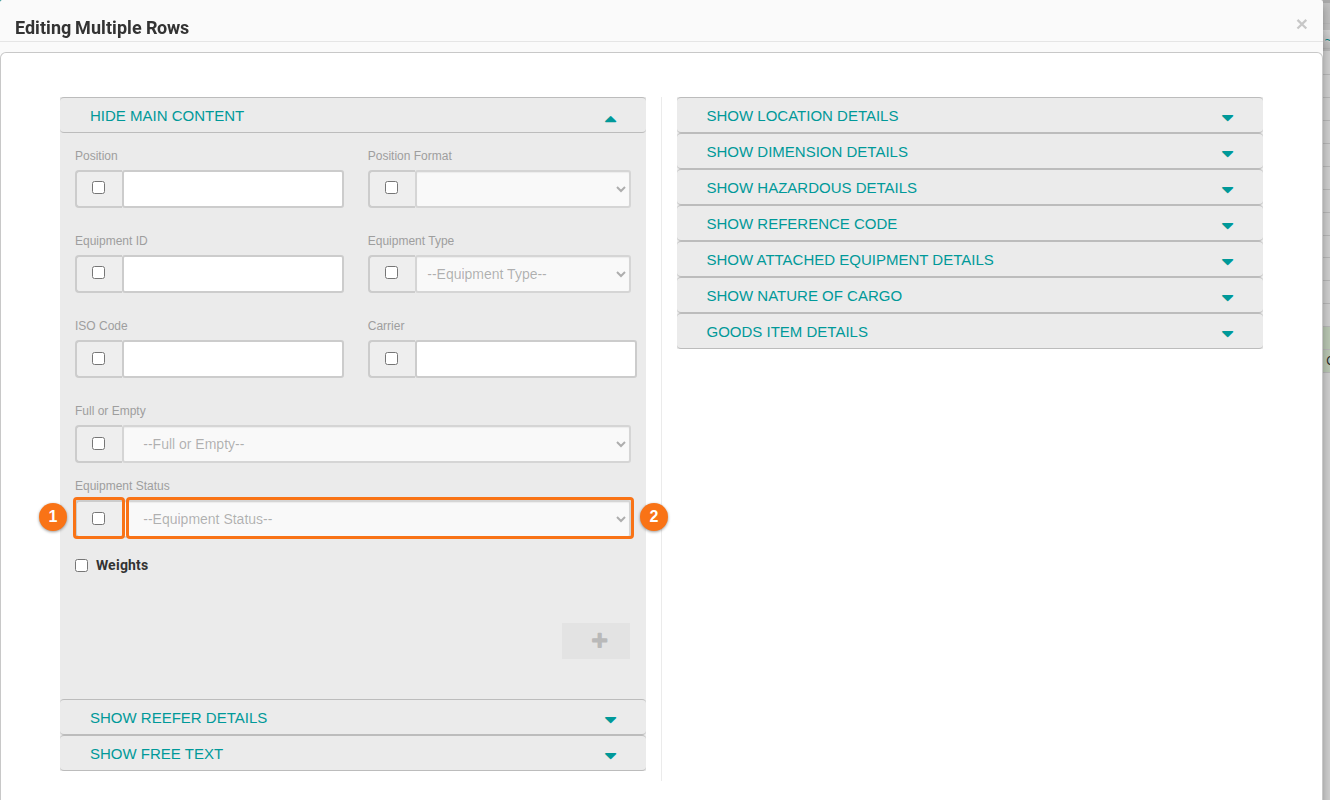
- Click Edit Multiple Rows at the bottom of the window.
Only the fields with a ticked checkbox change. If you tick the box and leave –Equipment Status–, the status is cleared for all selected containers. For more about editing, see How to edit one or more records.
The statuses you can choose
Section titled “The statuses you can choose”The Equipment Status list has these 20 values:
| Code | Status |
|---|---|
| 1 | Continental |
| 2 | Export |
| 3 | Import |
| 4 | Remain on board |
| 5 | Shifter |
| 6 | Transshipment |
| 7 | Hot delivery |
| 8 | MLB |
| 9 | MCB (Micro Land Bridge) |
| 10 | Canada Bound transport |
| 11 | Direct delivery |
| 12 | Bond transport |
| 13 | Transship to other vessel |
| 14 | Transship to other pier |
| 15 | Rail road transport |
| 16 | Road transport |
| 17 | Barge transport |
| 18 | Temporary stowage |
| 19 | Urgent unpacking |
| 20 | Sea & Air |
Good to know
Section titled “Good to know”- Add Record: the Adding A New Row window has the same Equipment Status list. It is optional. See How to add a record.
- 2D Bay View: the container edit form in 2D Bay View also has an Equipment Status list.
- Unknown values: if a file has a status that is not one of the 20 codes, the value stays as it is. The Equipment Status list in the edit window shows that value, and saving the window does not change it. The Anomalies page lists such containers in the category Equipment Status, in a group named Unknown code with the value. See How to navigate the Anomalies option.
- BAPLIE 3 files: the SMDG BAPLIE 3 format (3.1.1) does not use equipment status. If a BAPLIE 3 file has a status, the Anomalies page lists the container in the category Equipment Status, in the group Not used in BAPLIE 3 (SMDG 3.1.1).
- Download: when you download a file as BAPLIE 1.5, the status cannot be saved in the file. A window asks “N container(s) have an equipment status that BAPLIE 1.5 cannot carry. It will be left blank in the downloaded file. Continue?”. Choose to continue or to cancel. See How to navigate the Download BAPLIE option.
- Excel import: the Excel import has a mapping field named Equipment status code. Use the code number (1 to 20) or the name of the status. If a value is not known, the import reports an error and leaves the status blank when you continue. See How to create a BAPLIE file from an Excel spreadsheet.