

How to navigate the Height Summary
The Height Summary shows the height of the cargo above deck for all bays. You can export it to Excel.
Open the report
Section titled “Open the report”- In the Function Menu on the left, click Analytics.
- Click Height Summary. The Height Summary Table opens. It has one row for each bay.
Use the table
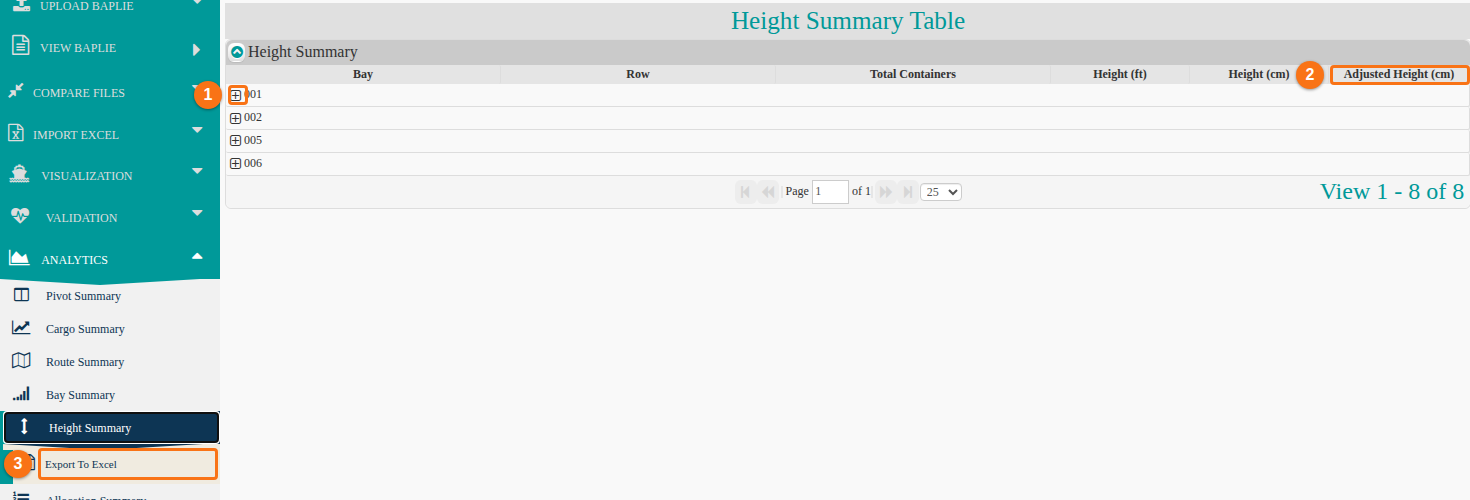
Section titled “Use the table”- Click the + next to a bay number (1 in the picture below). The row opens and shows the rows of that bay.
- Read the Adjusted Height (cm) column (2). It adds 6 cm for the 1st container above the hatch, and 3 cm for each container above that.
- Click any row to highlight it. Below the table, the page number and the dropdown list set how many bays show on each page.
- To export, click Export To Excel in the Function Menu, under Height Summary (3). An .xls file downloads.
What the table shows
Section titled “What the table shows”| Column | What it shows |
|---|---|
| Bay | The bay number. |
| Row | The rows in the bay. |
| Total Containers | The number of containers. |
| Height (ft) and Height (cm) | The height in feet and in centimetres. |
| Adjusted Height (cm) | The height in centimetres with the extra centimetres added. |