

How to manage general facility information
Esta página aún no está disponible en tu idioma.
Use this guide to see the general information about your facility. The information applies to all users of the facility.
Before you start: you must be the main user or an administrator of the facility.
- Log in to baplieviewer.com. The home page opens with the Function Menu on the left.
- Click Manage Facility under your facility’s name.
- Click General Information. The page General information about this facility opens.
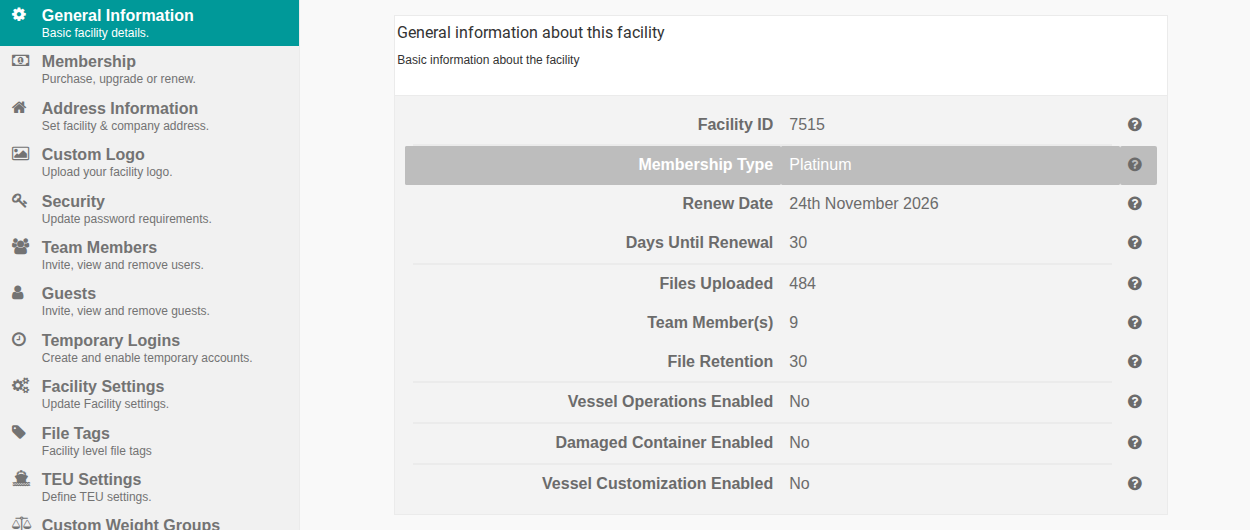
Fields on the page
Section titled “Fields on the page”| Field | What it shows |
|---|---|
| Facility ID | A unique number given to your facility when the account was created. You cannot edit it. It is used only for internal purposes. |
| Membership Type | The current membership type of your facility. All user accounts can see it. |
| Renew Date | The date your current membership ends. After you renew, the date changes by the duration you chose at checkout. It changes for all user accounts. |
| Days Until Renewal | The number of days until the renew date. The system calculates it from the renew date. |
| Files Uploaded | The total number of files that the whole facility has uploaded since your membership began. |
| Team Member(s) | The number of users in your facility, including you. |
| File Retention | The number of days before a file is deleted. The default for new accounts is 7 days without activity. If someone edits a file, the count starts again. |
| Vessel Operations Enabled | Shows Yes if your membership includes Vessel Operations. |
| Damaged Container Enabled | Enabled for certain enterprise customers. |
| Vessel Customization Enabled | Enabled for certain enterprise customers. |
Change these values
Section titled “Change these values”- To change the membership type, use the Membership tab. See the membership tiers.
- To change how long files stay, use the Facility Settings tab.