

How to navigate the 2D Bay View
The 2D Bay View shows the vessel as a drawing, bay by bay. It shows where each container is stowed, above deck and below deck. It is made for stowage planners and vessel planners of shipping lines and container terminals. They use it to see the cargo plan (stowage plan) of the BAPLIE file. The view has many features that help with this work. This guide describes the screen and its modes.
Before you start: upload a file to baplieviewer.com and open it.
Open the 2D Bay View
Section titled “Open the 2D Bay View”- In the Function Menu on the left, open Visualization and click 2D Bay View. The 2D data opens in a new window.
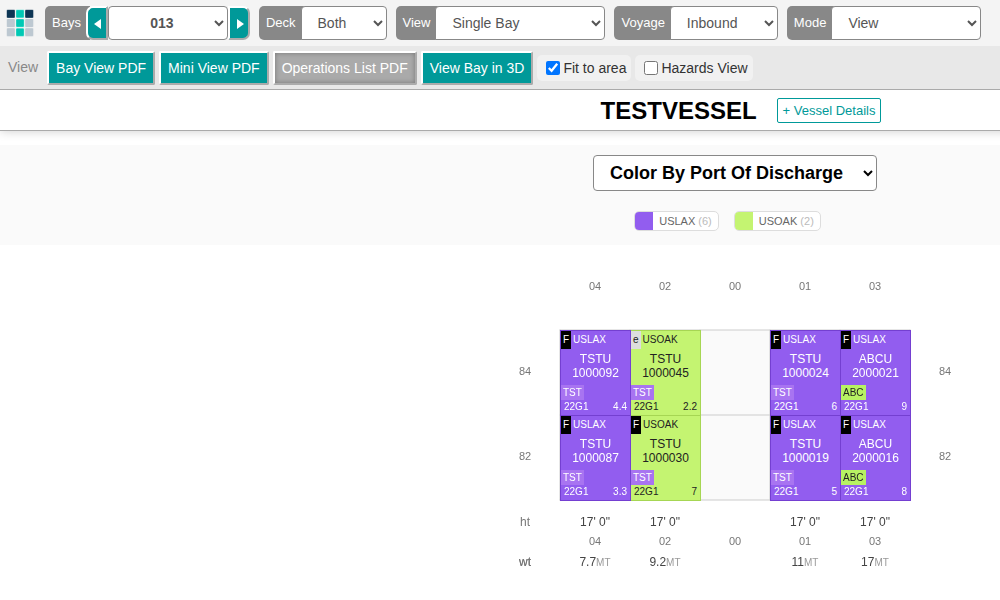
The 2D Bay View reads the BAPLIE file to find the maximum number of bays and the widest column. It uses this to draw the vessel. So the view scales for the smallest ship and for the largest ship.
Colors and legend
Section titled “Colors and legend”You can color the containers by an attribute. You can also change the colors of each attribute.
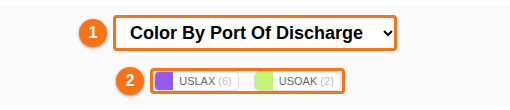
- Choose an attribute in the Color By drop-down (1 in the picture).
- Look at the legend below it (2 in the picture). It lists the values and their colors.
- Click a value in the legend. Only the matching container records are highlighted.
Container details
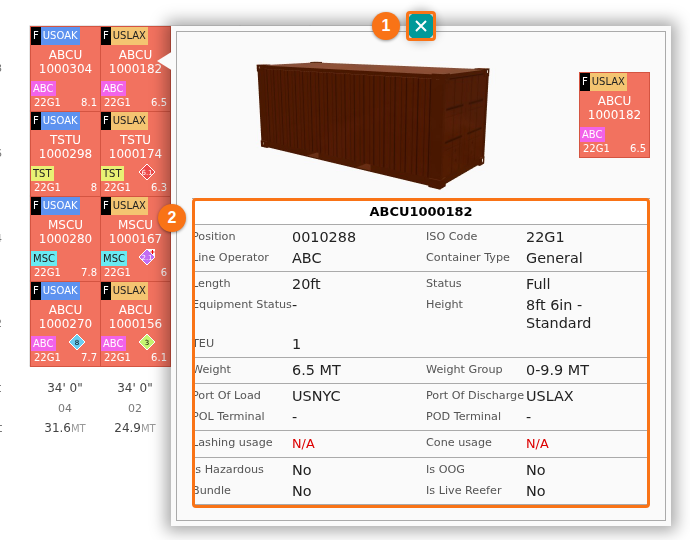
Section titled “Container details”Each container in the drawing shows its most important attributes. The stack weights are shown at the bottom of the view. Below deck, the stack heights are also shown.
Click the identification number of a container. A window opens next to it with a picture of a container and the important attributes of that container (2 in the picture). An attribute with no value shows a dash (-). To close the window, click the round button at the top (1 in the picture).
The menu bar
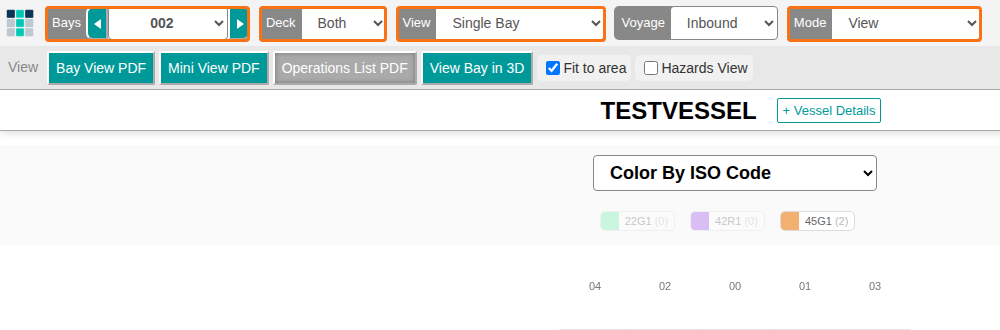
Section titled “The menu bar”The menu bar at the top gives you options to view and edit the vessel data. When the screen opens, the first bay of the file is shown. The mode is View. In picture 3, the first bay is 002. The orange frames mark the Bays, Deck, View and Mode menus.
Select a bay
Section titled “Select a bay”Use the Bays menu to choose a bay from the drop-down list. You can also use the left and right arrows next to the bay number to go from bay to bay.
Show above or below deck
Section titled “Show above or below deck”Use the Deck menu to choose what the screen shows: the containers above deck only, the containers below deck only, or Both. Choose in the drop-down. The screen updates by itself.
Show one bay or all bays
Section titled “Show one bay or all bays”Use the View menu to choose how many bays are on the screen. The default is Single Bay. The Mini choices zoom out and show all bays in one view.
Voyage
Section titled “Voyage”The menu bar also has a Voyage drop-down. It is set to Inbound in the picture.
Use the Mode menu to go to the main features of the 2D Bay View. The row of options below the menu bar changes with the mode you choose.

The Mode list has these entries: Settings, Dimensions, View, Edit, Move, Download, Other Apps, Multi-Lift, Lashing Usage, Cones Usage and Correct Restows. This guide describes View, Settings, Edit, Move and Download.
The View mode has buttons for PDF files and for the 3D view. Click a button name to read more about it.

Click this button to choose the document options and make a PDF of the Letter Plan. You can print one selected bay or all bays.
Click this button to choose the document options and make a PDF of the Scan Plan. You can choose how many bays are printed on each page.
Operations List PDF
Click this button to get the operations list as a PDF.
Click this button to open a new window. It shows the current bay in the 3D View.
The View row also has two checkboxes: Fit to area and Hazards View.
Settings
Section titled “Settings”Use the Settings mode to change how the 2D Bay View looks.

Change the colors in the 2D view to fit your business. You can set colors for these attributes: Bundle, Container Type, Destination, Free Text, Height, ISO Code, Is Hazardous, Is OOG, Is Reefer, Length, Line Operator, Port of Discharge, Port of Load and Status. Your colors are saved to your user profile. They are used for all files you upload later.
Customize Info
Click this button to choose which information the 2D view shows. These are the options:
- Show or hide the Container ID.
- Show POD (port of discharge), POL (port of load) or Destination.
- Show or hide the carrier.
- Show or hide the status.
- Show or hide the ISO code.
- Show weight, VGM weight (verified gross mass) or composite weight. Composite weight is the VGM weight if there is one. If not, it is the weight without VGM.
- Show true height or the same height for all containers.
- Show a type icon, show a type label or hide the type.
- Show or hide OOG (out of gauge) symbols.
- Show or hide OOG dimensions.
- Show or hide High Cube icons.
- Round the weights or do not round them.
Customize Header
Click this button to change the vessel header information. You can choose which fields are on the left side and which are on the right side. You can also hide fields you do not need.
Use this mode to edit the container data of the bay you see. The mode has these buttons: Add from list, Edit selected, Remove properties from selected and Clear selected. A number shows how many containers are selected.
- Select one or more containers in the bay view. Edit selected is enabled only when at least one container is selected.
- Click Edit selected.
- To remove the selection, click Clear selected. No container is selected then.

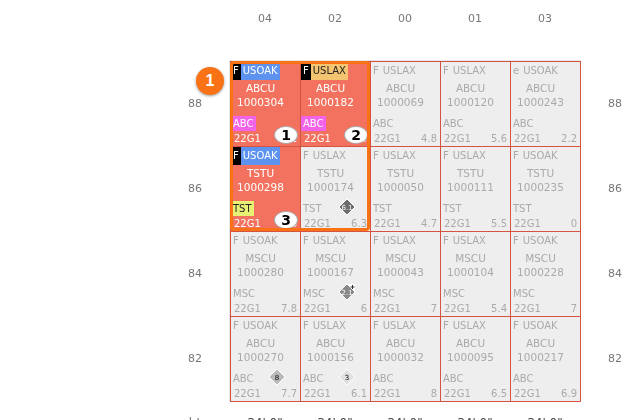
When containers are selected, the number next to the buttons shows how many (1 in the first picture below). The selected containers keep their colour and get a number in the bay (1 in the second picture). All other containers turn grey.

Click this option to turn on the Move Containers feature. You can then Load New Containers, Load Generic Empties, Unload Containers and Re-Stow Containers. The row of buttons (2 in the picture) also has Shift-On-Board, Correct Position and Print Bay Plan. The Mode list is marked 1 in the picture.

Download
Section titled “Download”Use this mode to download your data. It has two buttons: Current data as BAPLIE and Changes in data as MOVINS.
- Click Current data as BAPLIE to download the current data as a new BAPLIE file.
- Click Changes in data as MOVINS to download the changes in your data as a MOVINS file.

Note: Gold members can use Edit. Gold members cannot use Move. For more information, see the Membership FAQ.