

How to read announcements
Esta página aún no está disponible en tu idioma.
Use this guide to read the announcements that BAPLIE Viewer Online shows to you. Announcements tell you about new features and other news for your account.
Before you start: log in to BAPLIE Viewer Online.
- Look at the circle with your picture or initials at the bottom of the Function Menu. When there is a new announcement, a small mark shows on this circle.
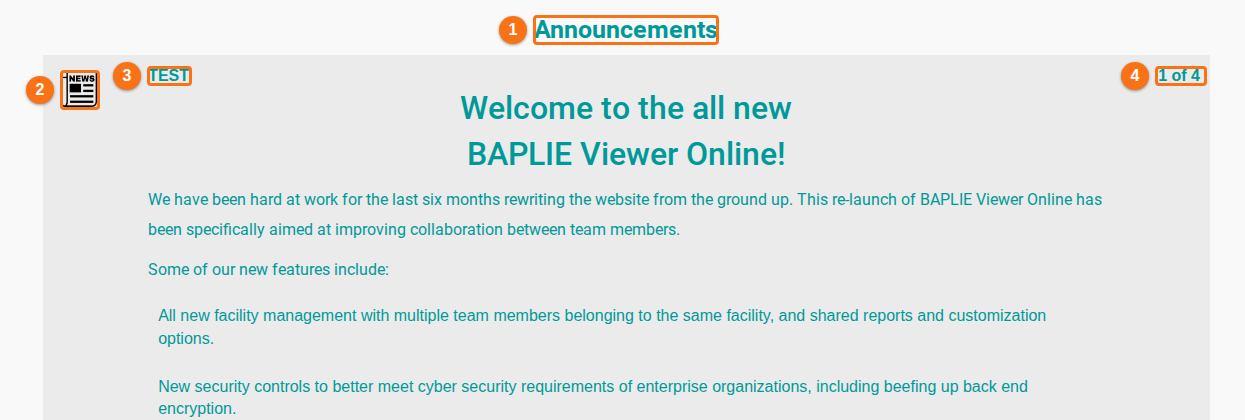
- In the Function Menu on the left, click Help. Then click Announcements (the bullhorn icon). The Announcements page opens (1 in the picture).
- Read each announcement. An announcement has these parts:
- A small picture (2 in the picture). If the picture is a link, click it to open more information in a new browser tab.
- A title (3 in the picture).
- The text of the announcement.
- A counter (4 in the picture). For example, 1 of 4 means the first of four announcements.
- Scroll down to read the next announcements.
When you open the Announcements page, the mark on your circle goes away.
If you see no announcements
Section titled “If you see no announcements”The page shows the text There are no new announcements. when you have no unread announcement. This is normal.
Important announcements
Section titled “Important announcements”Some announcements open in a window with the title Important Announcements. The window has two buttons:
- Acknowledge: click it to confirm that you read the announcement. BAPLIE Viewer Online records this. The announcement does not show again.
- Ignore: click it to close the announcement without confirming it.
If there is more than one important announcement, the window shows the next one after you click a button.
Good to know
Section titled “Good to know”- An announcement can be for you only, for your facility, for all users, or for one membership type. You see only the announcements that are for you.
- An announcement can have an end date. After this date, it does not show.
- If Announcements is not in the Help menu, contact Support. See How to contact Support and create a support ticket.