

How to navigate the Merge Files option
Esta página aún no está disponible en tu idioma.
Use this guide to add the containers of one BAPLIE file to another BAPLIE file. This helps you complete a stowage plan, because you can join two sets of data into one file. The result is a new file. The header and footer of the first (primary) file stay. The containers of the second (secondary) file are added.
Before you start: upload both files to baplieviewer.com. Open the file you want to keep as the primary file.
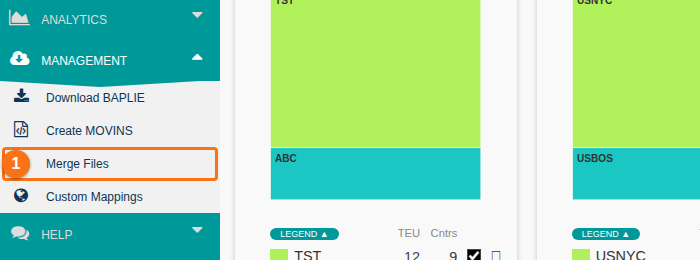
- In the Function Menu on the left, open Management and click Merge Files (1 in the picture).
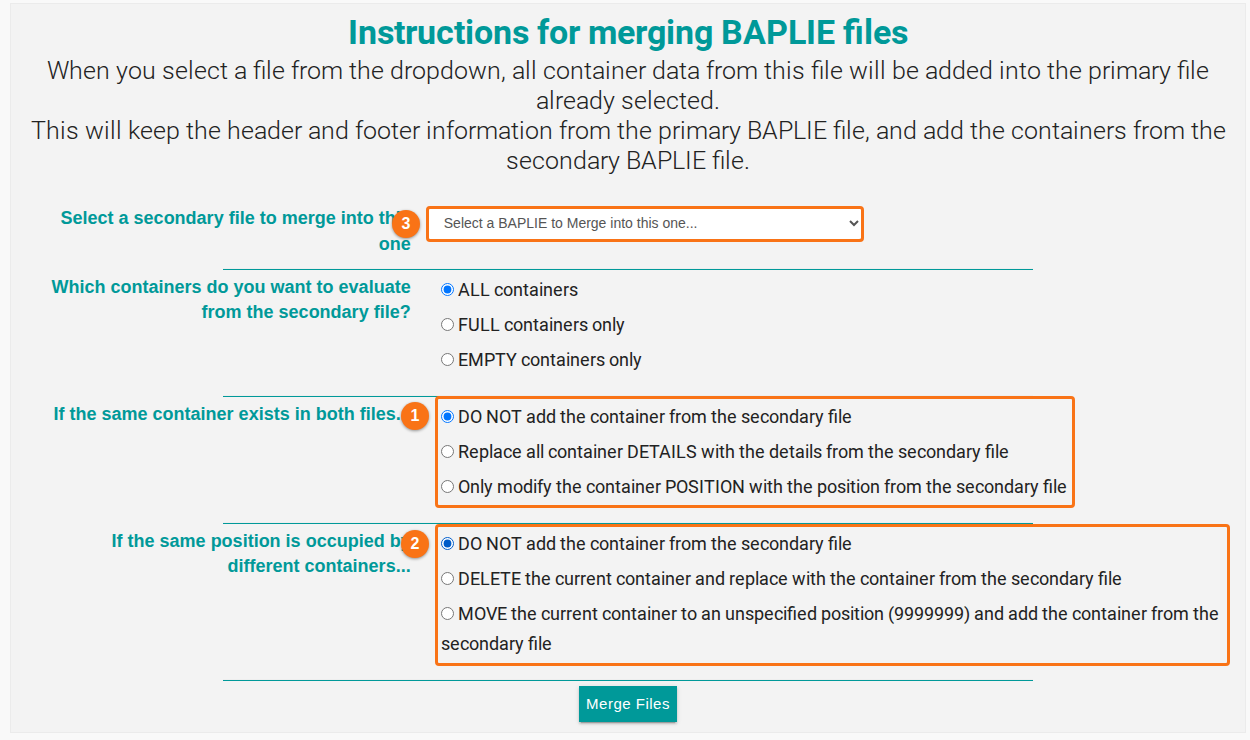
- The Merge Files page opens. Open the list Select a secondary file to merge into this one (3 in the picture). Choose the file that has the containers you want to add.
- Under Which containers do you want to evaluate from the secondary file?, choose one option:
- ALL containers
- FULL containers only
- EMPTY containers only
- Under If the same container exists in both files… (1 in the picture), choose what happens when a container number is in both files:
- DO NOT add the container from the secondary file
- Replace all container DETAILS with the details from the secondary file
- Only modify the container POSITION with the position from the secondary file
- Under If the same position is occupied by different containers… (2 in the picture), choose what happens when two containers have the same position:
- DO NOT add the container from the secondary file
- DELETE the current container and replace with the container from the secondary file
- MOVE the current container to an unspecified position (9999999) and add the container from the secondary file
- Click Merge Files at the bottom of the page.
- The page confirms that the records were inserted and that a new file was created. The new file has the name of the primary file and
_mergedat the end. Click Click Here To View File (1 in the picture) to open the new file.

Good to know
Section titled “Good to know”- If you choose MOVE the current container to an unspecified position (9999999), the moved container gets the position 9999999. It then shows in the Anomalies tab, where you can update it later.
- Example: container A is in position 0010101. The secondary file has container B in position 0010101. With the MOVE option, container A moves to 9999999 and container B takes position 0010101.