

How to add a record
Esta página aún no está disponible en tu idioma.
Use this guide to add one new container (a row) to a BAPLIE file that you have already uploaded. You can add rows when new container details arrive after the file was made.
Before you start: open your file. You need the Edit permission for the file.
- In the Function Menu on the left, open Visualization and click Main Content. The table of containers opens.
- In the Function Menu, click Add Record (1 in the picture).
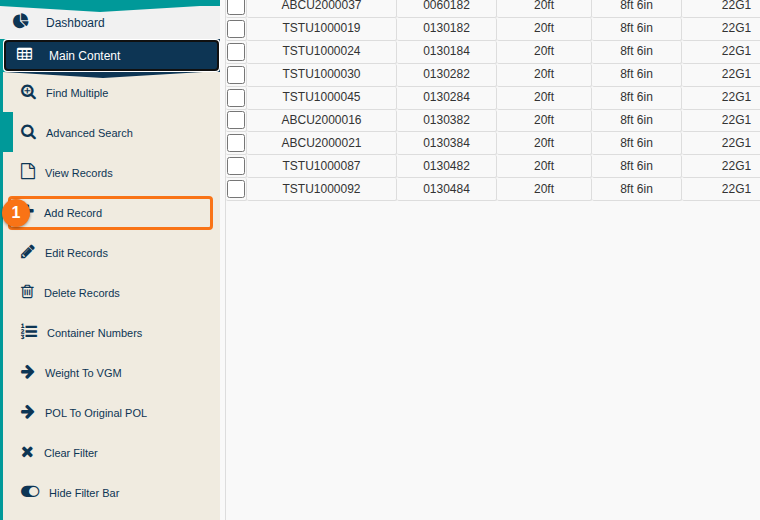
- The Adding A New Row window opens. The left side has the main container fields. The right side has extra sections (for example Location Details and Hazardous Details). You can leave the extra sections empty.
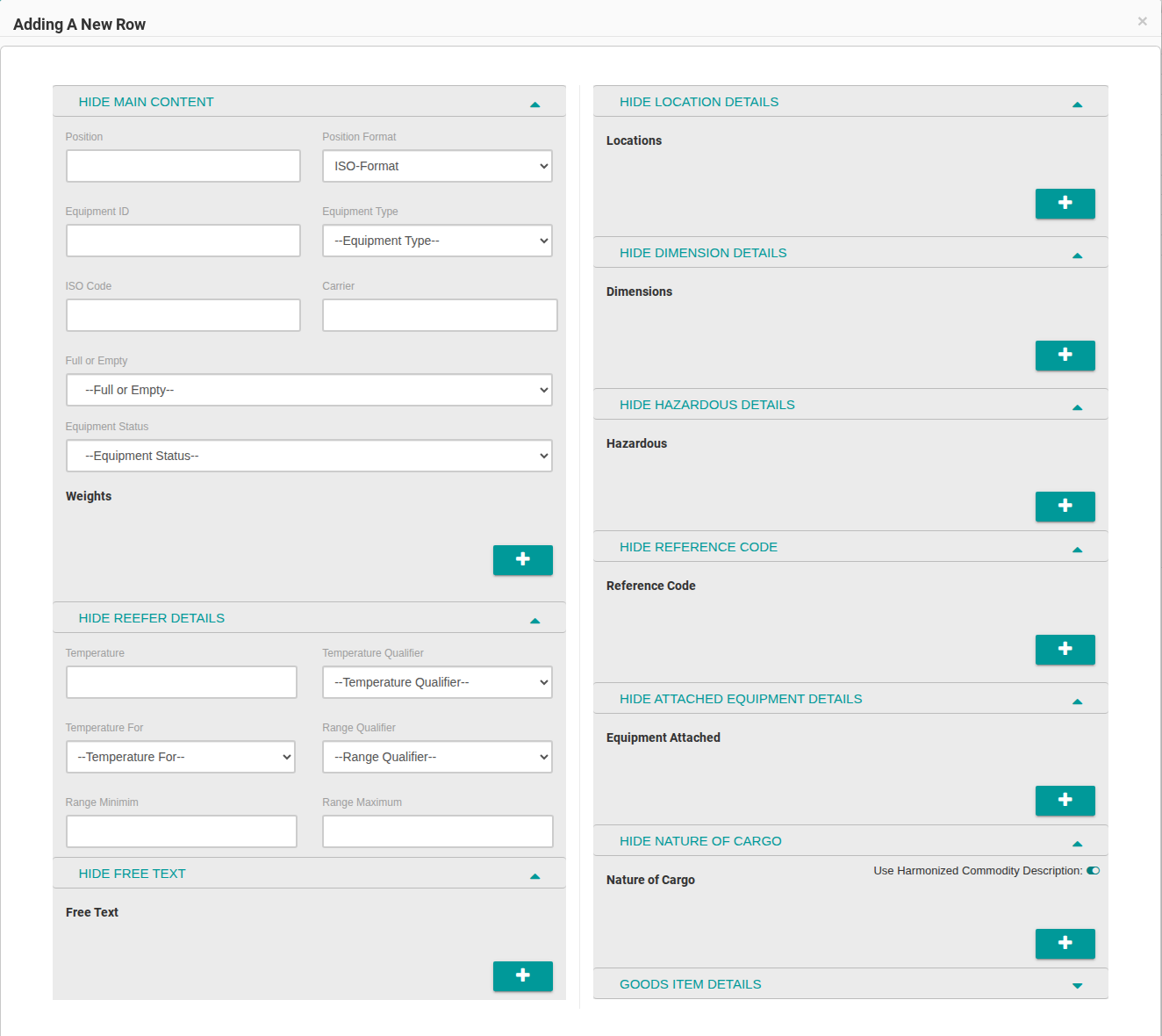
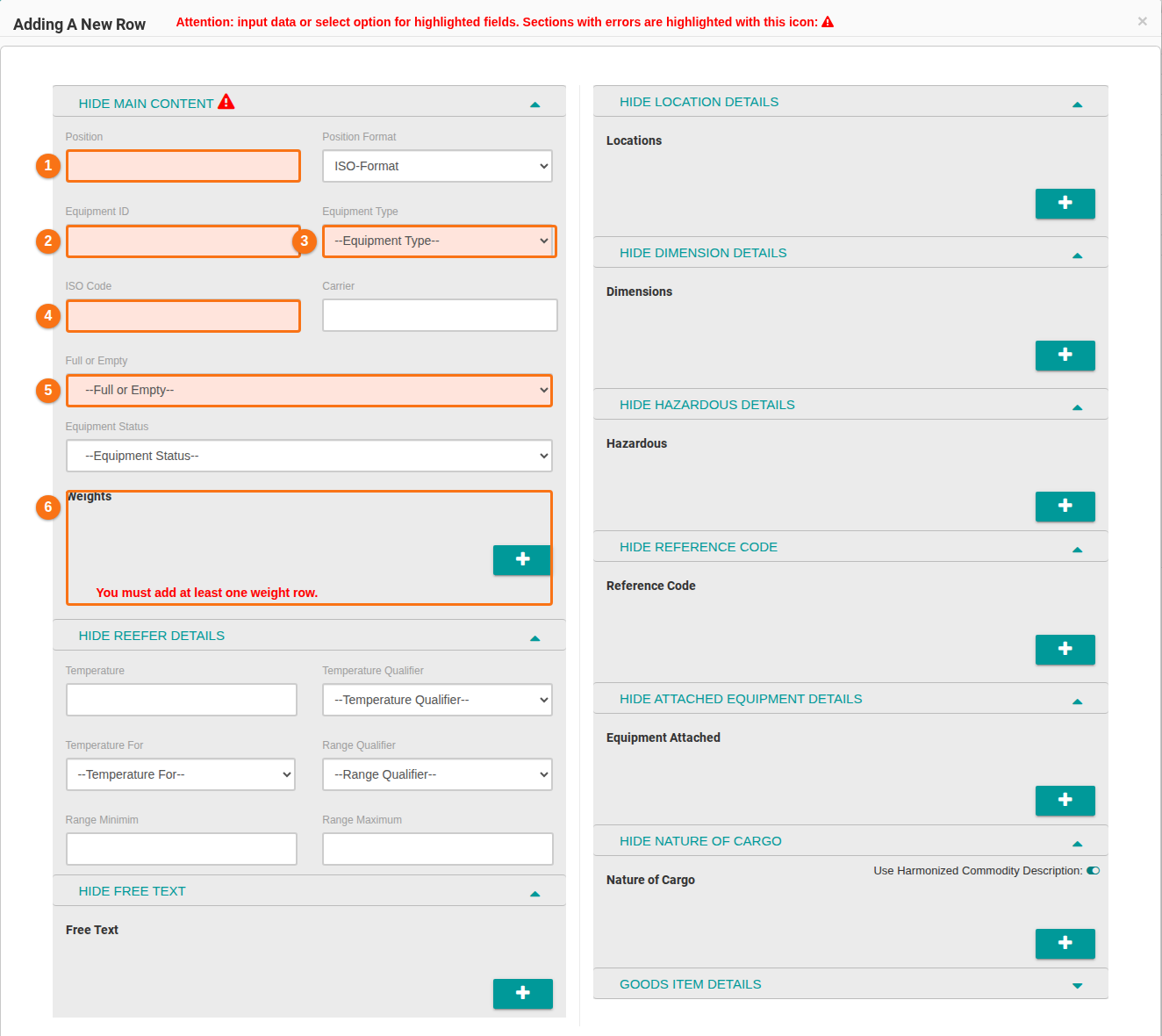
- Fill in the required fields. Empty required fields are pink and have an orange number in the picture below:
- Position – the container position, for example
0990082. Keep Position Format as ISO-Format unless your file uses a different format. - Equipment ID – the container number.
- Equipment Type – for example Container.
- ISO Code – for example
22G1. - Full or Empty – choose Full or Empty.
- Weights – click the + button and enter at least one weight. The message “You must add at least one weight row” stays until you add one.
- Position – the container position, for example
- Click Add New Row at the bottom left of the window. The new row is added to your file.
To cancel: click Close at any time. Nothing is saved.
Note: if a section shows a red warning sign, a required field in that section is still empty.