

How to change the facility settings for filters, VGM and Excel exports
Esta página aún no está disponible en tu idioma.
Use this guide to change three facility settings that no other guide explains: Save and apply filters in main content, Copy Weight to VGM includes empty containers and Use English in Excel exports. Each setting is a switch with the choices No and Yes.
Before you start: log in as an administrator of the facility. Only users with Administrator access can change the facility settings.
- In the Function Menu on the left, click Manage Facility under the facility name. A list of tabs opens.
- Click Facility Settings. The page Facility settings opens.
- Find the setting that you want to change. Click its switch to move it to No or Yes. To read a short help text, point to the question mark at the end of the row.
- Click Update Settings to save (5 in the picture).
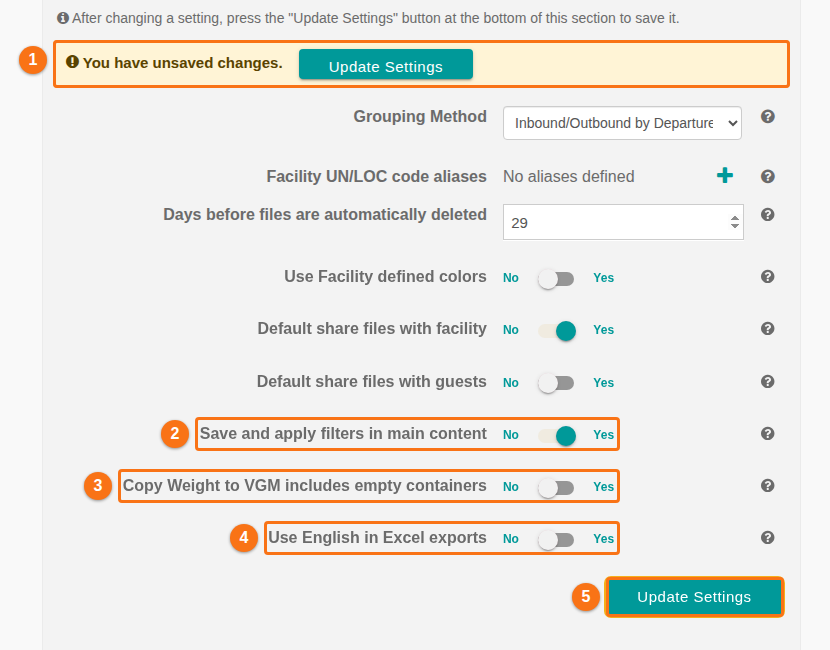
The picture shows the tab after a change was made. The yellow bar You have unsaved changes. (1 in the picture) shows. Its Update Settings button does the same as the button at the bottom (5 in the picture). The bar goes away after the settings are saved.
Summary of the settings
Section titled “Summary of the settings”| Setting | What it does | Default |
|---|---|---|
| Save and apply filters in main content | Yes: filters that you set on the Main Content screen are saved. They are applied automatically to your future files. | Check the switch on your screen. |
| Copy Weight to VGM includes empty containers | Yes: the Weight To VGM option also copies the weight of empty containers. | No (full containers only) |
| Use English in Excel exports | Yes: the headers in exported Excel files are in English. | Check the switch on your screen. |
Save and apply filters in main content
Section titled “Save and apply filters in main content”This switch is row 2 in the picture.
- Yes: when you filter the BAPLIE data on the Main Content screen, BAPLIE Viewer Online saves the filters. It applies them automatically to the next files that you open.
- No: BAPLIE Viewer Online does not save the filters for your next files.
To learn how to set and remove filters, see How to apply a column filter and How to remove column filters.
Copy Weight to VGM includes empty containers
Section titled “Copy Weight to VGM includes empty containers”This switch is row 3 in the picture. It changes the Weight To VGM option of the Main Content screen. VGM means Verified Gross Mass. Weight To VGM copies the gross weight of a container into its VGM weight.
- No (the default): Weight To VGM copies the weight for full containers only.
- Yes: Weight To VGM copies the weight for full containers and for empty containers.
The setting applies to all users of the facility. When it is Yes, the help text of Weight To VGM says that the copy includes full and empty containers. Find Weight To VGM in the Function Menu (1 in the next picture).
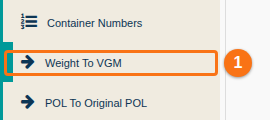
For all steps of Weight To VGM, see How to use the Main Content screen.
Use English in Excel exports
Section titled “Use English in Excel exports”This switch is row 4 in the picture. The help text says: “Use English headers in exported excel files.”
- Yes: the headers in the Excel files that you export are in English.
- No: the headers use the language of the user who exports the file.
To export data, see How to export data to Excel. To change the language of the application, see How to use BAPLIE Viewer Online in other languages.
Settings that other guides explain
Section titled “Settings that other guides explain”The Facility Settings tab has more settings. These guides explain them:
- Grouping Method and Facility UN/LOC code aliases: see How to use the Inbound / Outbound file feature.
- Days before files are automatically deleted, Use Facility defined colors, Default share files with facility and Default share files with guests: see How to manage your facility.
Good to know
Section titled “Good to know”- The tab can show more settings than this guide covers.
- If you leave the page before you click Update Settings, the change is not saved.
- If a switch does not do what you expect, see How to contact Support and create a support ticket.