

How to share an uploaded BAPLIE file with your facility
Esta página aún no está disponible en tu idioma.
Use this guide to share uploaded BAPLIE files with the other users of your facility. You can share one file, or you can set the system to share all new files.
Share one file
Section titled “Share one file”- Log in to baplieviewer.com. The home page opens with the Function Menu on the left.
- Click Upload BAPLIE. It is the second menu option under your facility’s name. For more about uploading, click here.
- Find your file in the list. After an upload, the file stays in the list until the system deletes it. This depends on your account settings.
- Switch on the Access toggle in the row of the file (highlighted in the picture). The screen then asks you to confirm. Click Share. To stop, click Close.

Now every user of your facility can see the file under All Files and Shared with Me in the Upload BAPLIE section.
Share all new files automatically
Section titled “Share all new files automatically”If you want the system to share every file when you upload it, save this choice in the facility settings.
- In the Function Menu, click your facility name. Then click Manage Facility.
- Click Facility Settings.
- Switch Default share files with facility to Yes (1 in the picture). To share new files with guests too, switch Default share files with guests to Yes (2 in the picture).
- Click Update Settings at the bottom of the section.
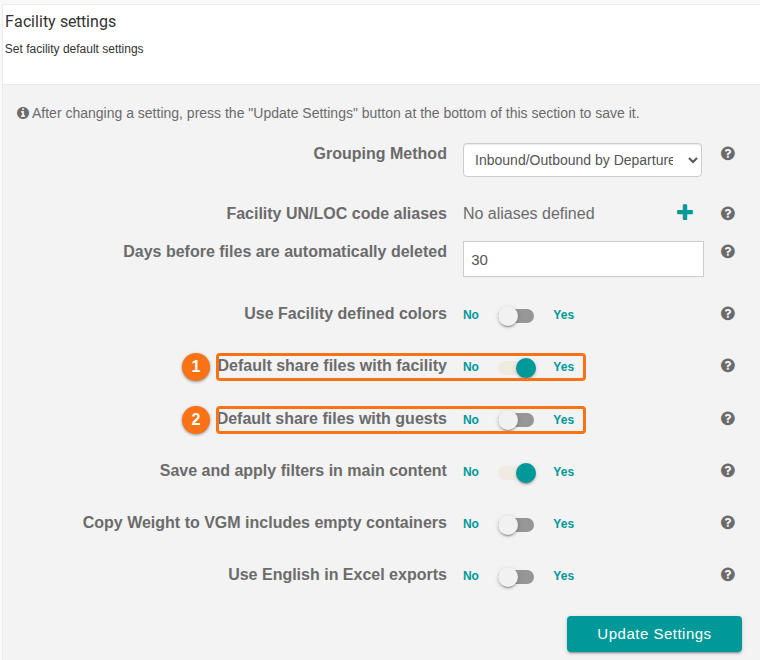
Note: you can set Default share files with guests to Yes only if Default share files with facility is Yes. If sharing with the facility is No, sharing with guests by default is also No. This does not change your choice to share single files.
Share with guests
Section titled “Share with guests”To share a file with guests of your facility, click here.