

How to create a BAPLIE file from an Excel spreadsheet
Esta página aún no está disponible en tu idioma.
Use this guide to make a BAPLIE file from an Excel spreadsheet. You do not need to know the structure of a BAPLIE file. If you prefer to watch a video with the same steps, see our YouTube video here.
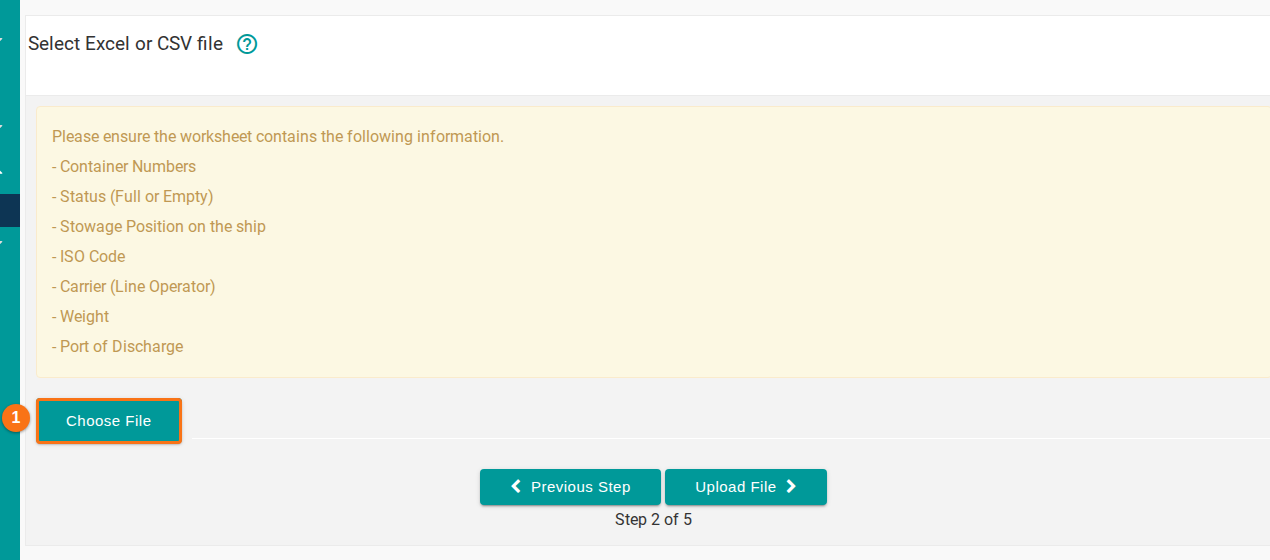
Before you start: prepare an Excel or CSV file with a load list. It has the containers, positions and other data. The columns can be in any order, because you match the fields to the BAPLIE fields in the steps below. The upload page (step 2 below) lists the data that the worksheet should have: container numbers, status (full or empty), stowage position on the ship, ISO code, carrier (line operator), weight and port of discharge.
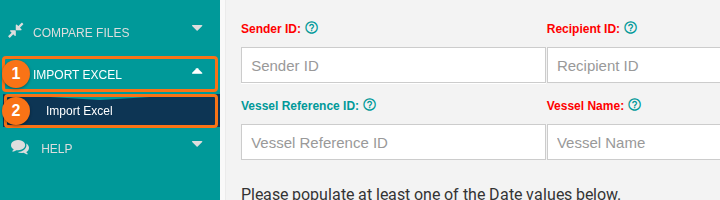
- On any page of baplieviewer.com, click Import Excel (1 in the picture) in the Function Menu on the left. The section opens. Click Import Excel (2 in the picture).
Step 1 of 5: header details
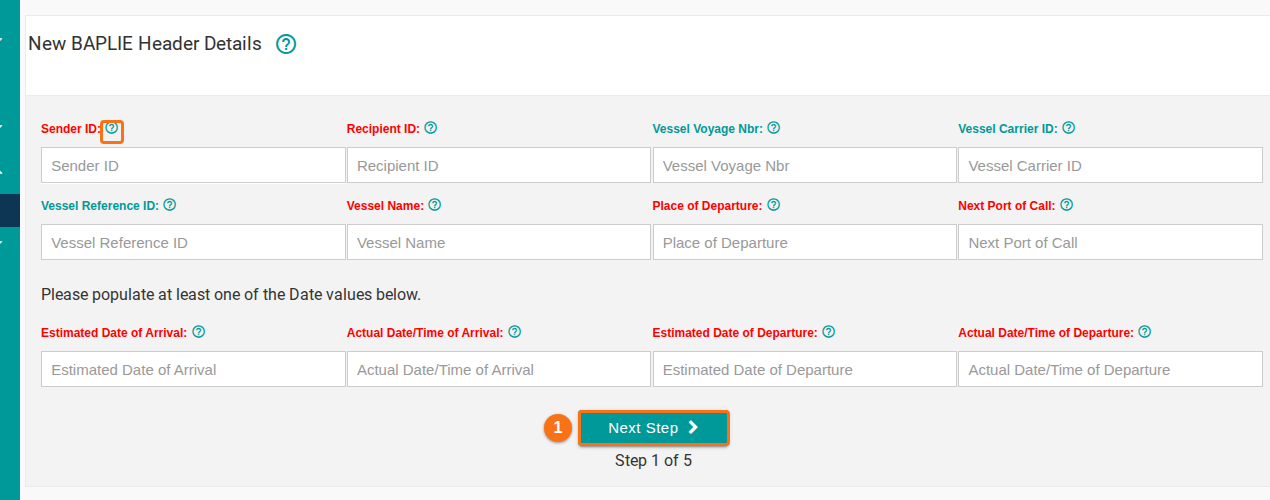
Section titled “Step 1 of 5: header details”- On the New BAPLIE Header Details page, fill in the information. The system uses it to make the BAPLIE header data.
- To read more about a field, point to the question mark (?) icon next to it. The text follows the SMDG BAPLIE specification.
- Fill in all fields with a red label. They are required. You need only one of the date fields, not all of them.
- Click Next Step (1 in the picture).
Step 2 of 5: upload the file
Section titled “Step 2 of 5: upload the file”- On the Select Excel or CSV file page, click Choose File (1 in the picture). Choose the Excel or CSV file on your computer. Then click Upload File.
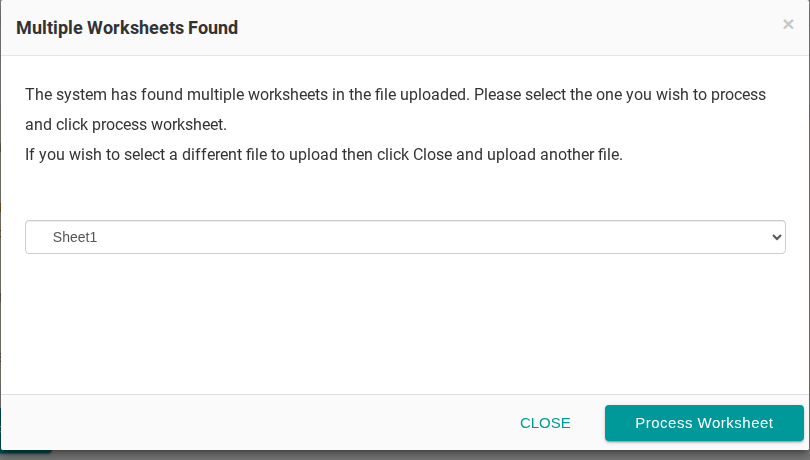
- If your Excel file has more than one worksheet, the Multiple Worksheets Found window opens. Choose the worksheet with your data in the list. Then click Process Worksheet. To use a different file, click Close and upload another file.
If the upload does not finish because the website times out, make the file smaller:
- Make sure that your file has no rows without data. On Windows, press CTRL + the Down Arrow to check. On Mac, press END + the Down Arrow.
- Remove all additional worksheets.
- Remove all colours.
- Save the file as a .csv file.
Step 3 of 5: map the fields
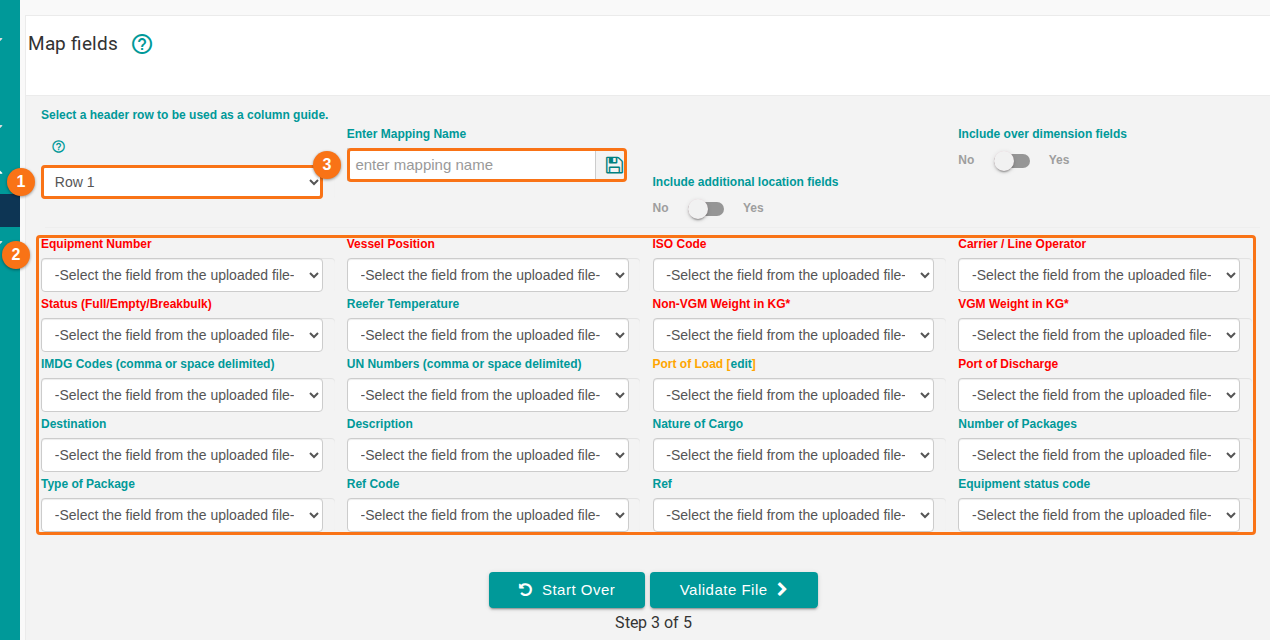
Section titled “Step 3 of 5: map the fields”- On the Map fields page, check the header row list at the top left (1 in the picture). If the column titles of your worksheet are not in Row 1, choose the row that has the column titles. The sample table below and the mapping lists change to match.
- Use the lists (2 in the picture) to match each field of your Excel file to the field that the new BAPLIE file will have. Fields with a red label are required.
- Optional: to save this mapping for later, type a name in the mapping name box (3 in the picture). Then click the save icon next to the box. You can use the saved mapping for future Excel files. The list for choosing a saved mapping shows only after you have imported a file and saved a mapping.
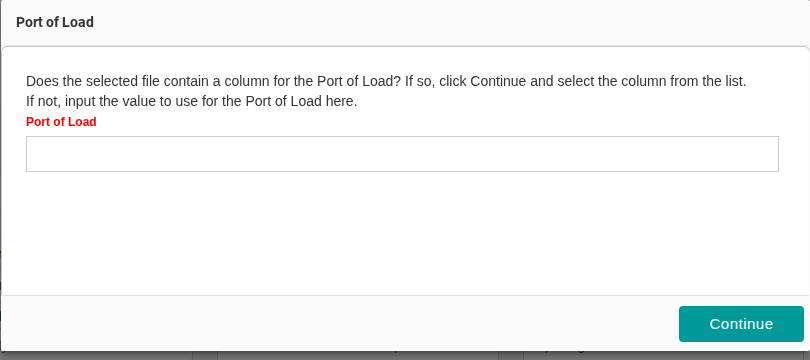
- If your Excel file has no column for Port Of Load (POL), click the edit link next to Port of Load. A window opens. Enter one value. The system uses it for all records in the new BAPLIE file. Then click Continue.
- When all fields are mapped, click Validate File. The system checks that your values follow the SMDG requirements for each field.
Notes about the mapping:
- More than one hazardous item: the IMDG Codes and UN Numbers fields can have more than one value. Separate the values in the Excel file with a space or a comma. Put the UN numbers in the same order as the IMDG codes. The system then joins them into one hazardous record.
- OOG containers (out-of-gauge, over the normal size): you can import this information. On the field mapping step, turn on Include over dimension fields and map your over-dimension columns. You can also add OOG information after the import. See How do I add OOG information?.
Step 4 of 5: check the validation result
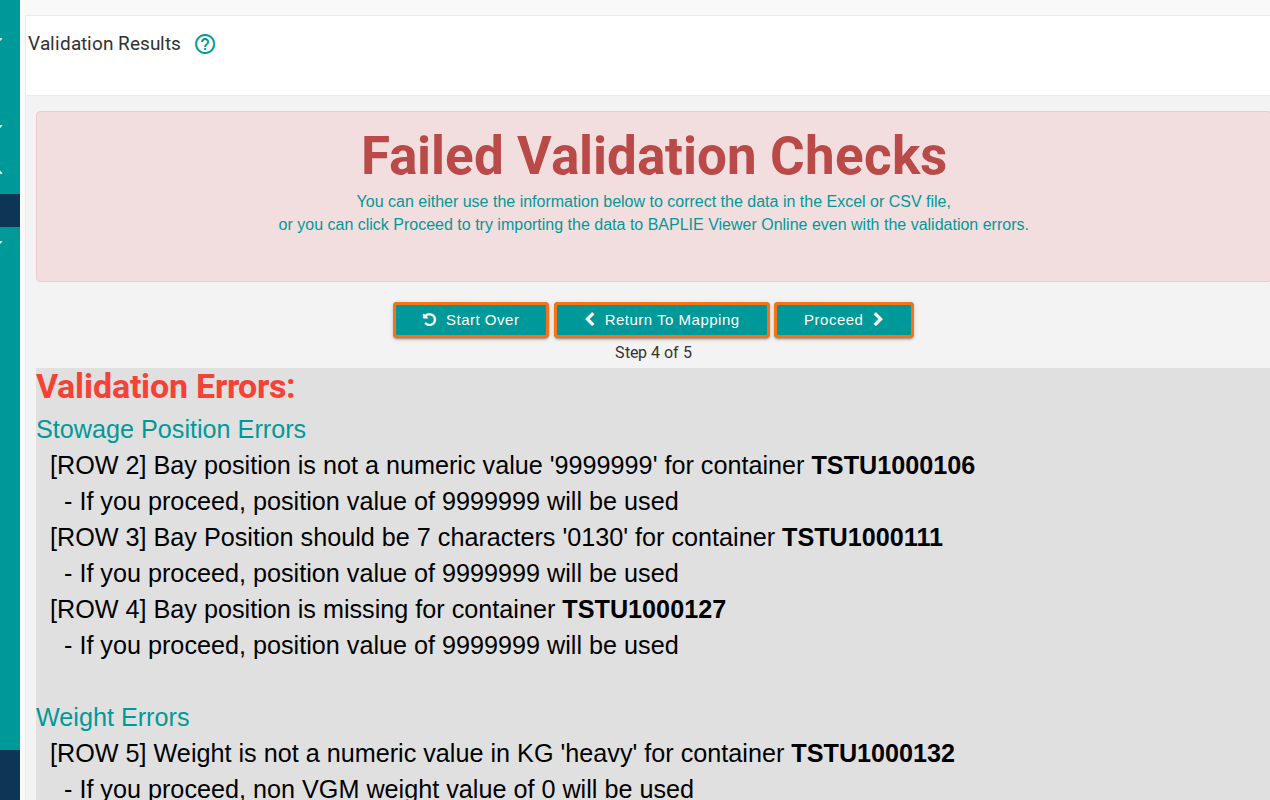
Section titled “Step 4 of 5: check the validation result”- If the system finds errors, the Failed Validation Checks page opens. It lists each error with the row number, the reason and the data that the system uses if you click Proceed.
- Choose one button:
- Return To Mapping – go back and correct fields that you mapped wrongly.
- Start Over – start again after you correct the data in the Excel file.
- Proceed – continue with the import.
After you click Proceed
Section titled “After you click Proceed”- When you click Proceed, the system makes the BAPLIE file and downloads it to your computer. At the same time, it uploads the new file, as it does for any BAPLIE file. You can view it with the View BAPLIE function and correct the data with the edit features.
Note: we recommend that you view a file made this way and check it in the Anomalies function. This checks that the BAPLIE data is valid.