

How to navigate the Pivot Summary
The Pivot Summary shows your data in a pivot table, like the pivot tables in Excel. You choose which data attributes (for example Bay or Carrier) go in the rows and in the columns. You can save a report for use with future files and share it with your facility.
Open the report and build a table
Section titled “Open the report and build a table”- In the Function Menu on the left, click Analytics.
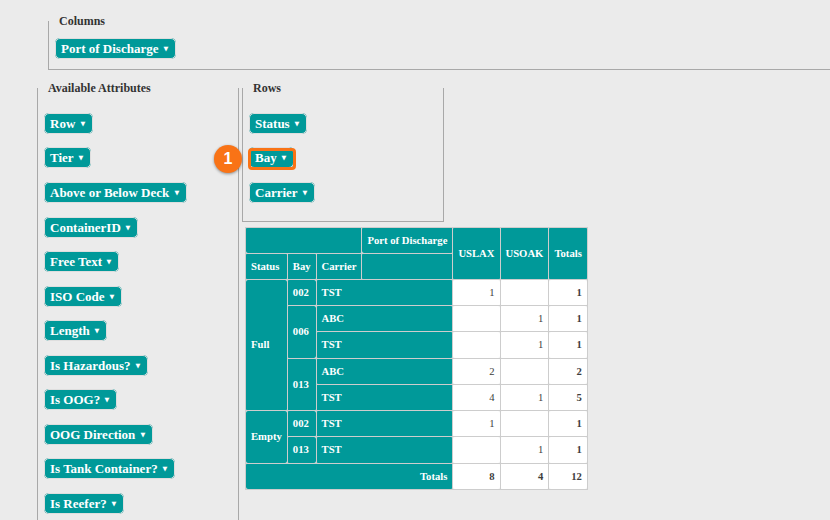
- Click Pivot Summary. The page shows a Columns box, a Rows box and a list of Available Attributes.
- Drag an attribute from Available Attributes to the Rows box or to the Columns box. In the picture, Bay (1) is in the Rows box. The table updates.
- To remove an attribute, drag it out of the Rows box or the Columns box.
- To choose which values of an attribute to include, click the attribute name. A box opens. Choose the values, then click Apply. To close the box without a change, click Cancel.
Use the menu buttons
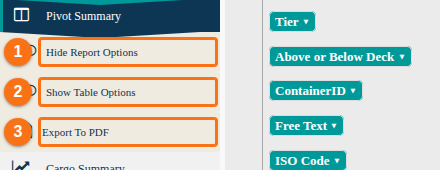
Section titled “Use the menu buttons”Under Pivot Summary in the Function Menu there are three buttons (see the picture):
- Hide Report Options – hides or shows the report options. The name changes to Show Report Options when they are hidden.
- Show Table Options – shows or hides the table options. The name changes to Hide Table Options when they are shown.
- Export To PDF – see “Export to PDF” below.
Save, load, share and delete a report
Section titled “Save, load, share and delete a report”When you open the Pivot Summary, the report options show. You can find a saved report or save the current table as a new report.
Save a report
Section titled “Save a report”- Type a name in the Report Title field (1 in the picture).
- Click the save button next to the field. A window confirms that the report is saved.
The dropdown list on the right (2) lists your saved reports. Next to it are the share arrow and the red X.

Load a report
Section titled “Load a report”Choose the report in the dropdown list on the right. The report loads.
Share a report with your facility
Section titled “Share a report with your facility”Only facility administrators can share reports and delete shared reports.
- Load the report.
- Click the arrow button (1 in the picture). The report shows under “Your Reports” and under “Facility Reports”.
If you do not see the arrow, you cannot share reports. You can still open shared reports in the dropdown list.

Delete a report
Section titled “Delete a report”- Choose the report in the dropdown list.
- Click the red X. A window asks you to confirm.
- Confirm. The report is removed from the list.
Table options
Section titled “Table options”- Click Show Table Options in the Function Menu (1 in the picture). The button changes to Hide Table Options. The table options are hidden when you first open the page.
- Use Chart Type (2) to change the type of chart.
- Use Aggregator (3) to change the calculation method.
- Use the Row and Column Order buttons (4) to sort the table.
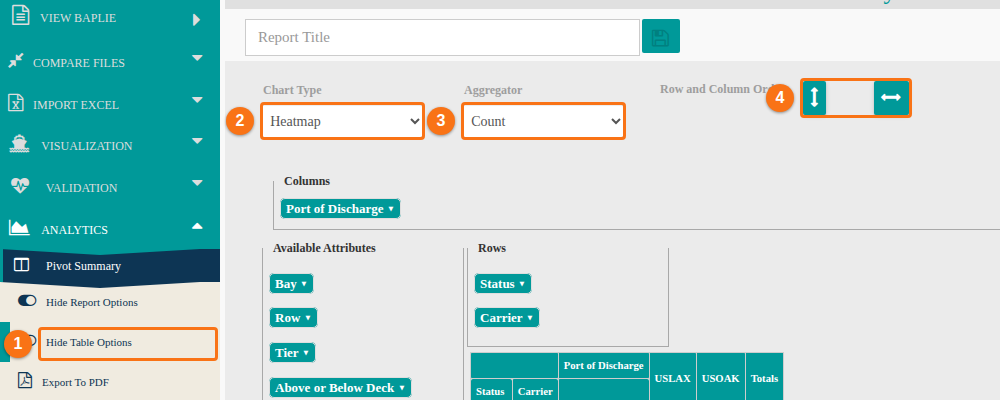
Chart Type
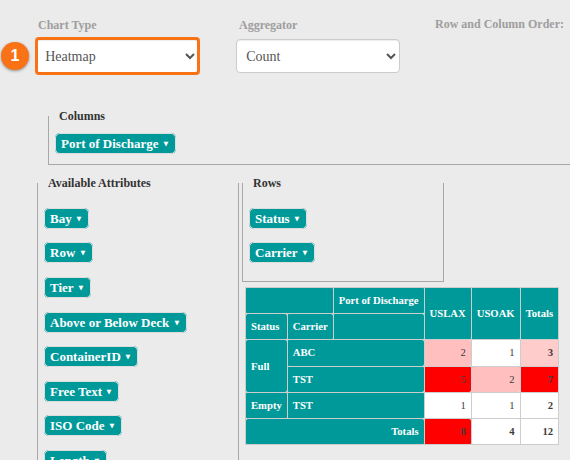
Section titled “Chart Type”- Click the Chart Type dropdown (1 in the picture).
- Choose a type. Table shows a basic table with the totals. Heatmap adds shades of color, based on the total counts.
The pivot table updates at once.
Aggregator
Section titled “Aggregator”- Click the Aggregator dropdown (1 in the picture).
- Choose the calculation for the totals, for example Count.
The pivot table updates at once.

Row and Column Order
Section titled “Row and Column Order”The two Row and Column Order buttons sort the table. The first button sorts the rows. The second button sorts the columns. Click a button and the table updates at once. The picture shows the default state (1).
- Double arrows: sorted in alphabetical order.
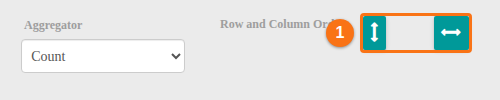
- An arrow that points down (rows) or to the right (columns): sorted in ascending order, from smallest to largest.

- An arrow that points up (rows) or to the left (columns): sorted in descending order, from largest to smallest.

Export to PDF
Section titled “Export to PDF”Click Export To PDF in the Function Menu. The pivot table downloads as a PDF. You can then print it.
See the containers behind a count
Section titled “See the containers behind a count”- Click a value in the pivot table. A list of container IDs shows.
- To copy the IDs, highlight them and press Ctrl + C (Command + C on a Mac).