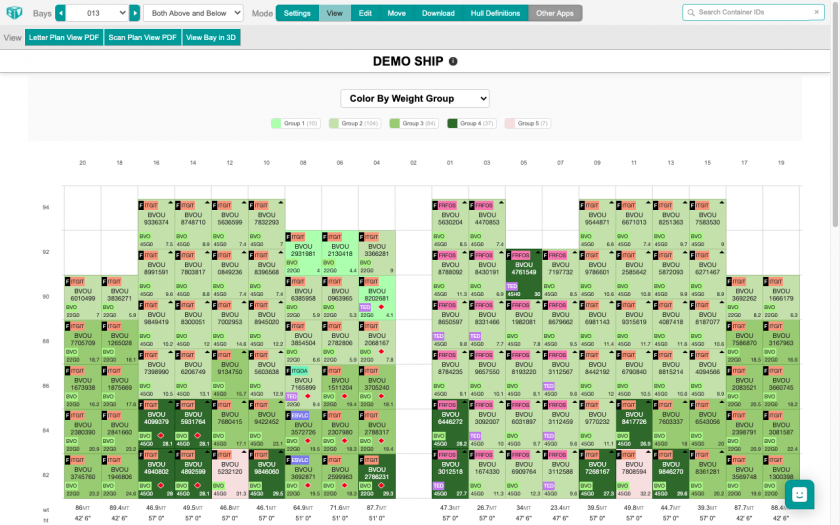
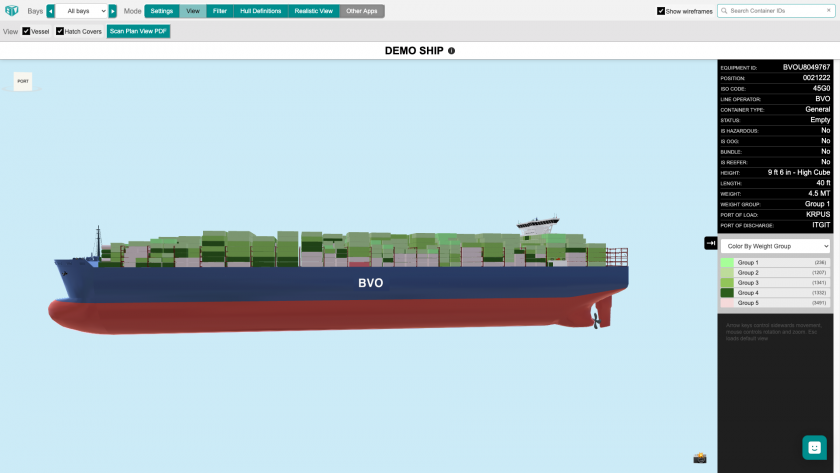
How to set custom weight groupings for colors in 2D and 3D View
Esta página aún no está disponible en tu idioma.
Use this guide to change the weight groups that colour the containers in the 2D Bay View and the 3D Vessel View. You change the groups in Manage Facility.
Show containers by weight group
Section titled “Show containers by weight group”In 2D Bay View:
- In the Function Menu, open Visualization and click 2D Bay View. For more help, see How to navigate the 2D Bay View.
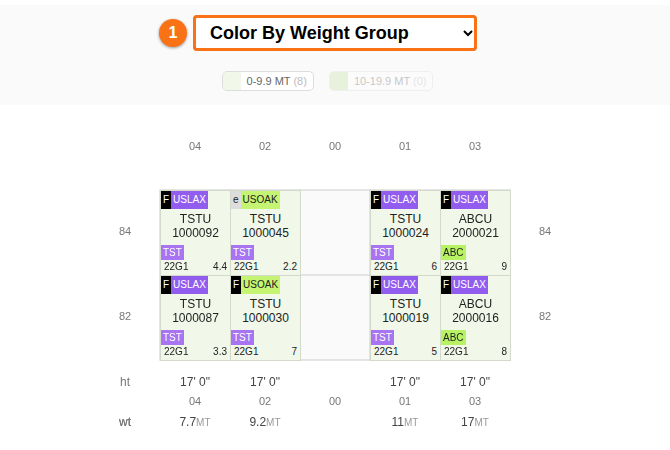
- Open the colour drop-down in the middle of the screen (1 in the picture). Choose Color By Weight Group. The legend shows the weight groups.
In 3D Vessel View:
- In the Function Menu, open Visualization and click 3D Vessel View. For more help, see How to navigate the 3D Vessel View.
- Make sure Mode is View.
- Open the colour drop-down on the right side of the screen. Choose Color By Weight Group.
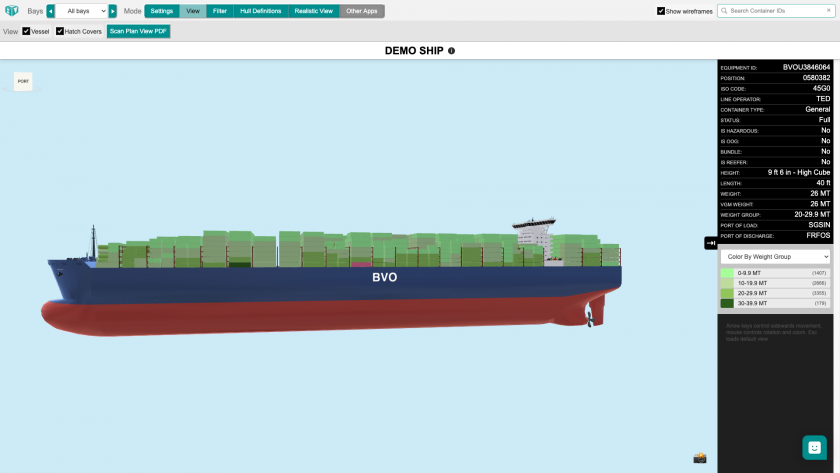
The default weight groups are 0-9.9 MT, 10-19.9 MT, 20-29.9 MT and 30-39.9 MT. MT means metric tons. The 2D picture above shows only 0-9.9 MT and 10-19.9 MT in its legend.
Change the weight groups
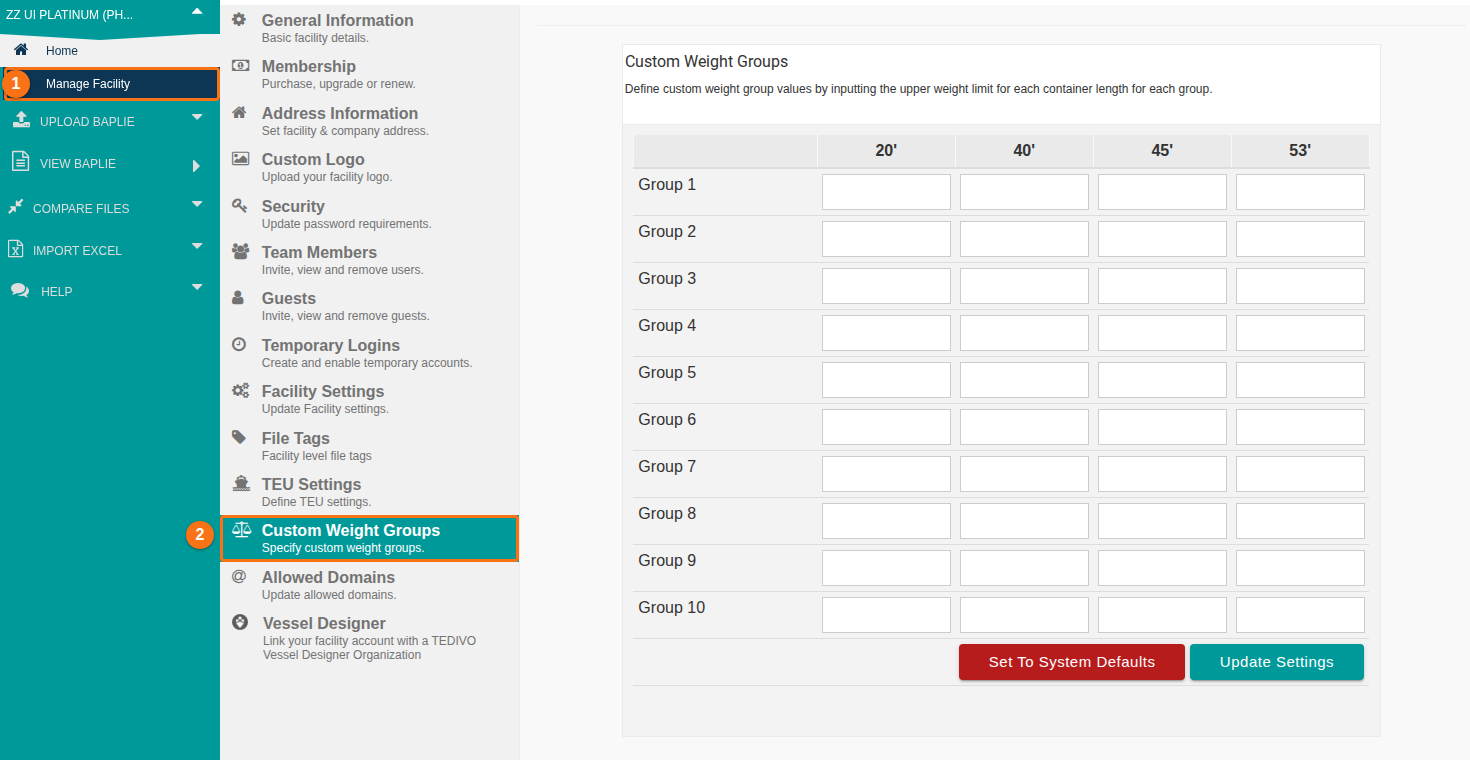
Section titled “Change the weight groups”- In the Function Menu, click Manage Facility (1 in the picture). It is the first option under your facility name.
- Click Custom Weight Groups (2 in the picture). The Custom Weight Groups table opens.
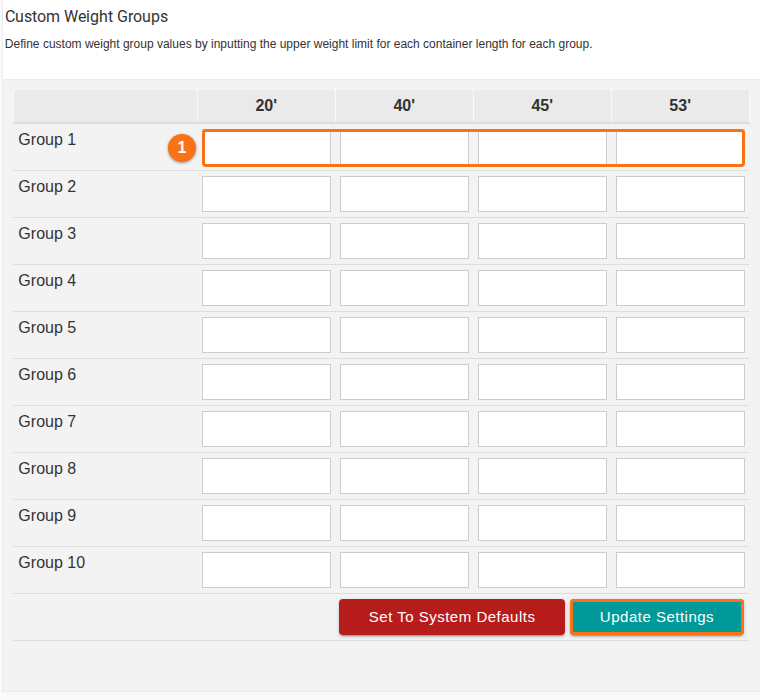
- Enter the upper weight limit for each group. The table has one row for each group (Group 1 to Group 10). It has one column for each container length (20’, 40’, 45’ and 53’). You can enter a different limit for each length. Row 1 in the picture is Group 1.
- Click Update Settings.
Note: files that you upload later use these settings for Color By Weight Group in 2D and 3D View.
To go back to the defaults: click Set To System Defaults.
Example of a result
Section titled “Example of a result”The pictures below show 2D and 3D View after custom weight groups were saved.