

How to customize colors used for containers in 2D Bay View
Esta página aún no está disponible en tu idioma.
Use this guide to change the colors of the containers in the 2D Bay View. You can color the containers by an attribute, for example Container Size or Port Of Discharge. You can also set colors that you are used to at your terminal.
- In the Function Menu on the left, open Visualization and click 2D Bay View. The view opens in a new tab of your browser.
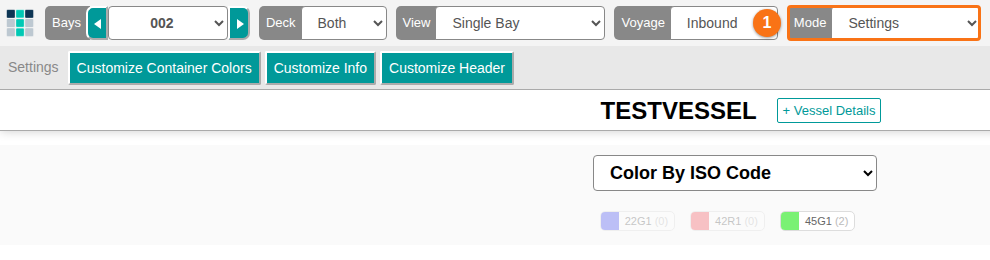
- At the top of the page, click the Mode dropdown (1 in the picture) and choose Settings. View is the default mode. The buttons below the top bar change to Customize Container Colors, Customize Info and Customize Header.
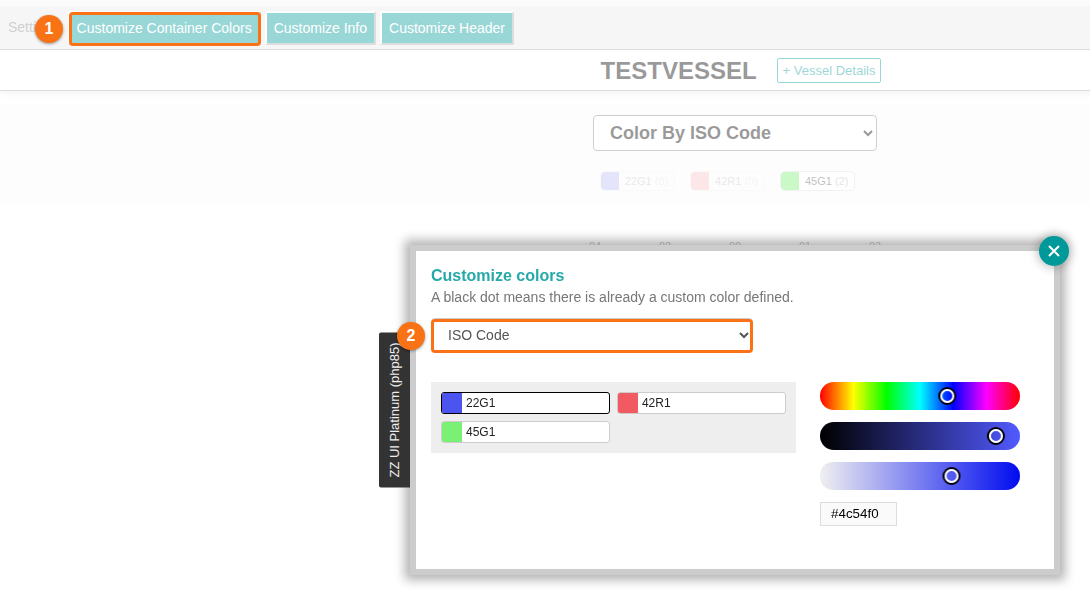
- Click Customize Container Colors (1 in the picture). The Customize colors window opens.
- Click the dropdown (2) and choose the attribute that you want to customize. The picture shows ISO Code. Each value of the attribute has its own color.
- Click a value in the list (for example 22G1). Change its color with the color sliders or the box with the color code (for example
#4c54f0). The 2D Bay View updates after each change.
Good to know
Section titled “Good to know”- A black dot in the window means that a custom color is already set.
- If a custom color is set, click Reset to go back to the default color.
- Your color changes save to your profile. They stay in all parts of BAPLIE Viewer Online.