How to compare two BAPLIE files
Esta página aún no está disponible en tu idioma.
Use this guide to compare two BAPLIE files. The comparison shows the additions, deletions and changes in the stowage data. You can export the differences to Excel, copy the container numbers or positions that differ, and see the differences in the 2D Bay View.
Before you start: upload both BAPLIE files that you want to compare.
- In the Function Menu on the left, click Compare Files (1 in the picture). The Compare two files page opens. The menu also has a Detailed Compare switch.
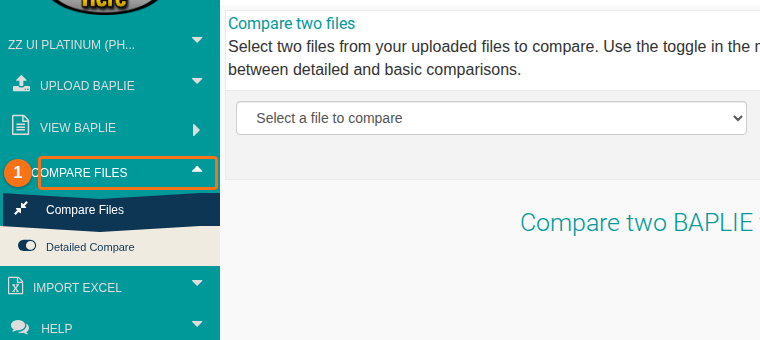
- Choose the first file in the left dropdown (1 in the picture). Choose the second file in the right dropdown (2). Both dropdowns show Select a file to compare until you choose a file.

- Wait for the comparison. It starts by itself when you have chosen both files. A message shows that the report is loading.

- Read the result. It has three sections. Click [ show ] or [ hide ] at the right of a section header to open or close it. In an open section, each row shows a position, the container ID and the POD. The numbers 1 to 3 in the picture match this list:
- Addition(s) – “Stowage Positions added to 2nd file”.
- Deletion(s) – “Stowage Positions Empty in 2nd file”.
- Change(s) – “Position has differences in Container ID or POD value”.
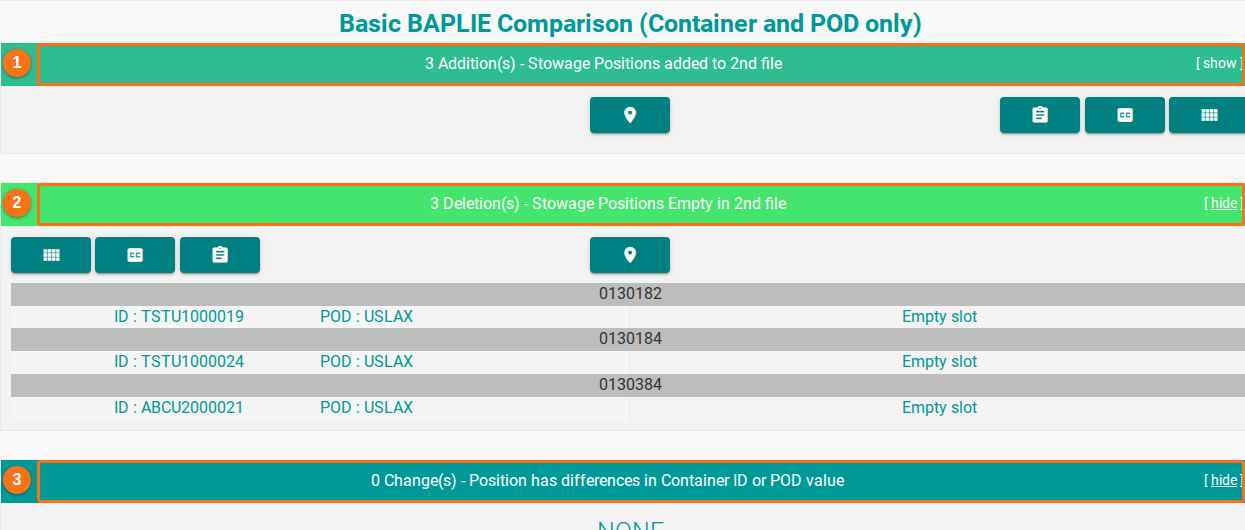
Note: the Detailed Compare switch changes the comparison between detailed and basic. The picture shows the basic comparison. It compares only the container and the POD (port of discharge).
Export and copy the differences
Section titled “Export and copy the differences”- To export the differences to Excel, click the button between the two file dropdowns (1 in the picture). Its tip says “Generate report in Excel”. An .xls file is made.

Each section header has four icon buttons. The pictures show them for Additions. The orange box marks the button.
- View Containers (the grid icon). Click it to open the 2D View with the records filtered to the containers of this section.

- Copy Containers (the CC icon). Click it to copy all container numbers of this section to the clipboard.

- Copy Positions (the pin icon). Click it to copy all vessel locations with differences of this section to the clipboard.

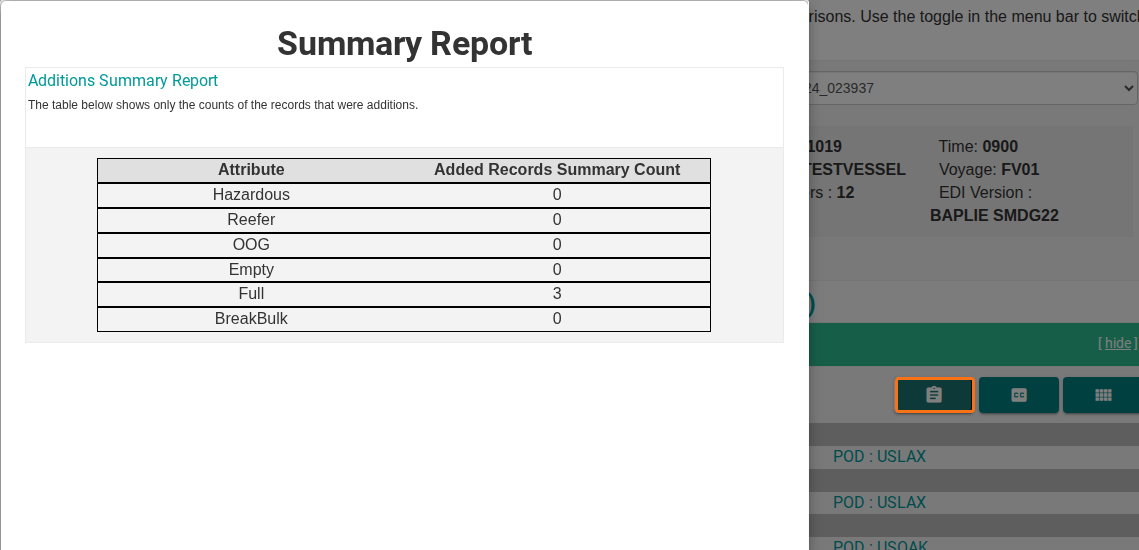
- Summary Report (the clipboard icon). Click it to open a short report that summarizes the section. In the picture, the Summary Report window shows the added records by Hazardous, Reefer, OOG, Empty, Full and BreakBulk.