

How to import optional fields from Excel
Esta página aún no está disponible en tu idioma.
Use this guide to add optional data when you make a BAPLIE file from an Excel or CSV file. You can import over-dimension (OOG, out-of-gauge) data, extra locations, references, package data, nature of cargo and equipment status. All of this happens on Step 3 of 5, the Map fields page.
Before you start: read How to create a BAPLIE file from an Excel spreadsheet. Do step 1 (header details) and step 2 (upload the file) there. Your Excel file needs one column for each optional field that you want to import.
Find the optional fields
Section titled “Find the optional fields”- On the Map fields page, look at the top right. There are two switches: Include over dimension fields (1 in the picture) and Include additional location fields (2 in the picture). Both are set to No at first.
- Look at the last rows of fields (3 in the picture). They have the optional fields Nature of Cargo, Number of Packages, Type of Package, Ref Code, Ref and Equipment status code. These fields are always on the page.
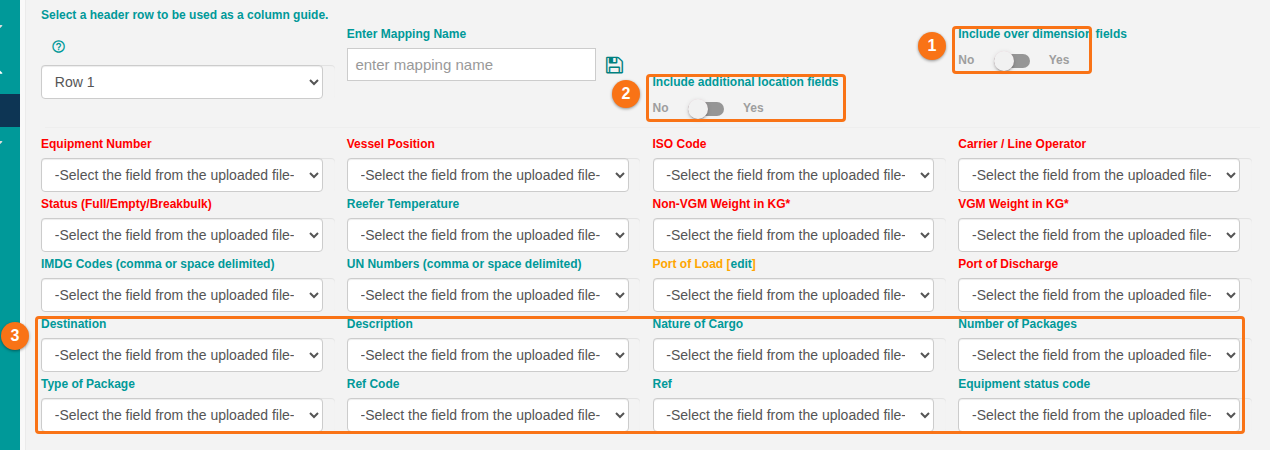
Fields with a red label are required. Fields with a teal label (blue-green) are optional. If you do not want to import an optional field, keep -Select the field from the uploaded file-.
Map the optional text fields
Section titled “Map the optional text fields”For each field, choose the column of your Excel file in the list under the field name.
| Field | What the column has |
|---|---|
| Nature of Cargo | The kind of cargo. For more than one value, separate the values with commas. |
| Number of Packages | The number of packages. |
| Type of Package | The type of the packages. |
| Ref Code | The type of reference, for example BM for a bill of lading. |
| Ref | The reference number, for example the number of the bill of lading or the booking. |
| Equipment status code | The equipment status. See the section about equipment status below. |
- Map Ref Code and Ref together. If you map only one of them, the application uses a default reference.
- A container can have more than one reference. Put the values in the same cell and separate them with a space. The first code in Ref Code belongs to the first number in Ref, the second code to the second number, and so on.
Import over-dimension (OOG) data
Section titled “Import over-dimension (OOG) data”- Click the switch Include over dimension fields (1 in the picture) so that it shows Yes. Seven more fields show at the bottom (2 in the picture): Over Left, Over Right, Over Front, Over Back, Over Top, Over Non-ISO and Over Break Bulk.
- For each side that you have data for, choose the column of your Excel file.
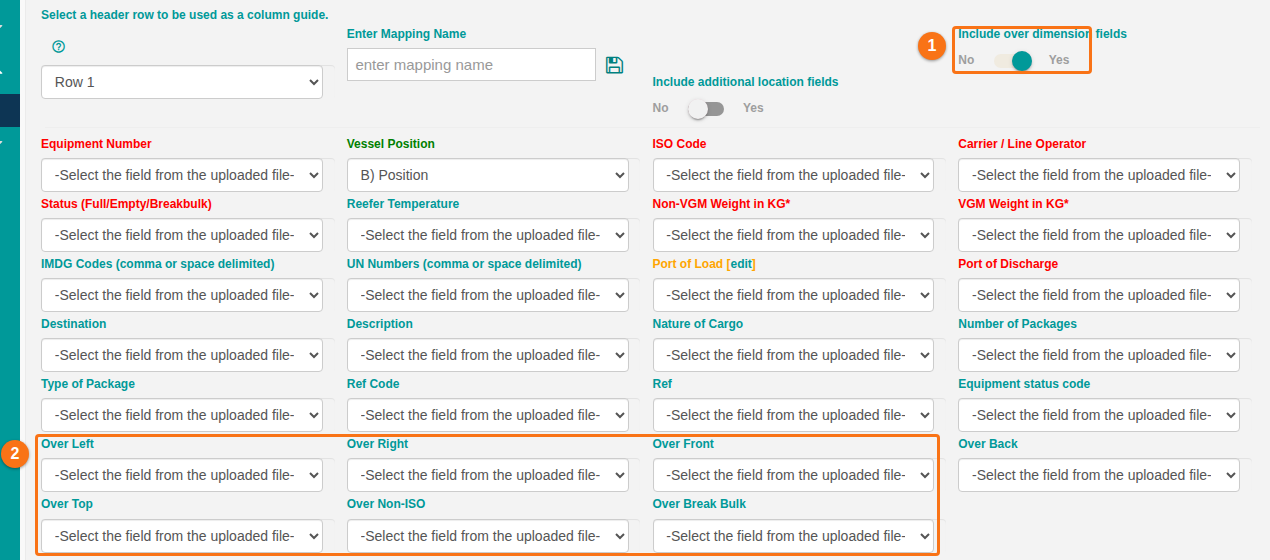
Write the values in your Excel file like this:
- A number alone, for example
25, means centimeters. - A number with a unit, for example
25 cmor10 in, uses this unit. The application knows centimeters (cm) and inches (in). - A cell that is empty or has
-means that the container has no over-dimension for this side. - If a value is not valid, the validation page (step 4) shows it. If you click Proceed, the application uses the value
1 CMT(1 centimeter).
Import additional locations
Section titled “Import additional locations”A container can have more locations than the port of load and the port of discharge. Use this for ports such as the transhipment port or the next port of discharge.
- Click the switch Include additional location fields (1 in the picture) so that it shows Yes. Eleven fields show at the bottom (3 in the picture).
- For each location that you have data for, choose the column of your Excel file. Use the 5-letter port codes (UN/LOC codes).
| Field | What the column has |
|---|---|
| POL Terminal | The terminal at the port of load |
| POD Terminal | The terminal at the port of discharge |
| Original POL | The original port of load |
| Optional POD | An optional port of discharge |
| Next POD | The next port of discharge |
| Transhipment Port | The port where the container is transhipped |
| 1st POD, 2nd POD, 3rd POD, 4th POD, 5th POD | The first to the fifth port of discharge |
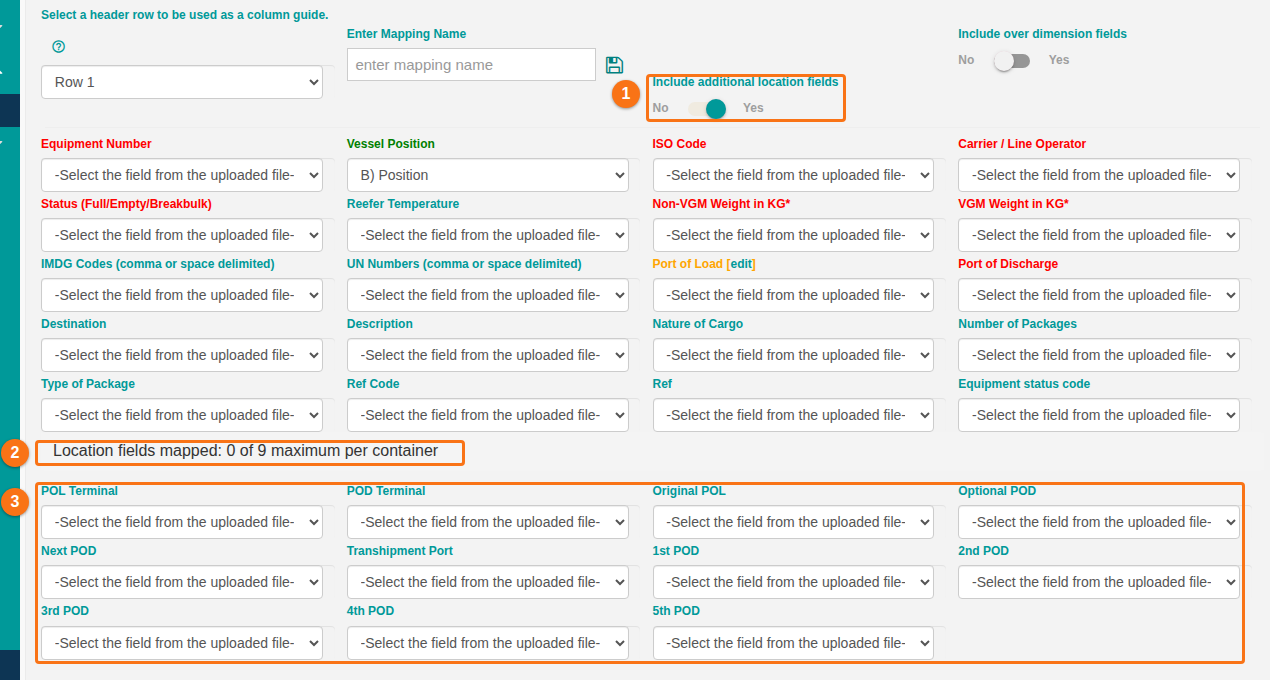
- Watch the counter Location fields mapped (2 in the picture). It shows how many location fields you mapped, for example 0 of 9 maximum per container. It counts Port of Load, Port of Discharge, Destination and the nine fields from Original POL to 5th POD. It does not count the two terminal fields.
- A BAPLIE file can have 9 location segments for each container, at most. If you map more, the counter turns red and the message You have mapped too many location fields shows. Remove one or more mapped fields. Until then, the application does not go to the next step.

Note: if you choose the same column for two fields, the page adds the orange text duplicated selection to both fields. It is a note. Check that this is what you want.
Import equipment status
Section titled “Import equipment status”Equipment status tells how the container travels, for example if it is an export container or a transhipment container.
- Under Equipment status code, choose the column with the status.
- In the Excel file, write the status as a number from 1 to 20 or as a name. Capital letters do not matter. For example,
3andimportboth mean Import.
| Code | Name | Code | Name |
|---|---|---|---|
| 1 | Continental | 11 | Direct delivery |
| 2 | Export | 12 | Bond transport |
| 3 | Import | 13 | Transship to other vessel |
| 4 | Remain on board | 14 | Transship to other pier |
| 5 | Shifter | 15 | Rail road transport |
| 6 | Transshipment | 16 | Road transport |
| 7 | Hot delivery | 17 | Barge transport |
| 8 | MLB | 18 | Temporary stowage |
| 9 | MCB (Micro Land Bridge) | 19 | Urgent unpacking |
| 10 | Canada Bound transport | 20 | Sea & Air |
A cell that is empty or has - gives no status. Some other spellings also work, for example Transhipment or ROB.
Check the validation result
Section titled “Check the validation result”- When you finish the mapping, click Validate File.
- If a value is not valid, the validation page lists it with the row number and tells what the application does if you continue. For example, an unknown equipment status shows Unknown equipment status code or name. If you click Proceed, the status is left empty. An invalid over-dimension value uses
1 CMT. - Click Return To Mapping to correct the mapping, or Proceed to continue. If you must correct the Excel file, click Start Over.
Good to know
Section titled “Good to know”- To use the same mapping again, type a name in Enter Mapping Name and click the save icon. The mapping keeps the two switches and the fields you chose.
- To see or change the OOG data after the import, see How do I add OOG information?.
- If you have a problem with the import, see How to contact Support and create a support ticket.