

How to navigate the Update Custom Mappings option
Esta página aún no está disponible en tu idioma.
Use this guide to replace UN/LOC codes (location codes), ISO codes (container size and type codes) and carrier codes with your own values. This helps you match your business needs and preferences.
Before you start: open your file.
Open the Update Custom Mappings window
Section titled “Open the Update Custom Mappings window”- In the Function Menu on the left, open Management and click Custom Mappings (1 in the picture).
- The Update Custom Mappings window opens. It has three tabs (2 in the picture): ISO, Locations and Carriers. Each tab lists the codes that are in your file.
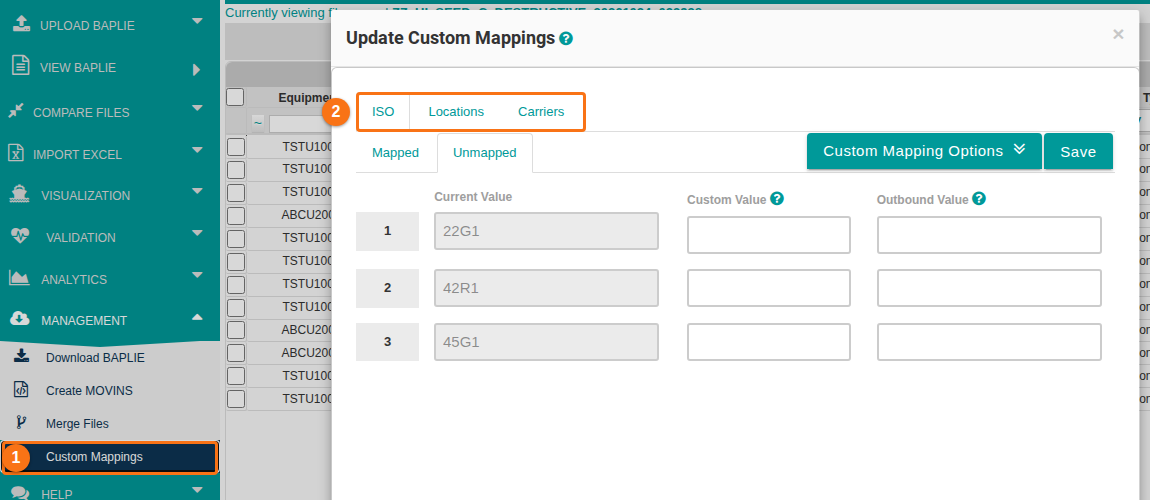
- In each tab, use the Mapped and Unmapped tabs to see which codes have a custom value. Each row has a Current Value, a Custom Value and an Outbound Value.
Use custom mappings
Section titled “Use custom mappings”- Click the tab of the code type you want to change: ISO, Locations or Carriers.
- Type the value you want in the Custom Value box. The custom value replaces the matching original value in your file.
- Type a value in the Outbound Value box if you need one. The outbound value replaces the custom value.
- Do one of these:
- To keep your mappings without changing the file, click Save.
- To change the codes in the open file, click Custom Mapping Options and choose Convert Current to Custom or Convert Custom to Outbound.
What the convert options do
Section titled “What the convert options do”- Convert Current to Custom changes all existing codes in the open file to your custom values. If a custom value is blank, the original value stays.
- Convert Custom to Outbound works in the same way, from custom values to outbound values. You need at least one outbound value in your table to turn on the Convert to Custom button.
Check for warnings and errors
Section titled “Check for warnings and errors”- An orange box is a warning. The conversion still works, but we recommend that you fix the data.
- A red box is an error. The conversion does not work. You must correct the data before you save or convert.
- The Mapped and Unmapped tabs show the total number of errors and warnings.
Save your values
Section titled “Save your values”- Click Save to save your current mappings.
- When you convert values, your custom and outbound mappings are saved automatically.
- Saved values are kept for all files. They are ready the next time you open any file.
Note: the ISO tab and the Locations tab have separate save and convert buttons. If you click Save in the ISO tab, the location mappings are not saved.
ISO codes
Section titled “ISO codes”The ISO tab lists the ISO codes in your file. A custom value replaces any matching original value in your file. An outbound value replaces any custom value.
A custom ISO code has 4 characters. Use one of these two formats.
Option one: use these characters.
- First character: 1, 2, 3, 4, B, C, G, H, L, M or N.
- Second character: 0, 2, 4, 5, 6, 8, 9, C, D, E or F.
- Example:
L5GP
Option two: use one of these codes.
| Code | Meaning |
|---|---|
9999 |
No information at all |
4999 |
Length 40ft, rest unknown |
2999 |
Length 20ft, rest unknown |
4299 |
40ft 8’6”, rest unknown |
2299 |
20ft 8’6”, rest unknown |
4099 |
40ft 8’0”, rest unknown |
2099 |
20ft 8’0”, rest unknown |
If you do not want to convert the values now, click Save. To convert, click Custom Mapping Options and choose Convert Current to Custom or Convert Custom to Outbound.
UN/LOC codes
Section titled “UN/LOC codes”The Locations tab lists the UN/LOC codes in your file. A custom value replaces any value in your original file. An outbound value replaces any custom value. Use the SMDG file standard: 5 characters. The window accepts up to 25 characters.
If you do not want to convert the values now, click Save. To convert, click Custom Mapping Options and choose Convert Current to Custom or Convert Custom to Outbound.
Carrier codes
Section titled “Carrier codes”The Carriers tab lists the carrier codes in your file. A custom value replaces any value in your original file. An outbound value replaces any custom value. Use the SMDG file standard: 3 characters. The window accepts up to 25 characters.
If you do not want to convert the values now, click Save. To convert, click Custom Mapping Options and choose Convert Current to Custom or Convert Custom to Outbound.