

How to filter containers shown in 3D Vessel View
Esta página aún no está disponible en tu idioma.
Use the Filter mode in the 3D Vessel View to find containers that match a value. You can show the matching containers in color and remove all other containers from the 3D model.
Before you start: upload a file and open it.
Open Filter mode
Section titled “Open Filter mode”- In the Function Menu on the left, open Visualization and click 3D Vessel View. The 3D data opens in a new window.
- In the menu bar at the top, change Mode to Filter (1 in the picture). The saved filters appear under the menu bar. The filter panel appears on the right.
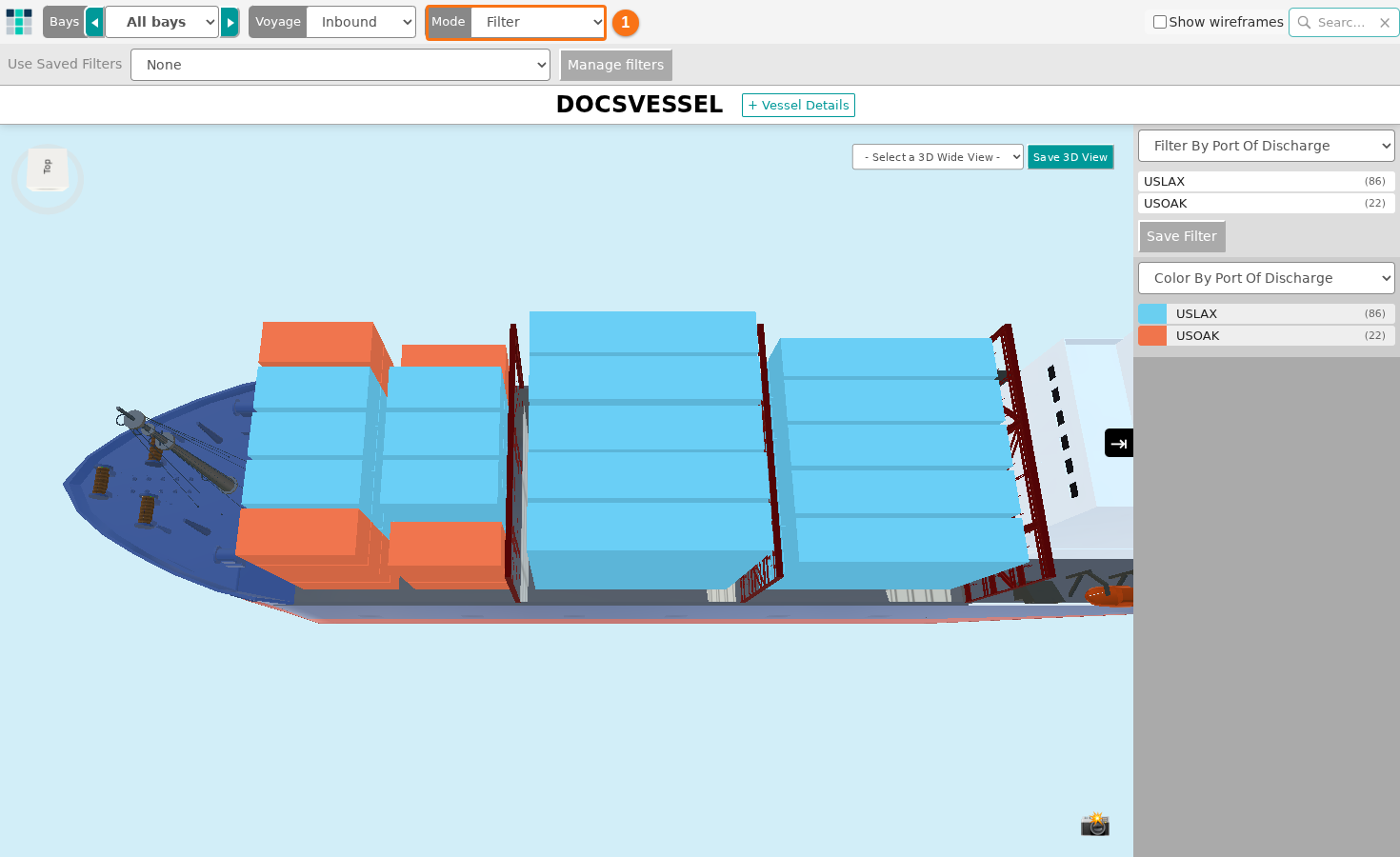
Filter containers
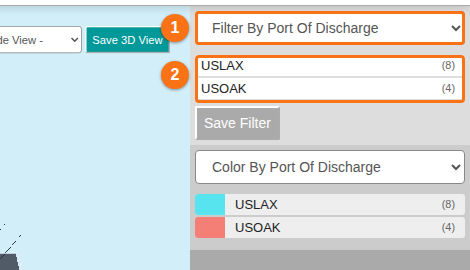
Section titled “Filter containers”- In the filter panel on the right, open the first drop-down (1 in the picture). It lists the attributes. The default is Filter By Port Of Discharge. You can also choose, for example, Hazardous or Line Operator.
- Look at the list below the drop-down (2 in the picture). It shows the values of this attribute that exist in your BAPLIE file, with the number of containers for each value.
- Click the value you want. Each colored container that does not match the value disappears from the 3D model.
Example: you choose Hazardous in the first drop-down. The list below shows yes and no. If you click yes, the model removes all containers that are not hazardous. Only the hazardous containers stay on the vessel.
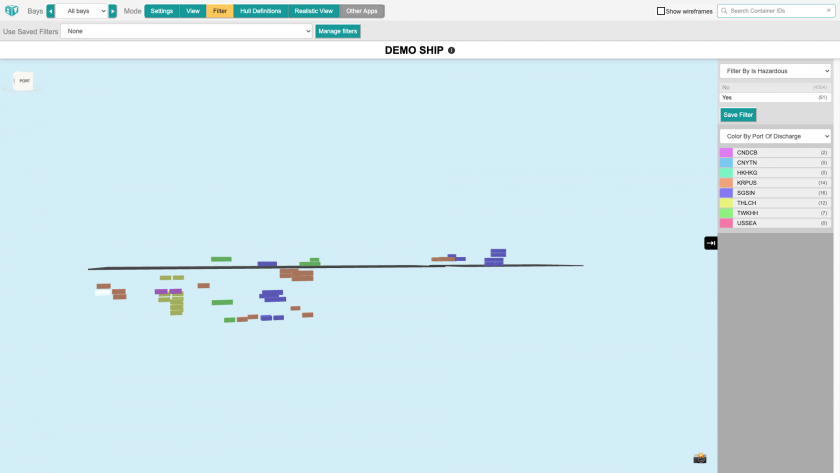
The colors of the containers still follow the attribute chosen in the Color By drop-down below the filter list. Click here for more information about customizing the container colors.
Save and use a filter
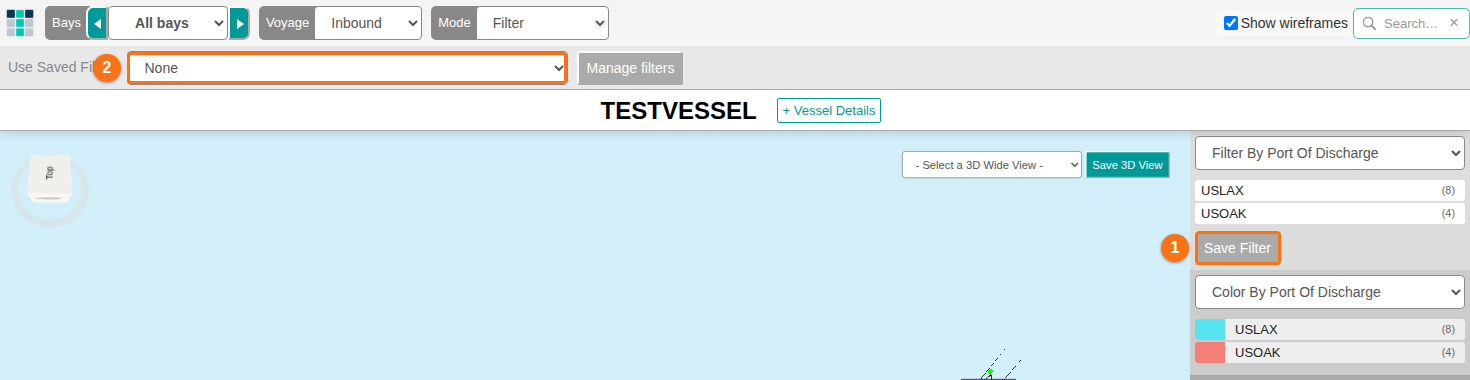
Section titled “Save and use a filter”- Set a filter. The Save Filter button (1 in the picture) is now enabled.
- Click Save Filter. The filter is saved to your user profile. You can use it again with future BAPLIE files in 3D View.
- To use a saved filter, choose it in the Use Saved Filters drop-down (2 in the picture) under the top menu bar. This drop-down is there when the mode is Filter.
Show or hide wireframes
Section titled “Show or hide wireframes”After you filter, you may want to hide the empty wireframes (the white outlines of the removed containers). Then you can click the containers that remain.
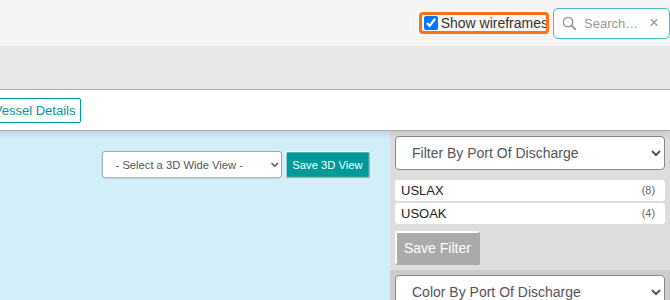
Use the Show wireframes checkbox in the top right corner. It adds or removes the white wireframes in the 3D model.
Change the wireframe color
Section titled “Change the wireframe color”- In the menu bar at the top, change Mode to Settings. New options appear under the menu bar.
- Click the Wireframes Color box (orange frame in the picture). A window opens where you can change the color. The picture shows the default color, white.

Find specific containers
Section titled “Find specific containers”If you already know the container numbers (IDs), click here to learn more about how to use the Find Containers option.