How to view specific bays in 3D Vessel View
Use this guide to look at one bay in the 3D Vessel View. You do not need to open another tab or leave the 3D model.
3D Vessel View reads the BAPLIE file. It finds the maximum number of bays and the widest column, and uses them to draw the vessel. In this way, the view scales to fit the smallest ship and the largest ship.
- In the Function Menu, open Visualization and click 3D Vessel View. At the top of the screen, the bay drop-down is set to All Bays by default. The 3D model shows the whole vessel.
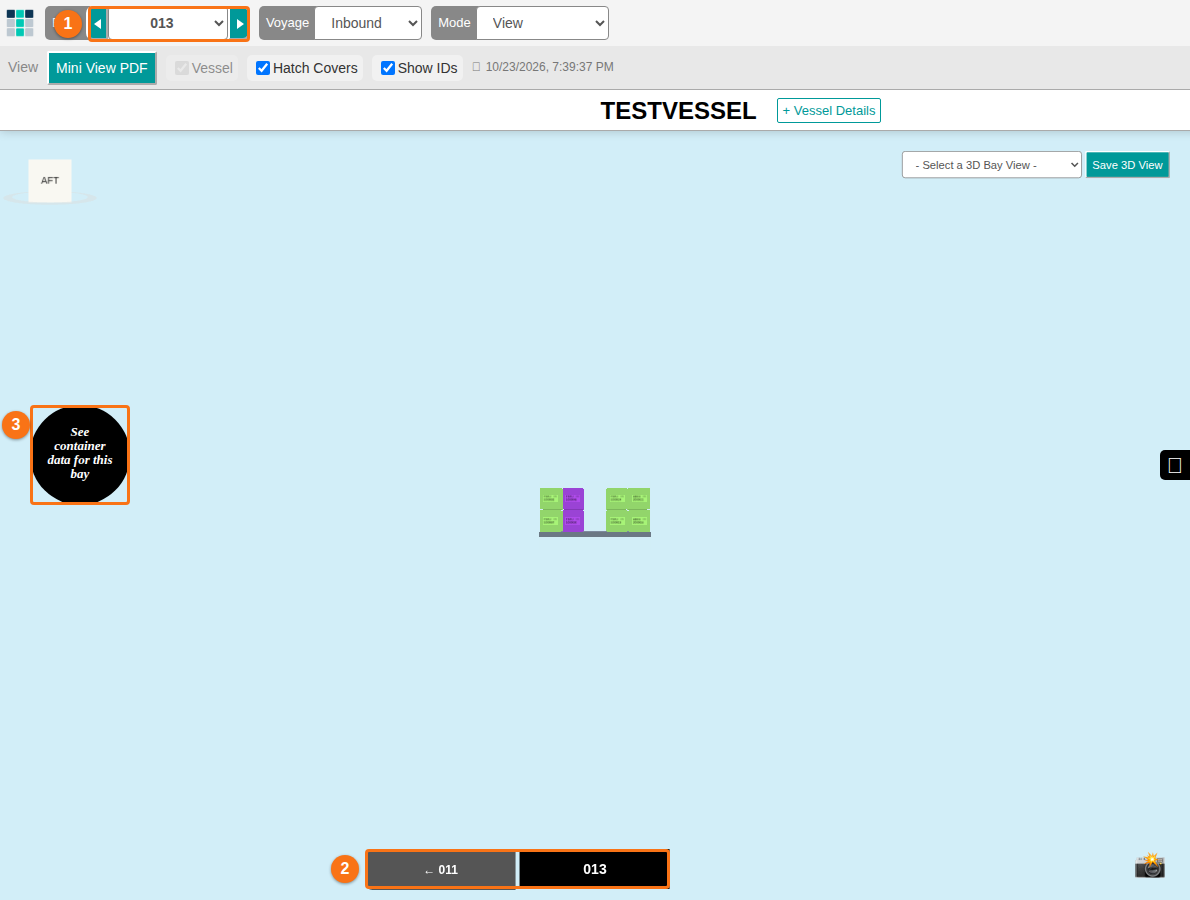
- Choose a bay in one of these ways (1 in the picture):
- Open the bay drop-down and choose the bay.
- Use the arrows next to the drop-down to move between bays.
- The 3D model zooms in to the bay that you chose. Buttons with bay numbers now show at the bottom of the screen (2 in the picture). Click a bay number to move to another bay.
- To see more information about the bay, click the black circle on the left side of the screen (3 in the picture). It shows the container data of the bay.
- To go back to the full vessel, choose All Bays in the bay drop-down.