

How to change the vessel dimensions
Use this guide to change the vessel size values in 2D Bay View. When you open 2D Bay View, the system reads your container data. It finds the largest bay number, the highest and lowest tier above deck and below deck, and the number of rows. You can change these values after 2D Bay View has opened.
Before you start: load or upload the BAPLIE file you want to work on.
-
In the Function Menu on the left, open Visualization and click 2D Bay View.
-
In the Mode list at the top of the screen, choose Dimensions.
-
Click Change Vessel Dimensions & OVDs. The Vessel Dimensions window opens.
-
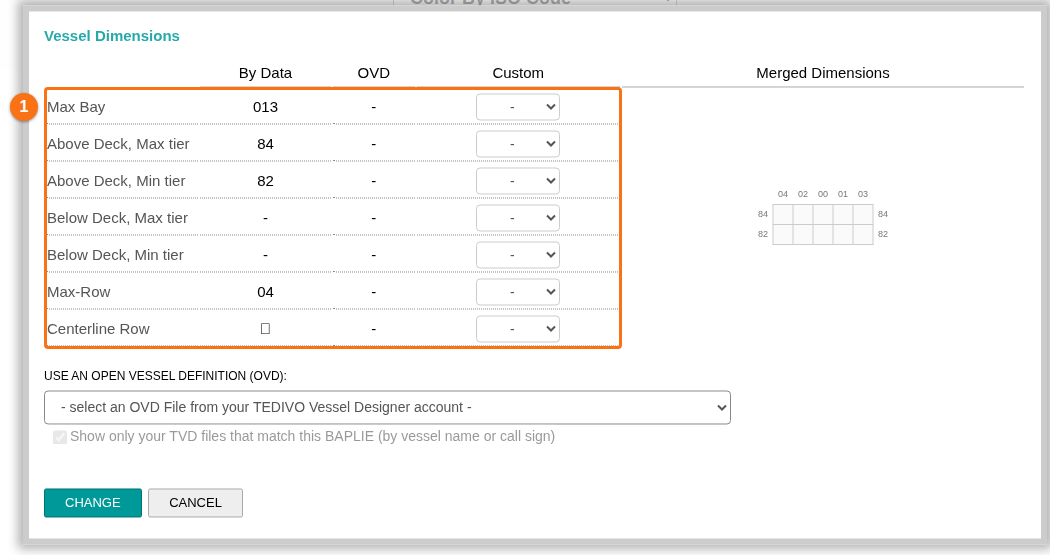
Look at the table of dimensions (1 in the picture). Each row is one vessel value:
Row What it is Max Bay The highest bay number Above Deck, Max tier and Above Deck, Min tier The highest and lowest tier above deck Below Deck, Max tier and Below Deck, Min tier The highest and lowest tier below deck Max-Row The highest row number Centerline Row The row on the centerline of the vessel The table has three columns of values:
- By Data shows the value that the system found in your file.
- OVD shows the value from an Open Vessel Definition (OVD) file. You can choose an OVD file in the list under the table.
- Custom has a list for each row, where you choose your own value.
The Merged Dimensions picture on the right shows the result.
- In the Custom column, choose a new value for each row that you want to change.
- Click Change to apply the new values.
To cancel: click Cancel. Nothing is changed.
Good to know
Section titled “Good to know”- The list under the table is USE AN OPEN VESSEL DEFINITION (OVD). It lists the OVD files from your TEDIVO Vessel Designer account.
- You can tick Show only your TVD files that match this BAPLIE (by vessel name or call sign) to show only the files that match your BAPLIE file.