How to use the Dashboard feature
The Dashboard is the first screen you see when you open a file. It reads all the data in your uploaded file and shows a summary. You can use it to check and filter the cargo on board the vessel quickly.
Before you start: upload your file. It must pass the file validation.
Parts of the Dashboard
Section titled “Parts of the Dashboard”The Dashboard has four parts.
Header Details
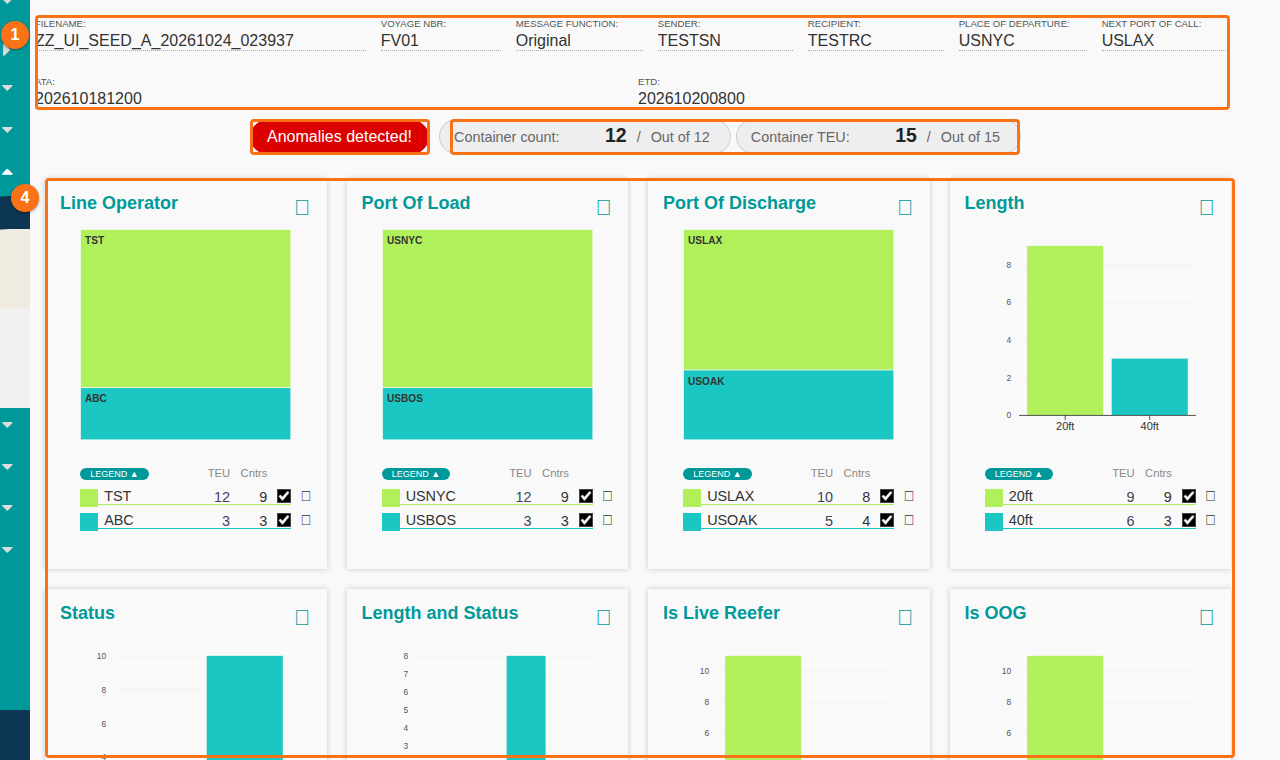
Section titled “Header Details”The top section (1 in the picture) shows the header details of the file. To change this information, open Validation in the Function Menu and click Header Details. For more help, see How to navigate the header details.
Container count and Container TEU
Section titled “Container count and Container TEU”Below the header details, two counts show the number of containers (Container count) and the TEU count (Container TEU). TEU means twenty-foot equivalent unit. The base settings are:
- 1 TEU for a 20 foot container.
- 2 TEU for a 40 foot container.
- 2.5 TEU for a 45 foot container.
To change the calculation, use your settings. For more help, see How to navigate the TEU calculation option.
Anomalies
Section titled “Anomalies”If the file has data anomalies, a red Anomalies detected! button shows next to the counts. Use it to see quickly which data needs your attention. For more help, see How to navigate the anomalies option.
Charts
Section titled “Charts”The charts (4 in the picture) show important container attributes.
Remove an item from the charts
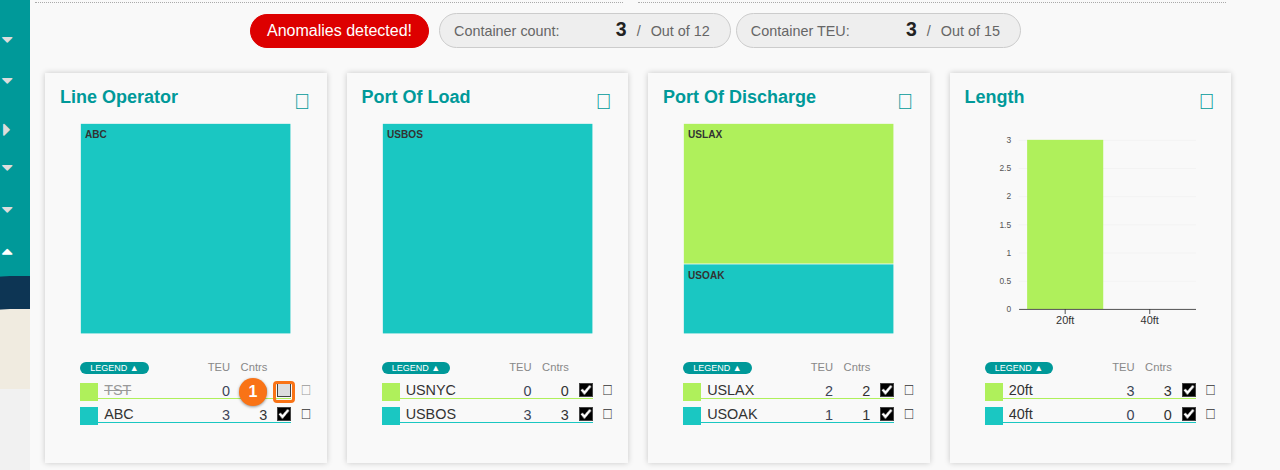
Section titled “Remove an item from the charts”- In a chart legend, click the check box of the item that you want to remove (1 in the picture below). For example, click the check box of TST in the Line Operator legend.
- The item is removed from this chart. The counts and all the other charts are updated too.
Change the chart type
Section titled “Change the chart type”- Click the small square icon at the top right of a chart.
- Choose Bar, Pie, Treemap or Legend Only.
Note: your chart type choices are saved to your user profile. They apply to all your other files.
Show or hide the legend
Section titled “Show or hide the legend”Click the turquoise LEGEND text under a chart.
Chart values
Section titled “Chart values”The charts are based on these values. Each chart shows both the TEU count and the container count.
- Line Operator
- Port of Load
- Port of Discharge
- Length
- Status (Full or Empty)
- Length and Status
- Is Live Reefer
- Is Hazardous
- Is OOG
- Primary IMDG Number
Share the Dashboard
Section titled “Share the Dashboard”You can download or print the Dashboard as a PDF and share it with your team.
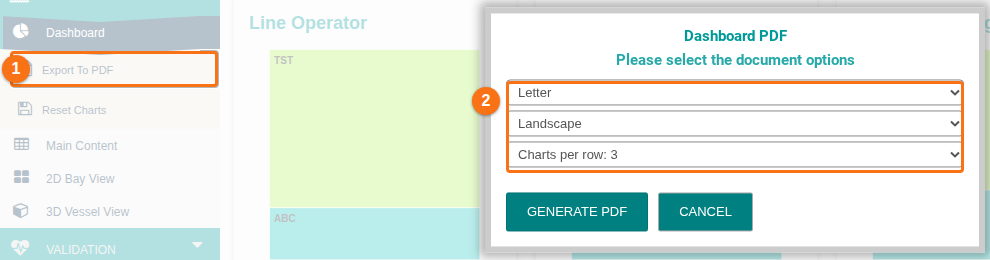
- In the Function Menu, click Export To PDF (1 in the picture). The Dashboard PDF window opens.
- Choose the paper size, the orientation and the number of charts per row (2 in the picture).
- Click GENERATE PDF. To stop, click CANCEL.