

How to view payments, send an invoice copy and add a customer reference
Use this guide to see the payments and invoices of your facility. You can get a PDF of each one, email an invoice to other people, and change the customer reference of an invoice. A customer reference is your own number or text for the invoice, for example the number of your purchase order.
Before you start: log in as a Facility Administrator, or as a user with the Billing permission. Other users cannot open Manage Facility.
- In the Function Menu on the left, click Manage Facility. In the side menu, click Membership.
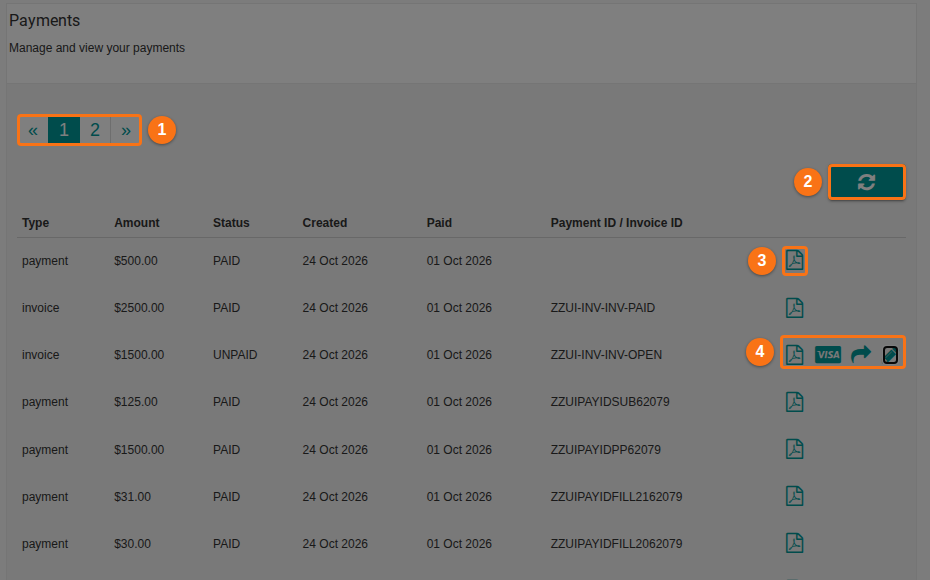
- Scroll down to the Payments section. The text under the title is Manage and view your payments. The table has one row for each payment and each invoice.
| Column | What it shows |
|---|---|
| Type | payment or invoice |
| Amount | The amount |
| Status | PAID or UNPAID |
| Created | The date the payment or invoice was made |
| Paid | The date it was paid |
| Payment ID / Invoice ID | The number of the payment or invoice |
- The table shows 20 rows on each page. Use the page numbers (1 in the picture) to go to the next page. Click the refresh button (2 in the picture) to load the list again.
- To get a PDF, click the PDF icon at the end of the row (3 in the picture). Point to the icon to see its name. It is Generate PDF Receipt for a payment and Generate PDF Invoice for an invoice.
- An invoice that is not paid yet has more icons (4 in the picture). From left to right they are:
- the PDF icon (Generate PDF Invoice),
- the card icon (Make Payment),
- the arrow icon (Email PDF Invoice),
- the pencil icon (Update Customer Refrence, with this spelling in the application).
Add or change the customer reference
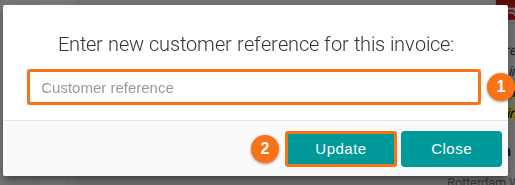
Section titled “Add or change the customer reference”- In the row of the invoice, click the pencil icon. A window opens with the text Enter new customer reference for this invoice:. If the invoice has a reference, the box shows it.
- Type your reference in the Customer reference box (1 in the picture).
- Click Update (2 in the picture).
- The message Customer reference updated shows (1 in the picture). Click Close.
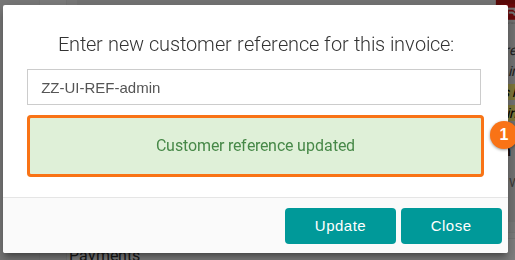
If the box is empty, the message Please enter a customer reference shows and nothing is saved. The reference is printed on the PDF invoice as Customer Ref.
Email a copy of an invoice
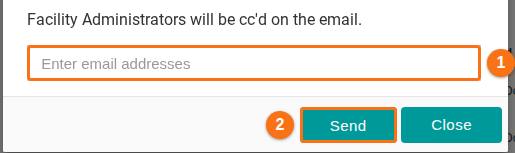
Section titled “Email a copy of an invoice”- In the row of the invoice, click the arrow icon. A window opens.
- Type one or more email addresses in the box (1 in the picture). Separate the addresses with commas. The Facility Administrators receive a copy of the email too.
- Click Send (2 in the picture).
- When all emails are sent, the message The invoice has been successfully sent to all recipients shows. Click Close.
Pay an open invoice
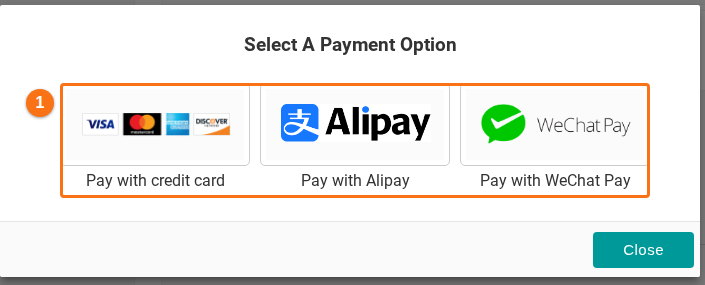
Section titled “Pay an open invoice”- In the row of the invoice, click the card icon (Make Payment). The Select A Payment Option window opens.
- Click one of the three choices (1 in the picture): Pay with credit card, Pay with Alipay or Pay with WeChat Pay.
- Follow the steps in the guide for the method you chose:
Good to know
Section titled “Good to know”- You can also type a reference when you order a membership. On the order summary page, use the reference box. It takes up to 60 characters. You can change it later with the pencil icon.
- When you start a new membership purchase and your facility has an open invoice, a message tells you that the open invoices will be cancelled if you continue. It lists the invoice numbers. Click Proceed to continue or Close to keep the open invoices.
- An organization with more than one facility sees the same table in Manage Multiple Facilities. The table there also has a Facility ID column. See How to manage organization billing.
- If a payment or an invoice is missing from the list, or the amount is not correct, contact Support. See How to contact Support and create a support ticket.