How to add users to a facility account
Use this guide to invite users to your facility and to manage them. Users are the members of your own team.
Before you start: you must be the main user or an administrator of the facility.
- Log in to baplieviewer.com. The home page opens with the Function Menu on the left.
- Click Manage Facility under your facility’s name.
- Click Team Members. The page has two sections: Invite new users at the top and Managing your team below it.
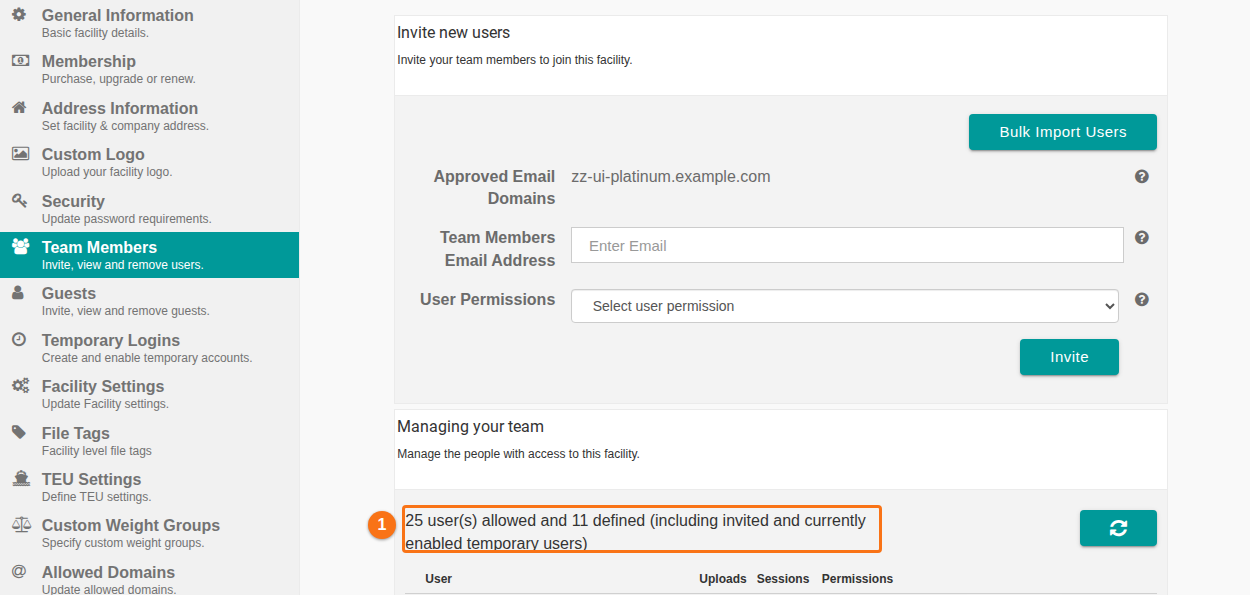
The line under Managing your team (1 in the picture) shows how many users your membership allows and how many are defined. The count includes invited users and temporary users that are enabled. Your membership type sets the limit. Click here for more information about membership tiers.
Invite one user
Section titled “Invite one user”- Look at Approved Email Domains in the Invite new users section. The new user’s email address must use one of these domains.
- Enter the email address in Team Members Email Address.
- Choose a permission in User Permissions. See the table below.
- Click Invite.
The email address is added to the list. The list shows who is invited and who accepted the invite and is now a team member.
| Permission | What the user can do |
|---|---|
| Administrator | Full access to the platform. |
| View & Edit | View and edit the BAPLIE files that are shared with them. |
| View Only | View only the BAPLIE files that your facility shared with them. |
| Billing | For a finance team member who does not need any BAPLIE files. This type does not count against your user count. The person can handle renewal information. |
The list can show more View Only choices. Check the text in the list.
Note: if the person already has an account with that email address, they are added to the facility at once. They do not get an email.
If the invite email does not arrive: wait a few minutes. Then check the spam folder. Sometimes the email quarantine keeps these emails. If you cannot find it, ask the user to create an account with the register link. The system adds the user to the facility after the account is activated.
Change permissions, remove or delete a user
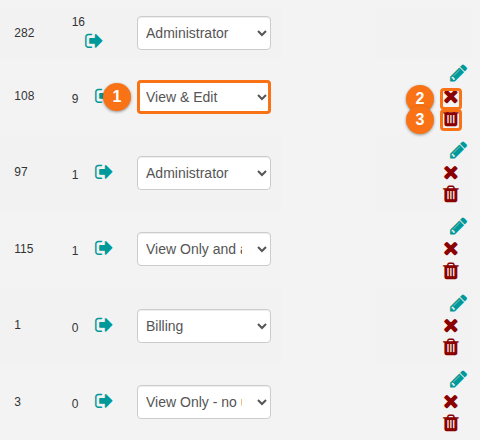
Section titled “Change permissions, remove or delete a user”Use the user list in Managing your team. Each row has these controls (numbers refer to the picture).
- Change the permission in the drop-down list (1 in the picture).
- To remove the user from your facility, click the red X (2 in the picture).
- To delete the user’s account, click the red trash icon (3 in the picture).
The red X and the trash icon show after a user was added.
Invite many users at once
Section titled “Invite many users at once”- Prepare a .csv file with one user on each line. Use this format:
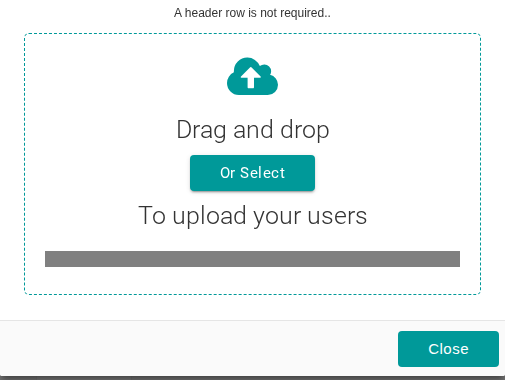
email, user permission. For the permission, usevieworedit. The app also acceptsview_no_upload. - A header row is not required. You must separate the values with a comma.
- Click Bulk Import Users in the Invite new users section. A window opens.
- Drag the file into the dashed area, or click Or Select and choose the file.
- Click Close when you are done.