

How to manage your profile settings
Use this guide to change the settings of your own account: your profile picture (avatar), the emails that you receive, and the backup of your files before you edit them. These settings belong to your user account, not to the facility.
Before you start: log in to BAPLIE Viewer Online.
Open your settings
Section titled “Open your settings”- In the Function Menu on the left, click Help. Then click Settings. The Settings page opens. The tabs are in a list on the left.
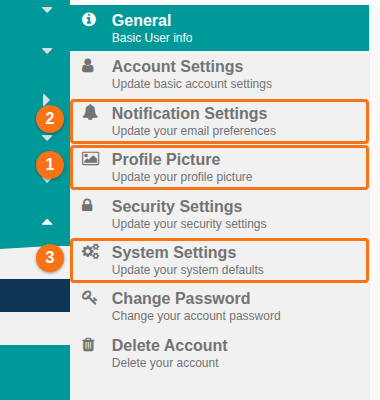
The list has these tabs:
| Tab | What it is for |
|---|---|
| General | Shows your ID Number, name, email address and the number of files that you uploaded. |
| Account Settings | Update your basic account settings. |
| Notification Settings | Choose which emails you receive. See below. |
| Profile Picture | Add or remove your picture. See below. |
| Security Settings | Turn multi-factor authentication on or off. See How to set up multi-factor authentication. |
| System Settings | Backup before editing and the .EDI file extension. See below. |
| Change Password | See How do I change my password? |
| Delete Account | See Can I delete my account? |
The language of the application has its own guide: How to use BAPLIE Viewer Online in other languages.
Add or remove your profile picture
Section titled “Add or remove your profile picture”- Open Help and Settings. Click the Profile Picture tab (1 in the picture).
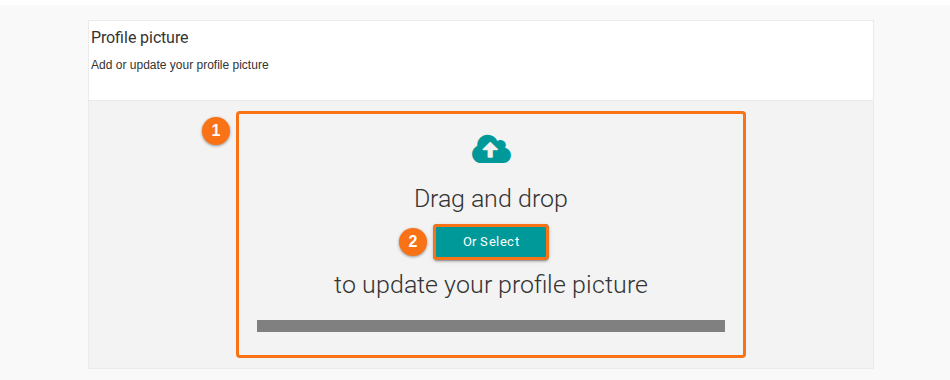
- Add a picture in one of two ways:
- Drag a picture file onto the dashed area (1 in the picture).
- Or click Or Select (2 in the picture) and choose a file on your computer.
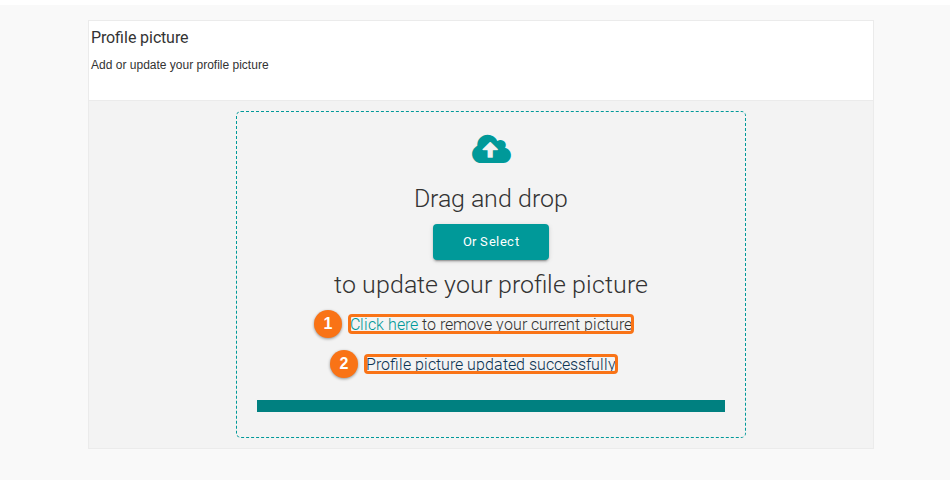
- The page says Profile picture updated successfully (2 in the picture). Your picture shows at the bottom left of the Function Menu, next to your name. Until you add a picture, it shows the first letters of your name.
- To remove your picture, click Click here (1 in the picture). The page says Picture removed.
The picture file must follow these rules:
- File type: jpg, jpeg, png, bmp or gif.
- Size: 5 MB or less. The message is Your file must be no larger than 5MB.
- Dimensions: 1200 px by 1200 px or less. The message is Your file cannot be larger than 1200px by 1200px.
- If the file type is not allowed, the message is File type not allowed. Upload one of the following: and the list of types.
Choose which emails you receive
Section titled “Choose which emails you receive”- Open Help and Settings. Click the Notification Settings tab (2 in the first picture).
- The tab has seven switches. Click a switch to change it between No and Yes (the picture shows the switches). The setting saves when you click the switch. You do not need to click a button.
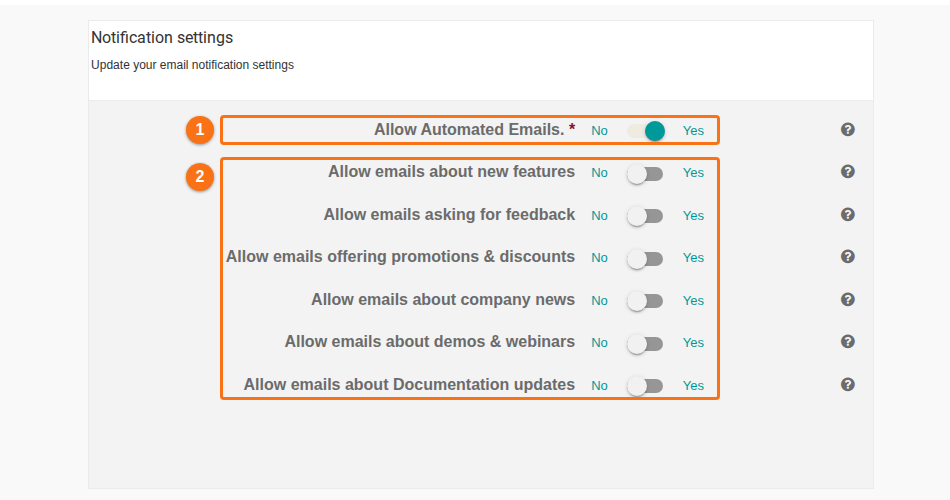
- Allow Automated Emails (1 in the picture) has a red star. It is required. The application needs it to keep your account. If you switch it off, a window Warning! opens. It says that without this option the application cannot keep your account and must delete it. Click Cancel (2 in the next picture) to go back. Click Delete (1 in the next picture) only if you want to delete your account.
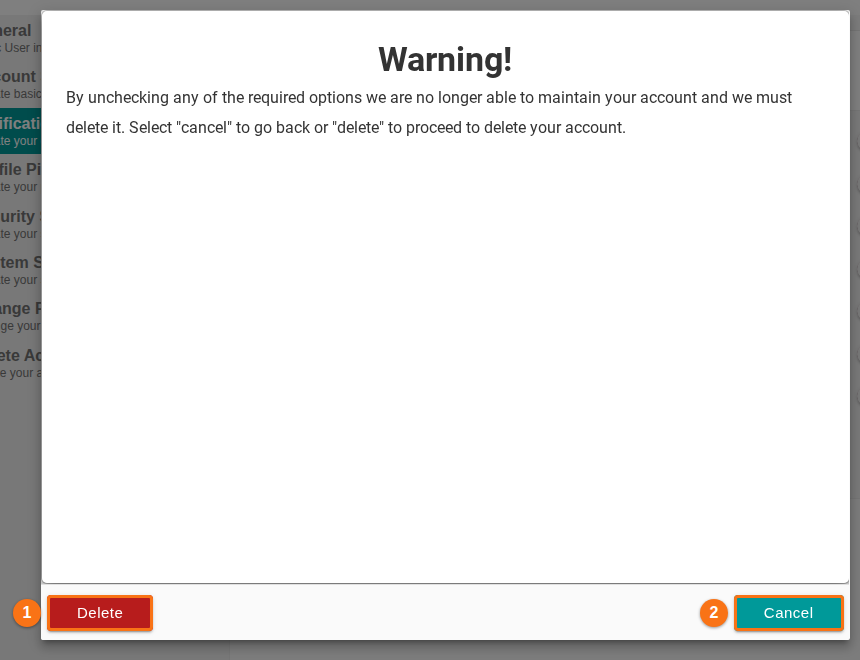
- The six other switches are optional (2 in the earlier picture). Each one allows one kind of email:
- Allow emails about new features
- Allow emails asking for feedback
- Allow emails offering promotions & discounts
- Allow emails about company news
- Allow emails about demos & webinars
- Allow emails about Documentation updates
Make a backup before you edit
Section titled “Make a backup before you edit”When this setting is on, the application keeps a copy of your file before the first change. The copy has the same name with _original at the end. You can open it like any other file. Use it to go back to the file as it was before you edited it.
- Open Help and Settings. Click the System Settings tab (3 in the first picture).
- Find Backup files before editing data (1 in the picture). Click the switch so that it shows Yes.
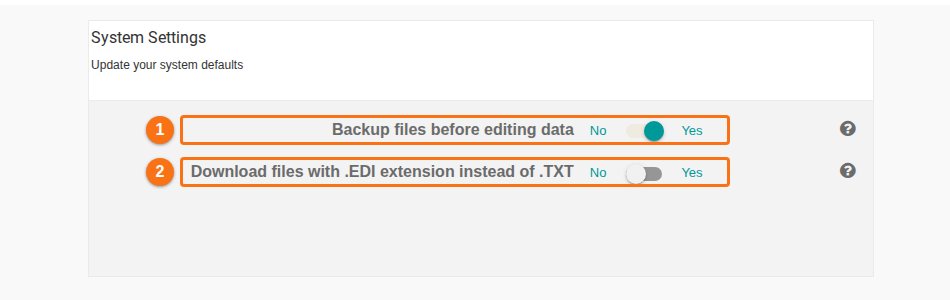
- The setting saves when you click the switch. The message Settings updated confirms it.
To stop making backups, click the switch again so that it shows No.
The second switch in the picture, Download files with .EDI extension instead of .TXT (2 in the picture), has its own guide: How to download files with .EDI extension instead of .TXT.
Good to know
Section titled “Good to know”- The application makes the _original copy only when you make a change and no copy exists yet. Later changes do not replace it. The copy keeps the file as it was before your first change.
- The backup is made when you add, edit or delete records in Main Content, when you use Weight To VGM or POL To Original POL, and when you change containers in 2D Bay View.
- The copy is a file in your file list. See How to use the Home page.
- The grey label ORIGINAL on the Home page is not this backup. It shows the message function that is stored in the file.
- If a tab or a switch is missing or does not work, contact Support.