How to Collaborate on BAPLIE Files
Use this guide to see the ways to share BAPLIE files with your team and with people outside your team. BAPLIE Viewer Online is made for a shipping industry that shares data with all stakeholders in the supply chain.
As a free member, you can test how this works. We offer a free 30 day trial. You do not need a credit card.
- Upload a file to your BAPLIE Viewer Online account at baplieviewer.com. Drag the file into the dashed area, or click Or Select.
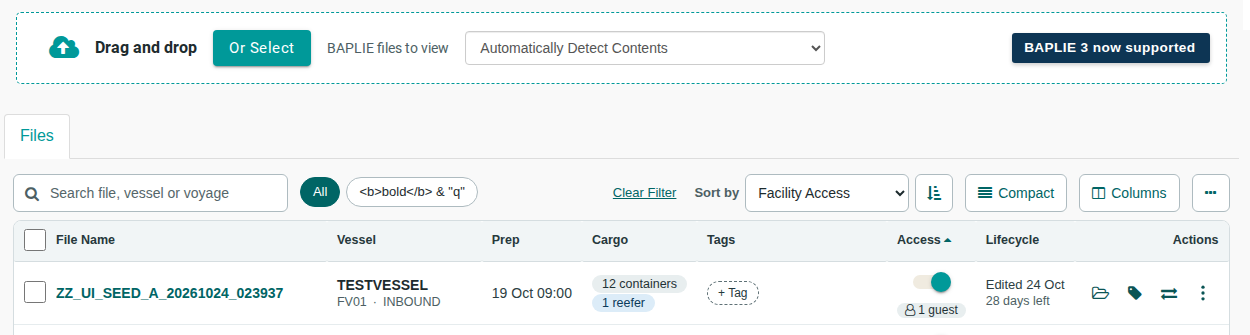
- Wait until the system has validated the file. By default, the system then shares the file with all members of your facility. You can change this in the facility settings. In the Access column of the file list, you can also switch one file to private. You can do this for files that you uploaded. The switch is highlighted in the first picture.

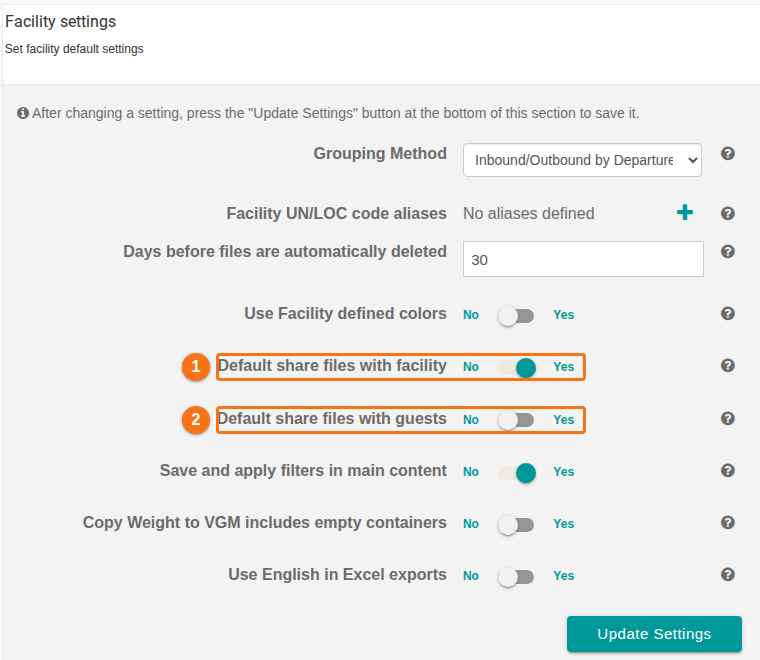
- For the default sharing, open Manage Facility and click Facility Settings. Use Default share files with facility (1 in the picture) and Default share files with guests (2 in the picture).
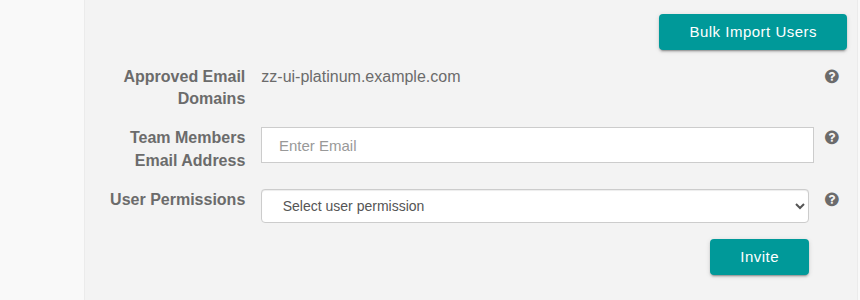
- Invite other members of your team. Give each person a permission, for example View Only or View & Edit. If you have temporary users, for example union labor, you can also invite them to view files.
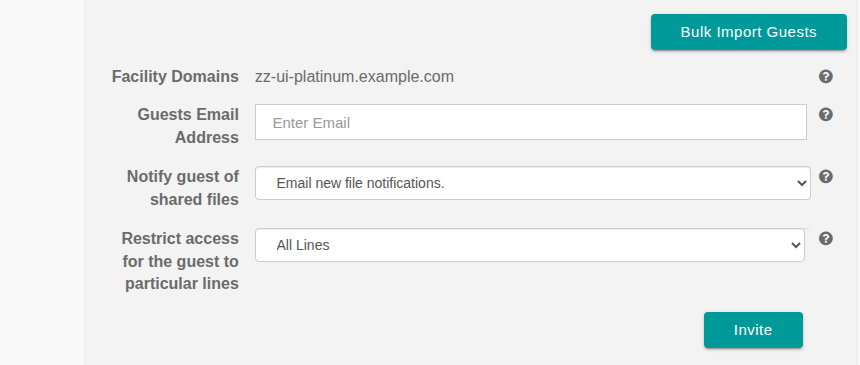
- Invite people outside your team. These people are called guests. Examples are ship lines, stevedores, customs personnel or shipping agents. After that, you can share individual files with a guest. You can also share files automatically with all guests. You can also restrict access so that a guest sees only some shipping lines or carriers.