

How to manage general facility information
Use this guide to see the general information about your facility. The information applies to all users of the facility.
Before you start: you must be the main user or an administrator of the facility.
- Log in to baplieviewer.com. The home page opens with the Function Menu on the left.
- Click Manage Facility under your facility’s name.
- Click General Information. The page General information about this facility opens.
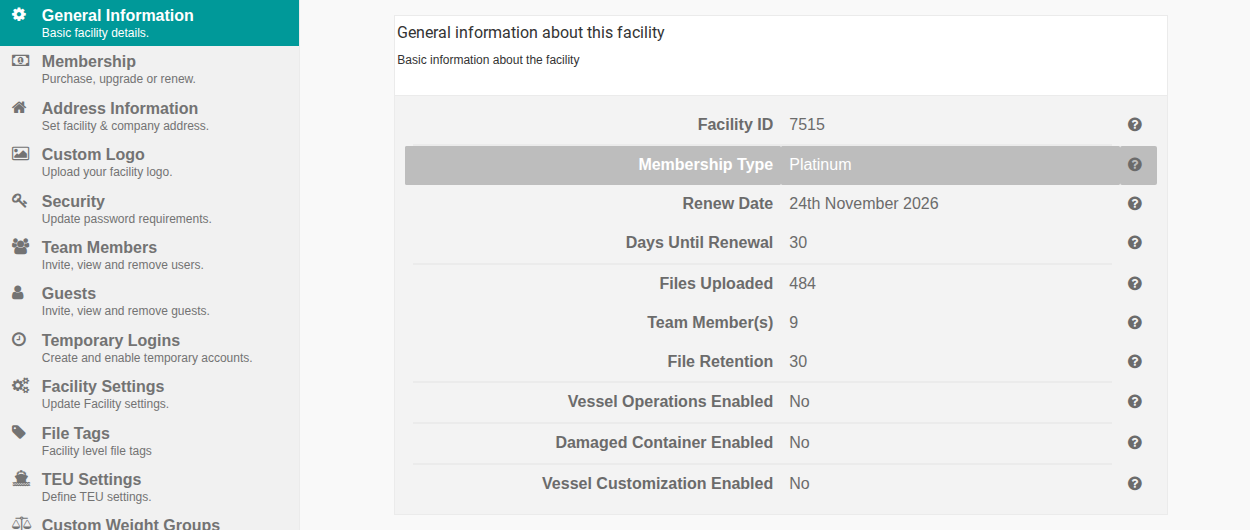
Fields on the page
Section titled “Fields on the page”| Field | What it shows |
|---|---|
| Facility ID | A unique number given to your facility when the account was created. You cannot edit it. It is used only for internal purposes. |
| Membership Type | The current membership type of your facility. All user accounts can see it. |
| Renew Date | The date your current membership ends. After you renew, the date changes by the duration you chose at checkout. It changes for all user accounts. |
| Days Until Renewal | The number of days until the renew date. The system calculates it from the renew date. |
| Files Uploaded | The total number of files that the whole facility has uploaded since your membership began. |
| Team Member(s) | The number of users in your facility, including you. |
| File Retention | The number of days before a file is deleted. The default for new accounts is 7 days without activity. If someone edits a file, the count starts again. |
| Vessel Operations Enabled | Shows Yes if your membership includes Vessel Operations. |
| Damaged Container Enabled | Enabled for certain enterprise customers. |
| Vessel Customization Enabled | Enabled for certain enterprise customers. |
Change these values
Section titled “Change these values”- To change the membership type, use the Membership tab. See the membership tiers.
- To change how long files stay, use the Facility Settings tab.