

How to use the Correct Positions Feature
Use this guide to correct container positions in 2D Bay View. You can correct containers that have an invalid position (a data anomaly), and you can move other containers too.
If you upload a BAPLIE to baplieviewer.com with containers in invalid positions, the tool tells you that these are Data Anomalies. For more information about anomalies and how to open the list, please check out this documentation article.
A position is invalid in one of these cases:
- Bad Position: the vessel position is not exactly 7 numeric digits.
- Unknown Bay: the vessel position is 0999999 or 9999999.
- Missing Position: the vessel position is blank.
- Bad Row position: the vessel row position is greater than 29.
You can correct these positions in three places:
- In main content: Edit records.
- In the anomalies list.
- In 2D Bay View, if your membership includes the Operations Functionality.
Before you start: open your file in 2D Bay View. Move mode needs the Vessel Operations add-on for your facility and Admin or Edit permission. Gold members cannot use Move. View-only users cannot use Move.
Steps to correct invalid positions
Section titled “Steps to correct invalid positions”- Open 2D Bay View. In the Mode list, choose Move.
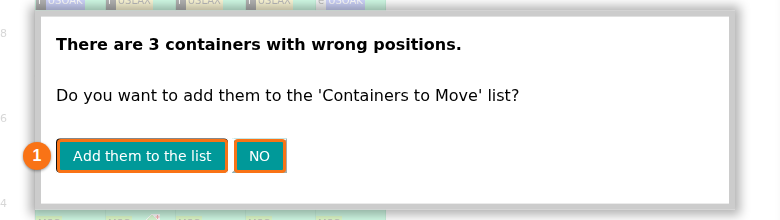
- A window says “There are 3 containers with wrong positions.” (the number is the number of invalid containers in your file). It asks “Do you want to add them to the ‘Containers to Move’ list?”. Click Add them to the list (1 in the picture) to correct them. Click NO (boxed in the picture) to ignore them.
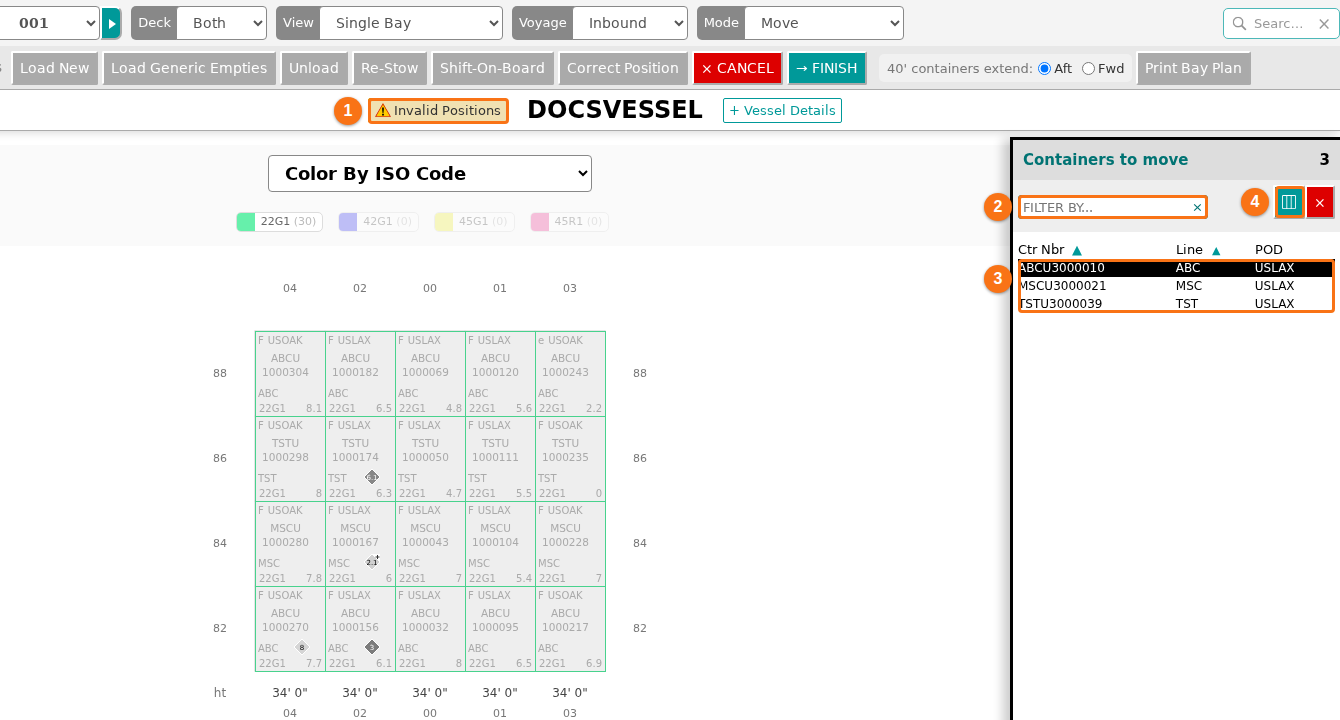
- Look at the list on the right side of the screen. It shows all the containers to correct (3 in the picture). To find one container, type its ID in the FILTER BY… box (2 in the picture). The Invalid Positions warning (1 in the picture) shows next to the vessel name while there are containers to correct.
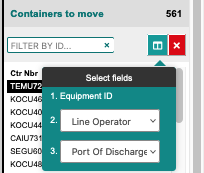
- To change the fields that the list shows, click the turquoise icon above the list (4 in the picture). A small window opens where you choose the fields.
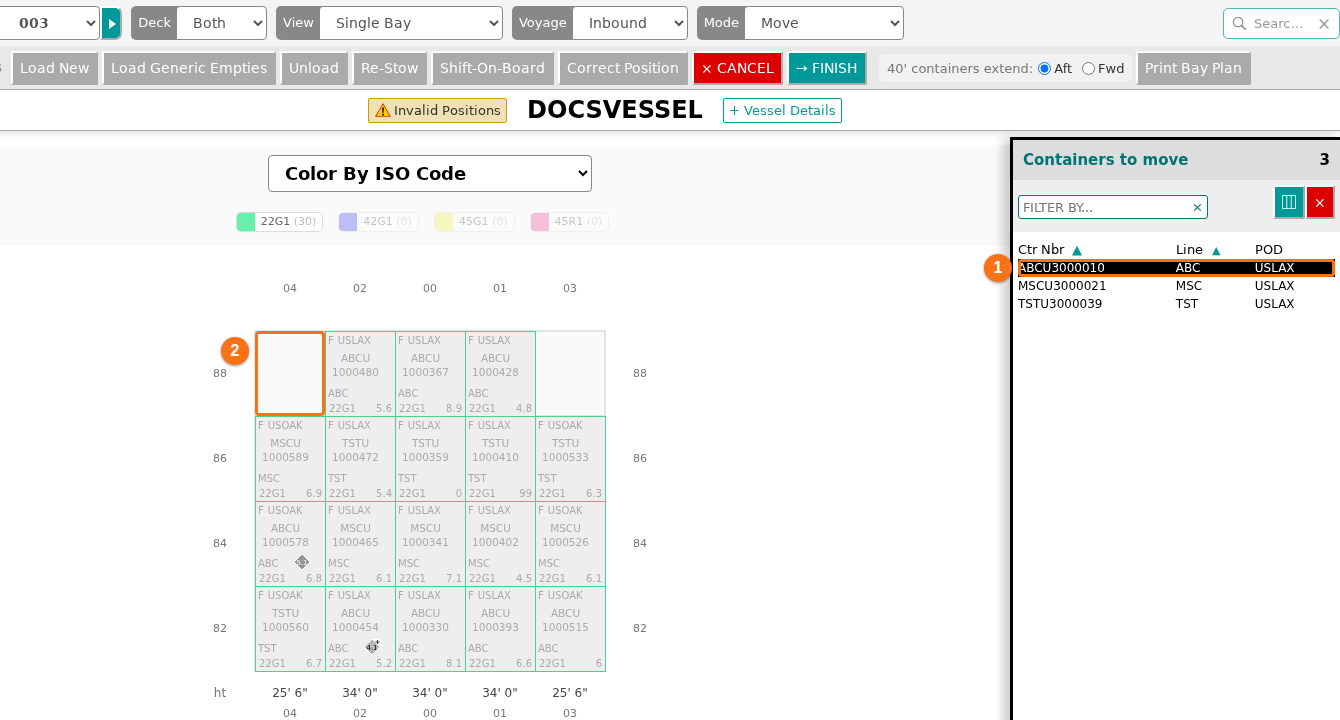
- Click a container in the list (1 in the picture). Then click an empty slot in a bay (2 in the picture) to put the container there. You can add a container to any bay. Use the top menu to go to other bays or to choose another view mode. A hint at the bottom of the screen reminds you of these two clicks.
- The added container uses the colour of the attribute that you chose in Color By. In the picture the attribute is ISO Code. Containers that were already in the bay turn grey.
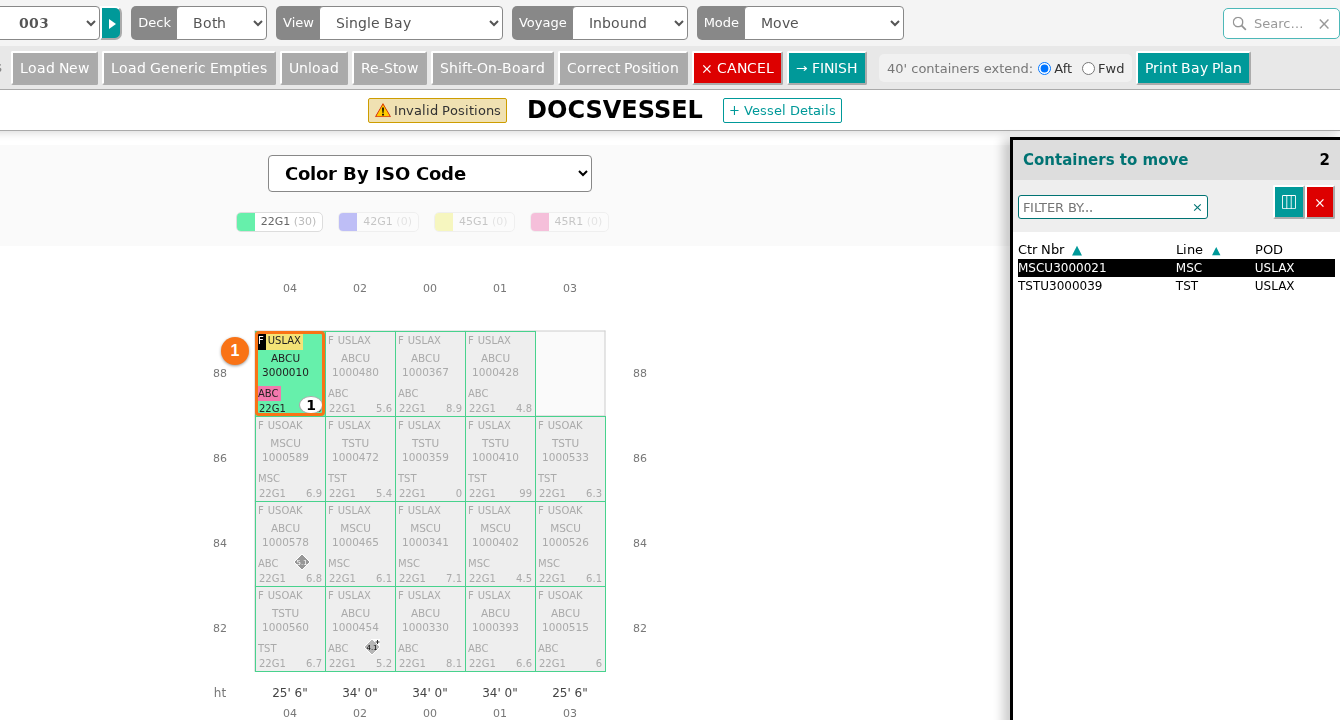
- Add the containers you want to correct. You do not have to finish all of them. When you are ready, click the turquoise FINISH button in the top menu (boxed in the picture).
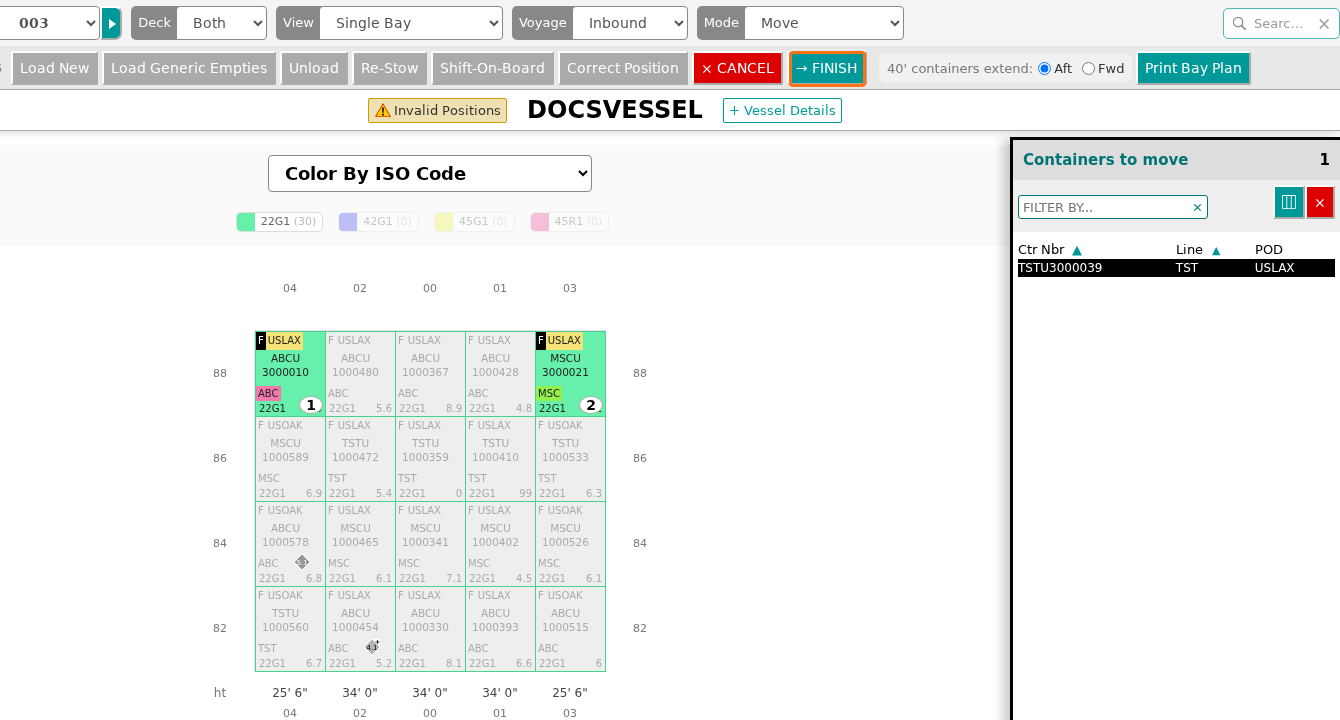
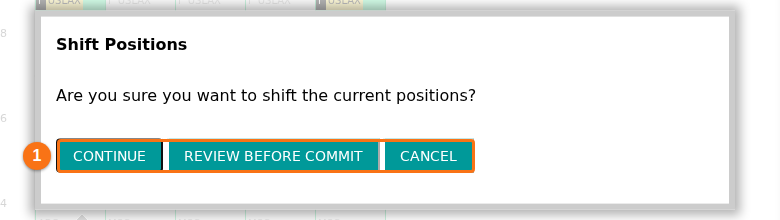
- A window asks you to confirm the positions. Its title is Shift Positions. Choose one button (1 in the picture):
- CANCEL – discard all changes.
- REVIEW BEFORE COMMIT – check the changes one more time.
- CONTINUE – save the changes you made.
- After you click CONTINUE, Move mode shows its usual buttons again. The Invalid Positions warning is gone from the top of the screen. The corrected containers show in their new slots. When you open Move mode again, the window about wrong positions does not show.

Steps to correct other containers
Section titled “Steps to correct other containers”You can also correct containers that are not on the invalid containers list.
- Open 2D Bay View. In the Mode list, choose Move.
- If you do not want to correct the invalid containers now, click NO.
- Choose the containers to correct. Use one of these ways:
- One container: click the container. It is added to the list on the right.
- Many containers: hold down the mouse button and drag over the containers. You are asked to choose the sequence flow. Click Add to see the containers in the list on the right.
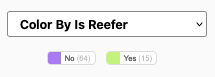
- By attribute: change the Color By attribute to Is Reefer, then click Yes in the legend. All reefer containers are added to the list on the right.
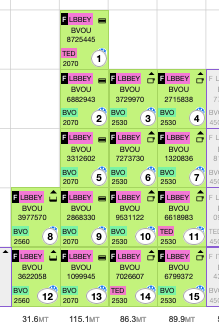
- Put the containers in new positions and click FINISH, as in steps 5 to 8 above.