

How to add guests to a facility account
Use this guide to add guests to your facility and to manage them. A guest is a person outside your team, for example at a ship line or a vessel planning company. Guests can see the BAPLIE files that you share with them. You do not need to download a BAPLIE and send it by email. Guests can view shared BAPLIE files with real-time updates.
Before you start: you must be the main user or an administrator of the facility.
- Log in to baplieviewer.com. The home page opens with the Function Menu on the left.
- Click Manage Facility under your facility’s name.
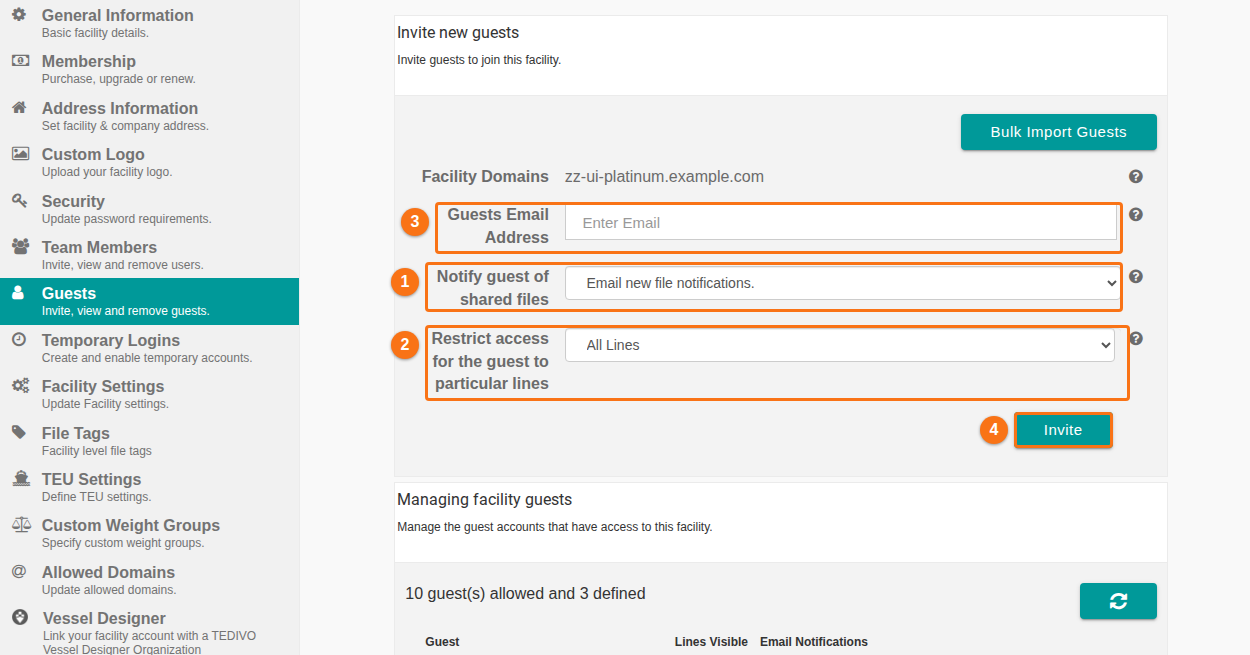
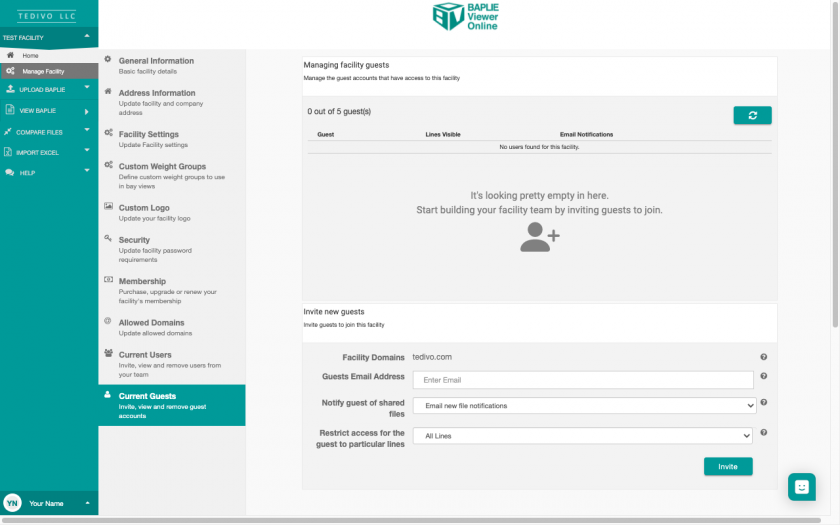
- Click Guests. The page has an invite form at the top and the list Managing facility guests below it.
- Fill in the invite form (see the numbers in the picture):
- Guests Email Address (3 in the picture): enter the guest’s email address. It cannot be one of your allowed domains. The line Facility Domains above the field shows your domains.
- Notify guest of shared files (1 in the picture): choose if the guest gets an automatic email each time you share a file. The choices are Email new file notifications. and Do not email new file notifications.
- Restrict access for the guest to particular lines (2 in the picture): choose All Lines or Restricted Lines Only. See the next section.
- Click Invite (4 in the picture). The email address is added to the list of guests.
The list shows who is invited and who accepted the invite and is now a guest of your facility.
Restrict a guest to some lines
Section titled “Restrict a guest to some lines”Use this to let a guest see the BAPLIE data of only some shipping lines.
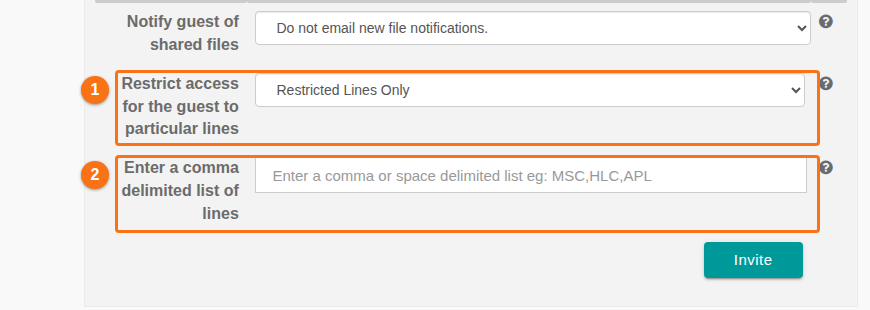
- In Restrict access for the guest to particular lines (1 in the picture), choose Restricted Lines Only. A new field opens (2 in the picture).
- In the new field, enter the lines. Separate them with commas or spaces, for example
MSC,HLC,APL. - Click Invite.
Manage your guests
Section titled “Manage your guests”- The line above the list shows how many guests your membership allows and how many are defined. Your membership type sets the limit. Click here for more information about membership tiers.
- To remove a guest from your facility, click the red X in the guest’s row.
Good to know
Section titled “Good to know”- All guests have View Only permission. They see only the BAPLIE files that your facility shared with them.
- Guests cannot upload their own files, edit shared files or import files from Excel. They can view the BAPLIE data and download it.
- The Bulk Import Guests button is above the invite form. It is for adding many guests at once.